> For the complete documentation index, see [llms.txt](https://docs.cogram.com/llms.txt). Markdown versions of documentation pages are available by appending `.md` to page URLs; this page is available as [Markdown](https://docs.cogram.com/projects/project-management-permissions.md).
# Project management permissions
Control project creation, archiving, and deletion permissions, and manage organization-wide project discoverability defaults.
By default, any user who owns a project can create new projects, archive their projects, and delete them. The **Project Management Permissions** setting lets you restrict those actions to organization Admins and Owners only.
## Enabling the restriction
1. Go to [Organization Settings > Projects > Project Permissions](https://app.cogram.com/dashboard/settings/admin/projects/project-permissions).
2. Toggle **Restrict project management to admins and owners** to on.
Once enabled, the following actions are restricted to org Admins and Owners:
| Action | Admins & Owners | Members (project owners) |
| ------------------- | :-------------: | :----------------------: |
| Create new projects | ✓ | |
| Archive a project | ✓ | |
| Delete a project | ✓ | |
Members who own projects will no longer see the **New Project** button, the archive toggle in project settings, or the delete option in the project list.
> **Note:** Org Admins and Owners always retain full project management access regardless of this setting.
## When to use this
Use this to keep project creation and removal in the hands of designated administrators.
***
## Project Discoverability
Any organization member can browse discoverable projects in the **Organization Projects** tab on the [Projects page](https://app.cogram.com/dashboard/projects/) and request access. Org admins and owners can configure the default discoverability behavior for all projects.
### Configuring the org default
1. Go to [Organization Settings > Projects > Project Permissions](https://app.cogram.com/dashboard/settings/admin/projects/project-permissions).
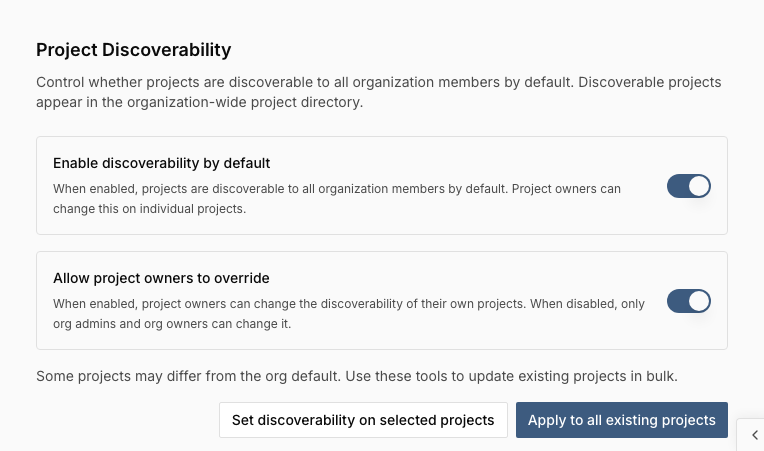
2. Under **Project Discoverability**, use the following toggles:
The org-wide Project Discoverability defaults
| Setting | Effect |
| ------------------------------------- | ------------------------------------------------------------------------------------------------------------------------------------------------------------ |
| **Enable discoverability by default** | When on, new projects are discoverable to all organization members by default. When off, new projects are hidden from the organization directory by default. |
| **Allow project owners to override** | When on, project owners can change the discoverability of their own projects in Project Settings. When off, only org admins and owners can change it. |
### Applying the default to existing projects
Below the toggles, click **Apply to all existing projects** to set every project (excluding archived projects) to the current org default. A confirmation dialog will appear because this action cannot be undone.
> **Note:** If "Allow project owners to override" is turned off and you apply to all, project owners will not be able to change the setting back on their own projects afterward.
### Setting discoverability on selected projects
When you want to update only a subset of projects (for example, to make a few specific projects discoverable without changing the rest) use **Set discoverability on selected projects** next to "Apply to all".
1. Go to [Organization Settings > Projects > Project Permissions](https://app.cogram.com/dashboard/settings/admin/projects/project-permissions).
2. Under **Project Discoverability**, click **Set discoverability on selected projects**.
3. In the dialog:
* Choose **Discoverable** or **Hidden** as the target value.
* Search by project name and tick the projects you want to update.
* Use **Select all on page** to quickly tick every visible project, or **Deselect all on page** to clear them.
4. Click **Apply to N projects** to save.
Personal projects and archived projects are not eligible and won't appear in the picker. The dialog lists up to 500 projects at a time; refine the search to find more.
### Per-project discoverability
Individual projects can be toggled between discoverable and hidden in **Project Settings > Project discoverability**, as long as the organization allows overrides. If the override is locked by the org admin, a warning is shown explaining that discoverability is controlled by the organization. See [Projects: Project discoverability](/projects/projects.md#project-discoverability) for more details on what discoverable and hidden mean for project members.
---
# Agent Instructions
This documentation is published with GitBook. GitBook is the documentation platform designed so that both humans and AI agents can read, navigate, and reason over technical content effectively. Learn more at gitbook.com.
## Querying This Documentation
If you need additional information that is not directly available in this page, you can query the documentation by asking a question.
Perform an HTTP GET request on the following URL with the `ask` and `goal` query parameters:
```
GET https://docs.cogram.com/projects/project-management-permissions.md?ask=&goal=
```
`ask` is the immediate question: it should be specific, self-contained, and written in natural language.
`goal` is what the user is ultimately trying to achieve, the reason they need the answer. Sharing it helps GitBook give you a better, more relevant answer. A goal is most helpful when it describes the outcome the user wants rather than restating the question. For example, with `ask=how do I create an API token`, a goal like `automate deployments from our CI pipeline` lets GitBook tailor the answer to that use case.
The response will contain a direct answer to the question and relevant excerpts and sources from the documentation.
Use this mechanism when the answer is not explicitly present in the current page, you need clarification or additional context, or you want to retrieve related documentation sections.