Cogram for Microsoft Teams
Chat with Cogram in Microsoft Teams: mention @Cogram in any chat to ask about your projects. Includes the one-time admin setup.
Bring Cogram into Microsoft Teams. Once installed, mention @Cogram in any chat to ask questions about your projects in plain language (meetings, action items, emails, and documents) and get answers based on your project data.
Just want to chat with Cogram? The setup steps further down are a one-time job for your IT admin. If Cogram already appears in your Teams, jump straight to Talking to @Cogram. That's all you need.
What the Teams app does
Cogram is an AI platform for the architecture, engineering, and construction (AEC) industry. It organizes your projects' meetings, emails, documents, and field reports, and automates project admin.
The Teams app puts that same Q&A inside Microsoft Teams. Mention @Cogram in any chat and it answers in a reply thread, using your own Cogram project data, so you can stay in Teams instead of switching to the web app.
Cogram answers using the signed-in user's own Cogram project data. Each person only sees the projects they already have access to in Cogram.
Talking to @Cogram
Go to Microsoft Teams.
Open the Cogram chat, or any chat where the app is installed.
Type @ and pick Cogram from the list, then type your question and send. Cogram replies in a thread on your message.
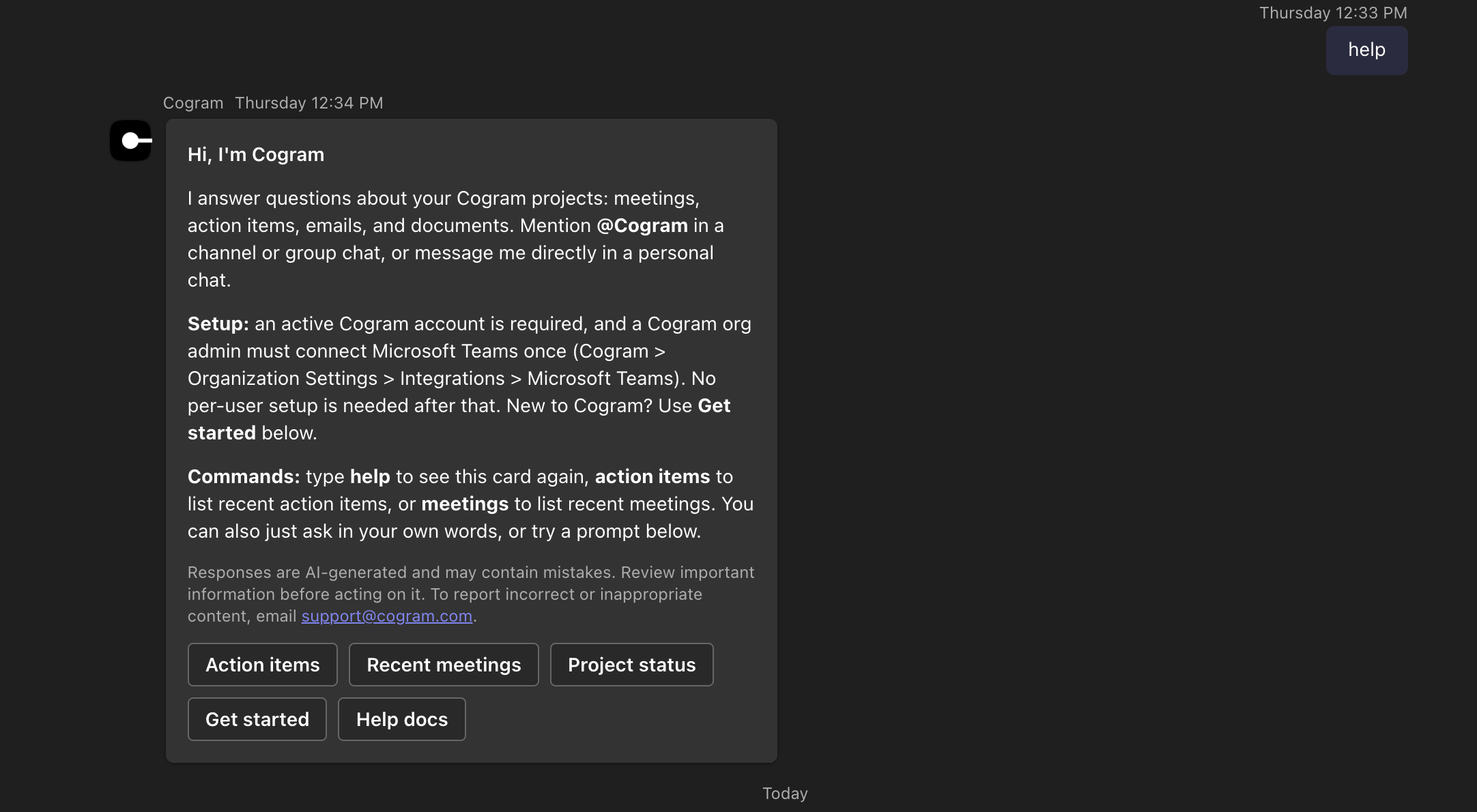
The first time you open Cogram (or any time you type help) it shows a welcome card with what it can do, example prompts, and the AI-generated-content notice:

Example questions:
"What are my available projects?"
"Provide an overview of all my projects as a table: name, owner, when it was last updated, and how many action items there are."
"When did we agree on the price with John Smith?"
You can also message Cogram directly in a 1:1 chat, or mention it in a channel where it is installed.
Installation
Getting Cogram into Teams is a two-part, one-time job: an admin makes the app available to your organization, then each person adds it in their own Teams.
Setting up Cogram for your organization
For admins. These are one-time steps done by an admin. Regular users can skip them and go to Talking to @Cogram.
Two one-time admin steps before anyone can use Cogram in Teams: connect Microsoft Teams in Cogram, then make the Cogram app available in the Teams admin center.
1. Connect Microsoft Teams in Cogram
Who: a Cogram organization admin.
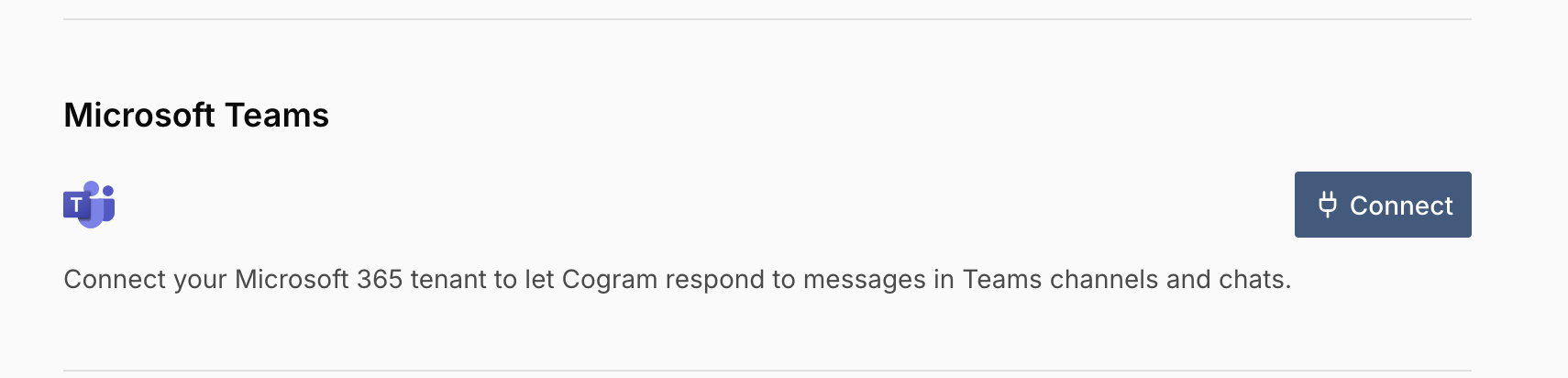
In Cogram, go to Organization Settings → Integrations → Microsoft Teams and click Connect. Sign in with a Microsoft 365 admin account and grant the requested permissions. This links your Microsoft 365 tenant (your organization's Microsoft account) to your Cogram organization so Cogram can respond to messages in Teams. You only do this once per organization: no per-user setup is needed afterward.

2. Find the Cogram app in the Teams admin center
Who: a Microsoft Teams administrator.
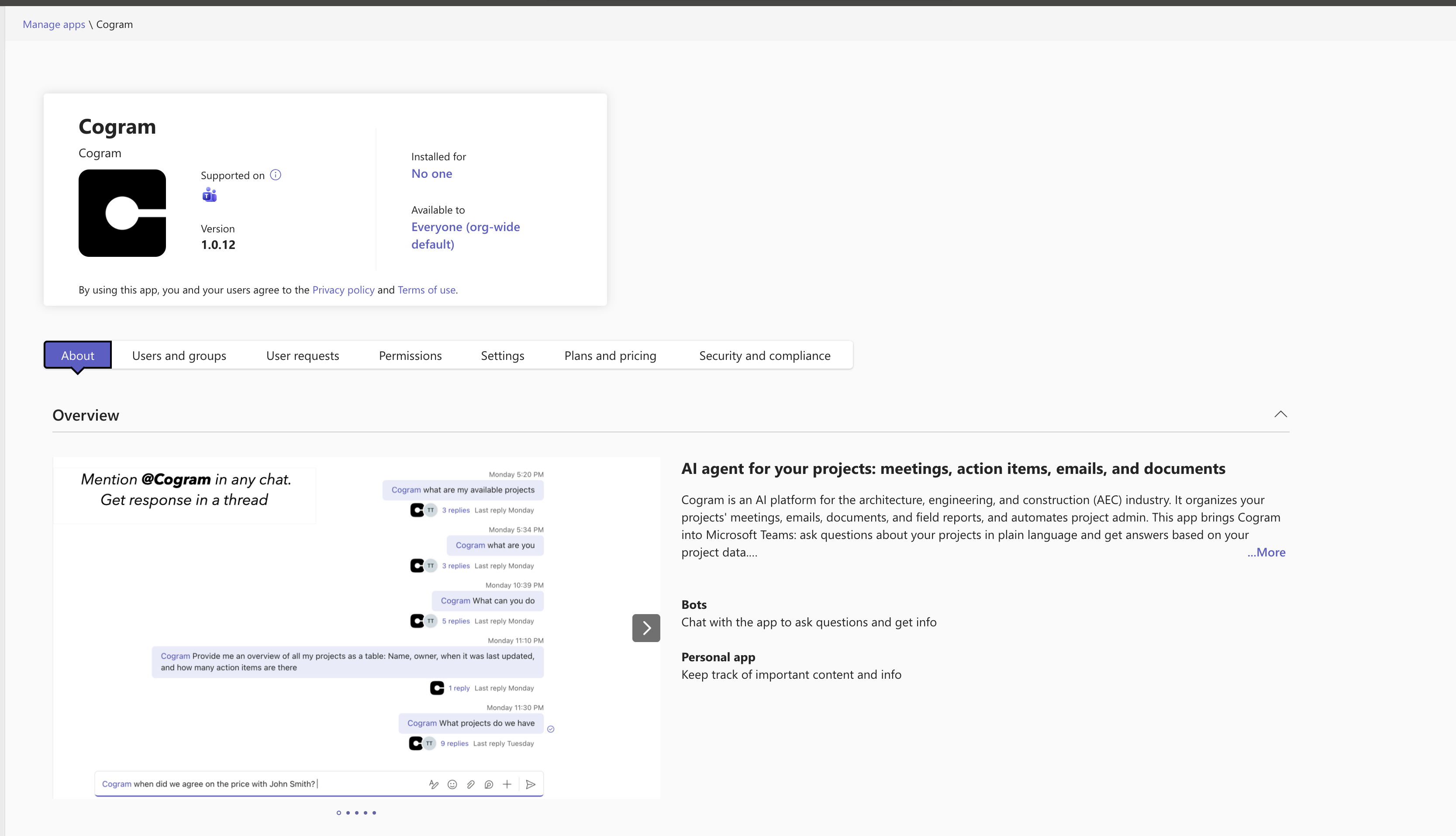
Go to the Cogram app in the Teams admin center, or search for Cogram in Teams admin center → Manage apps and open it. The app page shows the version, who it's installed for, and who it's available to.

3. Install the app
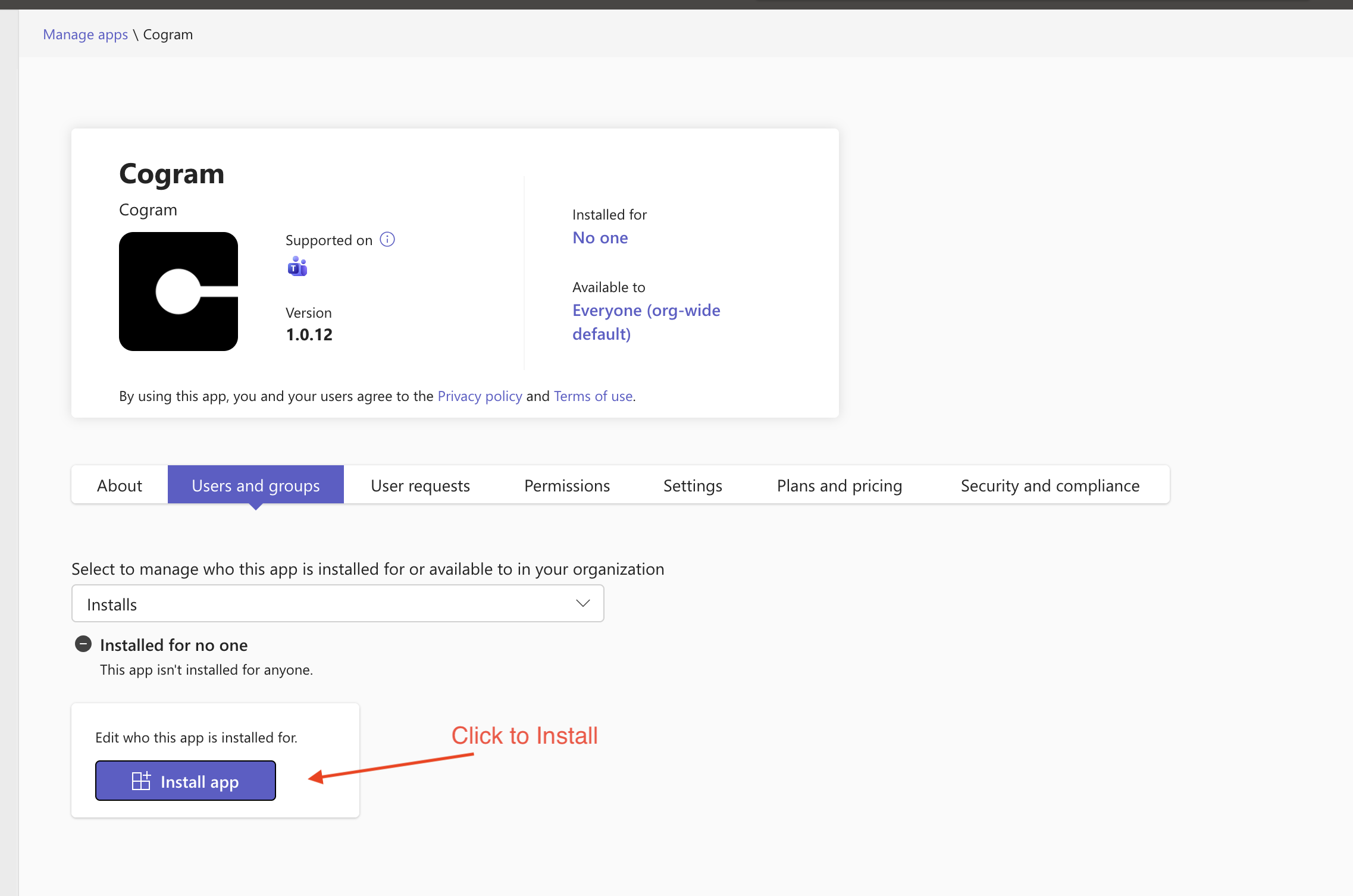
Open the Users and groups tab and click Install app.

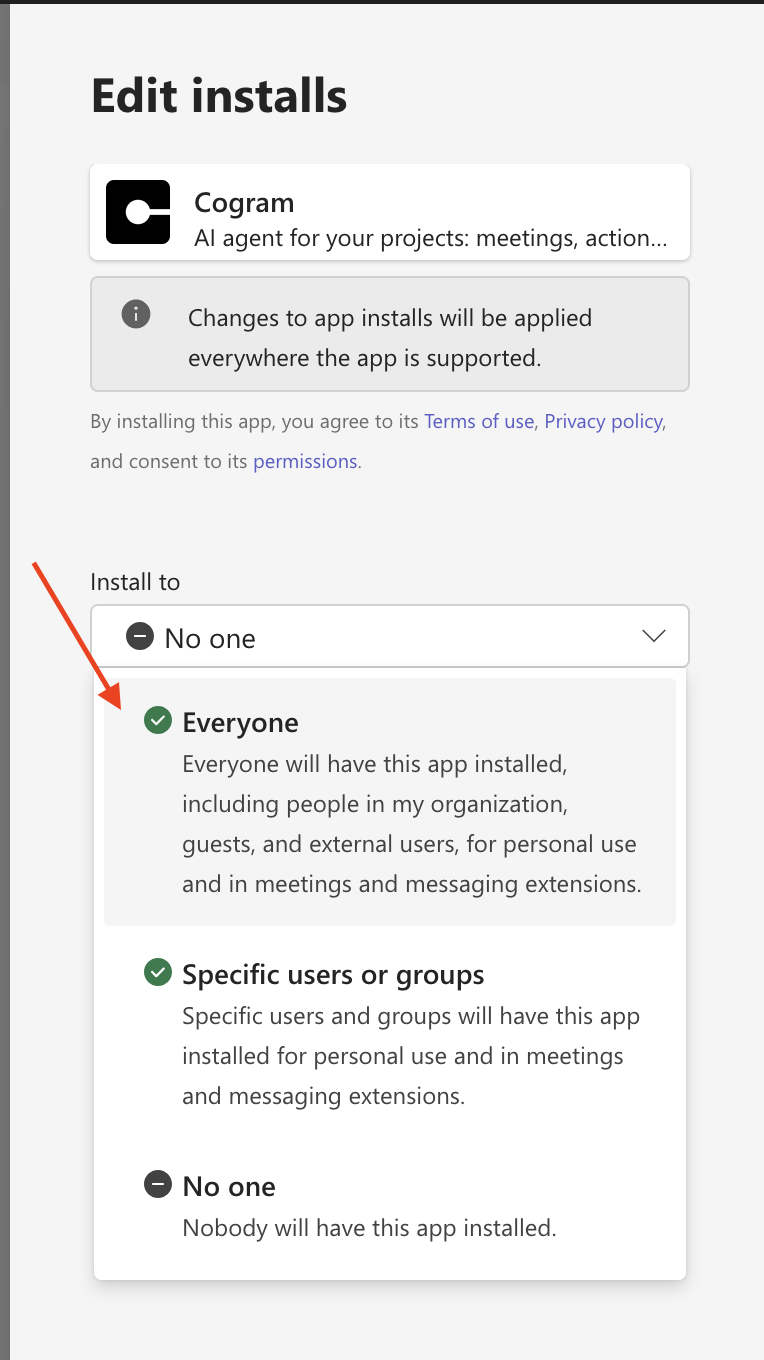
Under Install to, choose who gets Cogram:
Everyone: everyone in your Microsoft organization, including guests and external users.
Specific users or groups: search for and select individual users or groups.

Click Apply.
Add Cogram in Teams
Once your administrator has made Cogram available (see Setting up Cogram for your organization above), each person adds it in Teams:
Go to Microsoft Teams.
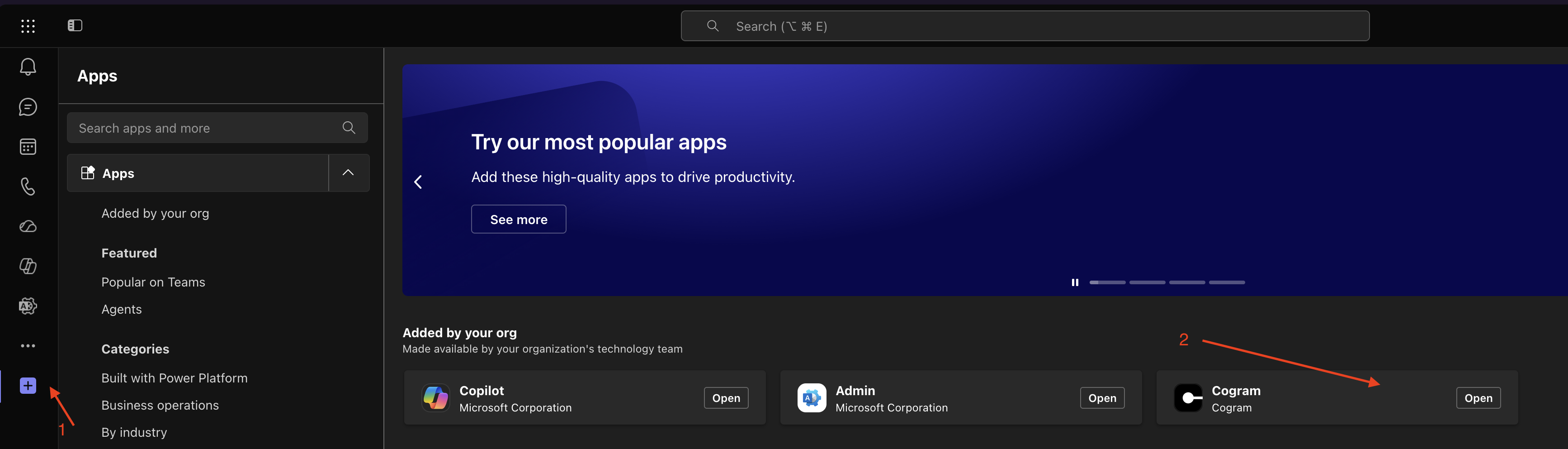
Open Apps (the + button in the left sidebar), find Cogram under Added by your org, and click Add (or Open if it's already there for you).

Troubleshooting
Cogram doesn't appear in Teams: Your administrator hasn't made the app available to you yet, or installed it only for specific users. Ask your Teams administrator to install Cogram for your account (see Setting up Cogram for your organization).
Cogram doesn't respond at all: Your Cogram organization may not be connected to Microsoft Teams yet. A Cogram org admin needs to connect it at Organization Settings → Integrations → Microsoft Teams.
Cogram replies that it can't find your account: The Teams app only answers people who have a Cogram account in an organization that uses Cogram. Ask your Cogram organization admin to invite you by your email.
No response when you mention @Cogram: Make sure you selected @Cogram from the mention suggestions, and that the app has been added in Teams.
Next steps
Last updated
Was this helpful?