> For the complete documentation index, see [llms.txt](https://docs.cogram.com/llms.txt). Markdown versions of documentation pages are available by appending `.md` to page URLs; this page is available as [Markdown](https://docs.cogram.com/documents/document-transmittals.md).

# Transmittals

Issue documents and drawings with a formal, numbered record of exactly what was sent, to whom, for what purpose, and when.

A transmittal is the formal act of issuing documents: a numbered package recording exactly which files (down to the revision and version) left the project, who received them, for what purpose, and when. It is the difference between "I emailed you the plan" and a record you can stand on.

Each transmittal gets the next number in the project's sequence, for example `TRA-008`.

## Creating a transmittal

Start from wherever the documents are:

* **From the register**: select documents (and drawings), then click **Send in Transmittal**.
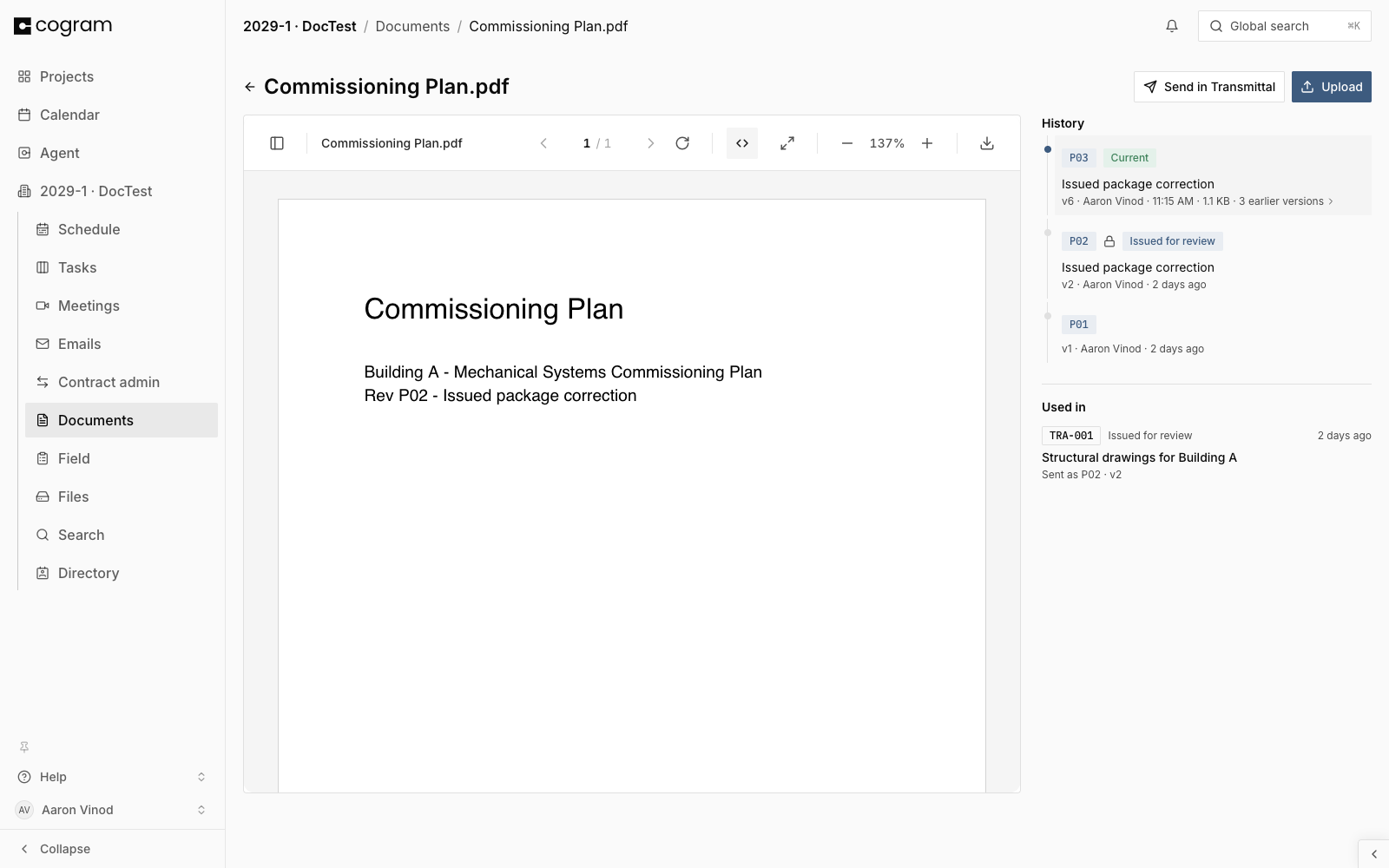
* **From a document's page**: click **Send in Transmittal** to issue that document.
* **From the** [**Transmittals tab**](https://app.cogram.com/dashboard/email-inbox/transfers): click **Send files** and add documents in the composer.

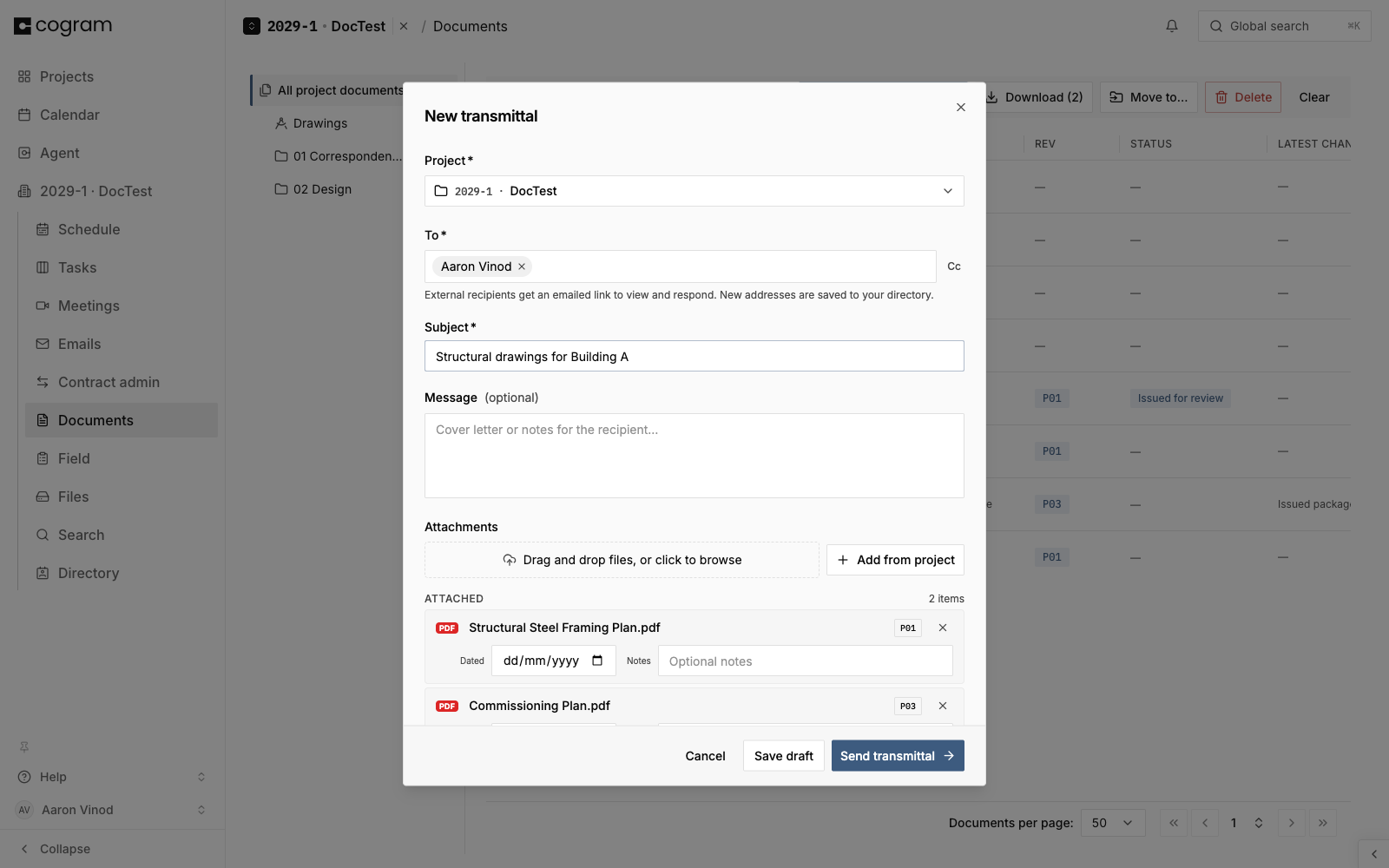
In the composer, add recipients, a subject (for example *Structural drawings for Building A*), the **Purpose**, an optional due date, and a cover letter or notes for the recipient.

You can also drop files from your computer straight into the composer. Each file can be up to **5 GB**, so a full model or a large scan set can go out in a transmittal. The composer shows the file going up and how much of it has been sent; the transmittal is saved as a draft first, so a failed upload can be retried without losing anything.

<figure><img src="https://1170756420-files.gitbook.io/~/files/v0/b/gitbook-x-prod.appspot.com/o/spaces%2FxpPm3rHOzFMoBqV20UQl%2Fuploads%2Fgit-blob-7fd7dcfecadf2bd86e924aa07ad24b6607f79615%2Ftransmittal-compose.png?alt=media" alt="The Send in Transmittal composer with the project, a recipient, a subject, and two attachments."><figcaption><p>Composing a transmittal: project, recipients, subject, and attachments. Purpose and due date sit below.</p></figcaption></figure>

The purpose states why the package is going out:

* Issued for review
* Issued for approval
* Issued for information
* Issued for construction
* Issued as requested
* Resubmitted

## What sending does

Sending is the moment of record:

* Each attached document is **pinned at its current revision and version**. The transmittal permanently records, for example, that it carried `C01 · v5`.
* That version is **stamped with a status** matching the purpose, shown in the register and on the document page.
* The issued revision's code is **frozen**: no new file can ever carry it. See [Revisions and versions](/documents/revisions-and-versions.md).
* Recipients receive the package by email. They do not need a Cogram account.
* A copy of what was sent is filed in the project's **Transmittals** folder, under the transmittal's number.

{% hint style="info" %}
A transmittal that has not been sent is a draft. Drafts pin nothing and freeze nothing. The record is created by sending.
{% endhint %}

## Tracking what was issued

Two views answer "what did they get":

* **The transmittal's page** lists everything the package carried, with each document's pinned revision and version.
* **A document's page** shows **Used in**: every transmittal that ever carried it, with purpose, date, and the exact revision and version sent, for example `TRA-009 · Issued for review · Sent as C01 · v5`.

<figure><img src="https://1170756420-files.gitbook.io/~/files/v0/b/gitbook-x-prod.appspot.com/o/spaces%2FxpPm3rHOzFMoBqV20UQl%2Fuploads%2Fgit-blob-8b563e1f1919c5d1fc1d3352b9fe49663cfc035b%2Fused-in.png?alt=media" alt="A document page&#x27;s Used in section listing a sent transmittal with its purpose and the revision and version issued."><figcaption><p>Used in: every transmittal that carried this document.</p></figcaption></figure>

If the same document is issued again later, each issuance keeps its own entry, and the document's status shows the words of the latest one.

## Downloading a transmittal

On a transmittal's page, click **Download** and choose:

* **PDF**: the cover sheet, for filing and forwarding.
* **DOCX**: the same cover sheet as an editable Word document.
* **Files (zip)**: the attached documents, with the cover sheet alongside them.

Both the PDF and the DOCX render from your organization's transmittal template. Org Admins set one up under [Organization Settings > Templates](https://app.cogram.com/dashboard/settings/admin/templates#transmittals); see [Word templates](/meetings/templates.md#transmittal-templates). Without a template, both use Cogram's built-in cover sheet.

## Importing transmittals from Newforma

If a project moves to Cogram mid-way, the transmittals your team already sent can stay part of the project record. Cogram's numbering then carries on from where the previous system stopped. Upload the transmittal record PDFs that Newforma produced for each transmittal. You need permission to edit the project's settings.

1. Open the project from the [Projects page](https://app.cogram.com/dashboard/projects/), then open its **Settings** tab and choose **Import transmittals** in the left menu.
2. Click **Choose PDFs** and select the transmittal record PDFs. You can upload up to 100 files at a time, each up to 50 MB.
3. Review the preview. Each row shows the transmittal's number, subject, and status. A transmittal the project already holds cannot be selected, and its status says so; click its number to open the one the project already has. A PDF that Cogram cannot read as a transmittal record cannot be selected either.
4. Uncheck anything you do not want, then click **Import**. The button shows how many transmittals you selected.

Each imported transmittal keeps its original number, date, subject, purpose, and recipients. It is marked as sent, with the record PDF attached as a project document. Nothing is emailed to the people listed on it.

The next transmittal you create continues the sequence. If the highest imported number is `00052`, the next one is `…-TRA-053`.

Importing the same PDFs again is safe: every transmittal already in the project is reported as skipped, and nothing is duplicated. If every file you pick is already in the project, Cogram says so instead of offering the import.

**View all transmittals** next to the Choose PDFs button opens the register for the project you are in, where the imported transmittals live.

## Troubleshooting

**A document I want to send is grayed out in the register selection.** Transmittals send from one project at a time. If your selection spans projects, the send button explains this. Narrow the selection to one project.

**I need to send a corrected file for a revision that already went out.** The issued code is frozen. Upload the corrected file as a new revision (for example `C02`) and issue that. The record of what `C01` was stays intact.

## Next steps

* [Documents](/documents/documents.md): the register and folders
* [Revisions and versions](/documents/revisions-and-versions.md): what issuance freezes and why


---

# Agent Instructions
This documentation is published with GitBook. GitBook is the documentation platform designed so that both humans and AI agents can read, navigate, and reason over technical content effectively. Learn more at gitbook.com.

## Querying This Documentation
If you need additional information that is not directly available in this page, you can query the documentation dynamically by asking a question.

Perform an HTTP GET request on the current page URL with the `ask` query parameter, and the optional `goal` query parameter:

```
GET https://docs.cogram.com/documents/document-transmittals.md?ask=<question>&goal=<endgoal>
```

`ask` is the immediate question: it should be specific, self-contained, and written in natural language.
`goal` is optional and describes the broader end goal you are ultimately trying to accomplish on behalf of the user. GitBook uses it to tailor the answer towards what is most useful for that goal.

The response will contain a direct answer to the question and relevant excerpts and sources from the documentation.

Use this mechanism when the answer is not explicitly present in the current page, you need clarification or additional context, or you want to retrieve related documentation sections.