> For the complete documentation index, see [llms.txt](https://docs.cogram.com/llms.txt). Markdown versions of documentation pages are available by appending `.md` to page URLs; this page is available as [Markdown](https://docs.cogram.com/documents/documents.md).
# Documents
One register for every project file: upload, file into folders, track revisions, and send documents in transmittals with a full audit trail.
Documents is your project's document register. Every file lives in one place with its folder, revision, status, and history, and everything the project produces elsewhere in Cogram (meeting minutes, filed emails, chat attachments, transmittal packages) is filed here automatically.
Open it from **Documents** in a project's sidebar, or see every project at once at [All documents](https://app.cogram.com/dashboard/documents).
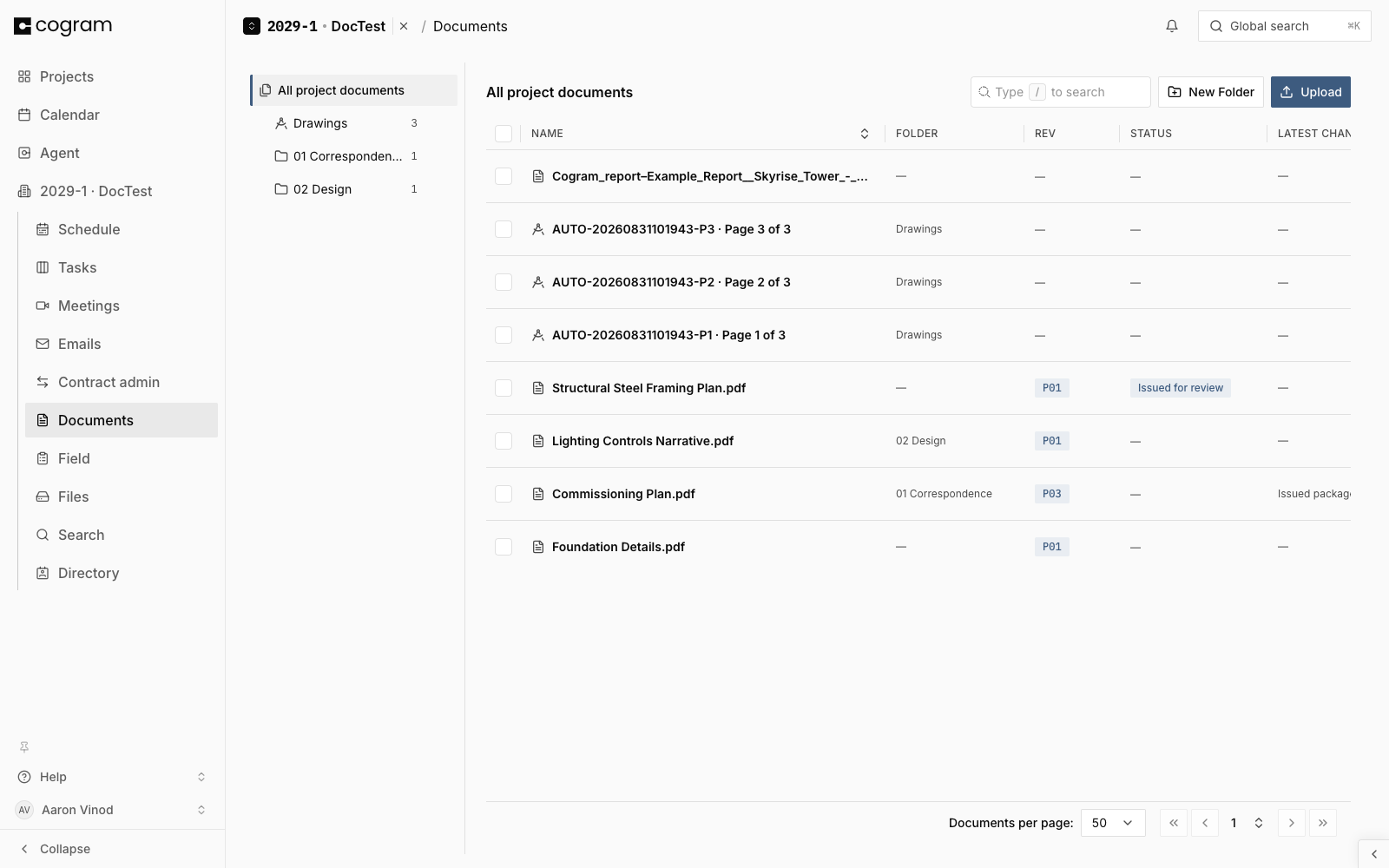
The register: one row per document, with folder, revision, and status.
## The register
Each row is one document: its name, folder, revision (**Rev**), status, latest change note, size, and who updated it last. Click a row to open the document page, with a preview of the file and its full history.
Drawings appear in the register too, marked with a drawing icon, so the register is the complete picture of what the project holds. Their sheets, sets, and markups live in [Drawings](/field/drawings.md); the register shows each drawing's current revision and lets you download or send it.
**All documents** shows the same register across every project you can access, with a project column. Uploads, moves, and transmittals from there work per project, exactly as they do inside one.
## Folders
Create folders with **New Folder** and file documents the way your office structures a project: for example `01 Correspondence`, `02 Design`, `03 Contracts`. Folders can nest.
Cogram maintains a few folders for you:
* **Meetings**: minutes and meeting attachments
* **Email**: filed email attachments
* **Field**: field report exports
* **Transmittals**: what each transmittal sent, filed under its number
* **Chat**: files shared in project chat
These fill automatically as the project works. You cannot move other files into them; everything else is yours to organize.
## Uploading
Click **Upload** and pick one or more files, or drop files anywhere on the page. Before anything uploads, Cogram checks each filename against the project:
* A new name becomes a **new document**, starting at version 1.
* A name that already exists is offered as a **new version** of that document, so a re-issued file extends the history instead of creating a duplicate.
Pick a destination folder in the dialog, or pick none and the file shows under All documents. You can also set a revision code for the whole upload (for example `P01` for an issue package); leave it blank and set codes per document later. See [Revisions and versions](/documents/revisions-and-versions.md).
Files up to **5 GB** each can be uploaded, so models, point clouds, and large scan sets go in the register like any other file. The dialog shows each file's progress as it goes up. If the browser tab closes part way through, add the same file again and the upload continues from where it stopped.
Uploading from **All documents** adds a **Project** field at the top of the dialog: choose the project first, then the folder and revision follow for that project.
If what you are uploading is sheets rather than files, the dialog offers a way out below the staged files: **Uploading drawing sheets? Upload as Drawings** hands them straight to the drawings upload, which reads the title blocks. See [Drawings](/field/drawings.md).
{% hint style="info" %}
Uploading from a document's own page always adds a version to that document. If the file's name belongs to a different document in the project, Cogram points that out before you save.
{% endhint %}
## Finding documents
Search covers names and numbers (and drawing numbers and titles) from the search box above the register. Inside a project, search also matches parts of a name; across all projects it matches from the start of the name.
## Moving, downloading, and deleting
Hover a row for quick actions: **Download**, **Move to folder**, and **Delete**. Select several rows and the same actions appear for the whole selection, along with [**Send in Transmittal**](/documents/document-transmittals.md).
Moving a document changes its folder only. The version history and revisions are untouched. Deleting a document deletes every version with it, and Cogram asks first, listing exactly which files the action covers.
## The document page
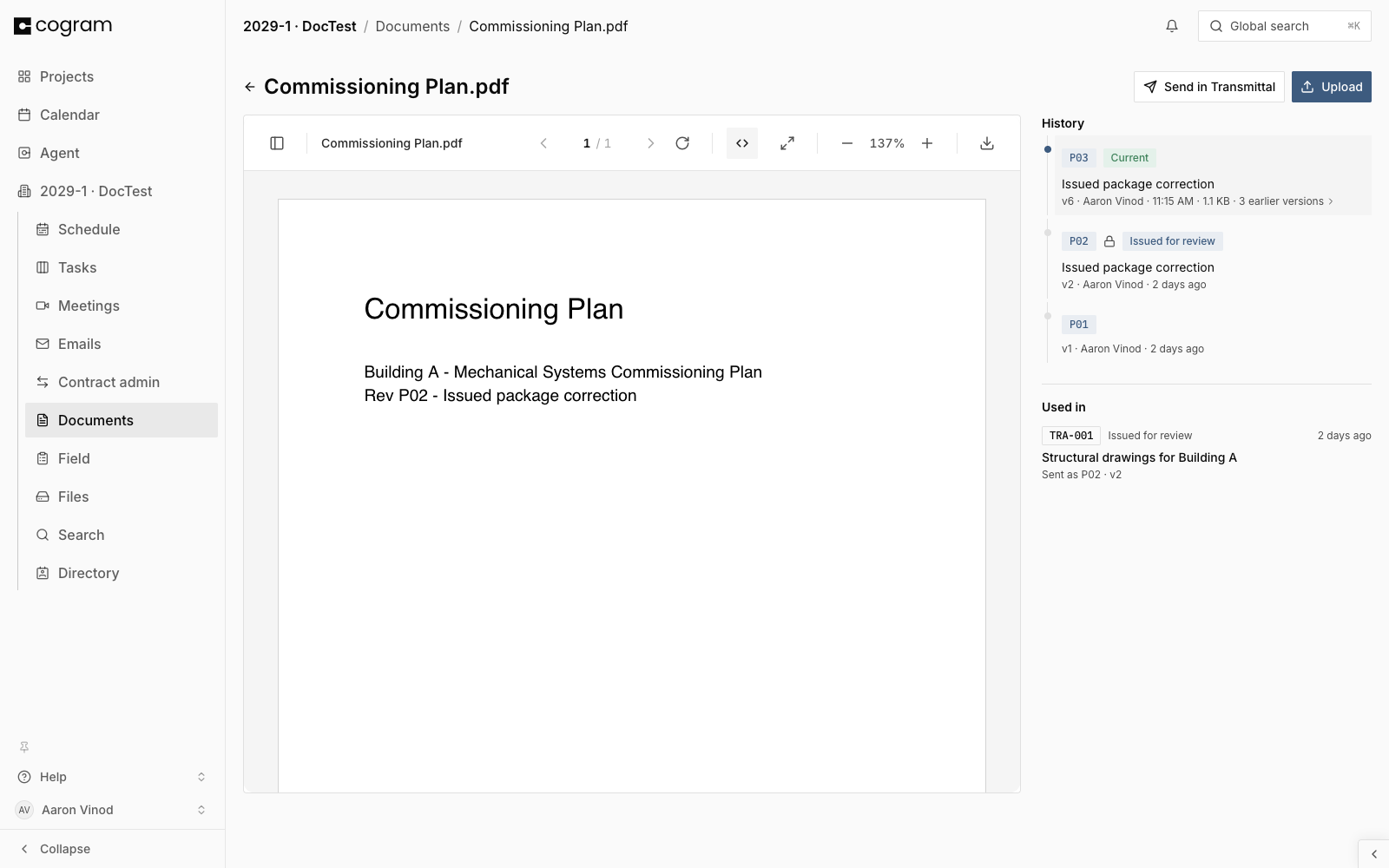
Open any document to see the file itself alongside **History**: one timeline of everything that ever happened to it.
The current revision leads the timeline, tagged **Current**, with its declared code, status, latest note, and audit line (`v7 · who · when · size`). Every revision below it is a dot on the same vertical rail, newest first. Click any entry to load that exact file in the preview; the blue dot marks the version you are looking at. A revision that collected several uploads before it moved on shows **N earlier versions**, which expands them as smaller dots on the same rail, so nothing is hidden and nothing is nested away.
Download and restore are per-row: hover any entry in the timeline and the two icons appear on the right. Restore brings the old file back as a new current version, and the history keeps everything. See [Revisions and versions](/documents/revisions-and-versions.md) for how restore interacts with issued revisions.
The document page: file preview beside one History timeline, current revision first.
Below History, **Used in** lists every transmittal that carried this document, with the purpose, date, and precisely which revision and version was sent.
## Next steps
* [Revisions and versions](/documents/revisions-and-versions.md): the model behind the Rev column
* [Transmittals](/documents/document-transmittals.md): issue documents with a formal record
* [Drawings](/field/drawings.md): sheets, sets, and title blocks
---
# Agent Instructions
This documentation is published with GitBook. GitBook is the documentation platform designed so that both humans and AI agents can read, navigate, and reason over technical content effectively. Learn more at gitbook.com.
## Querying This Documentation
If you need additional information that is not directly available in this page, you can query the documentation dynamically by asking a question.
Perform an HTTP GET request on the current page URL with the `ask` query parameter, and the optional `goal` query parameter:
```
GET https://docs.cogram.com/documents/documents.md?ask=&goal=
```
`ask` is the immediate question: it should be specific, self-contained, and written in natural language.
`goal` is optional and describes the broader end goal you are ultimately trying to accomplish on behalf of the user. GitBook uses it to tailor the answer towards what is most useful for that goal.
The response will contain a direct answer to the question and relevant excerpts and sources from the documentation.
Use this mechanism when the answer is not explicitly present in the current page, you need clarification or additional context, or you want to retrieve related documentation sections.