> For the complete documentation index, see [llms.txt](https://docs.cogram.com/llms.txt). Markdown versions of documentation pages are available by appending `.md` to page URLs; this page is available as [Markdown](https://docs.cogram.com/documents/revisions-and-versions.md).
# Revisions and versions
Versions are the automatic audit trail; revisions are the codes you declare and issue. How the two work together, and what issuing a revision freezes.
Every document in Cogram carries two kinds of history. They answer different questions, and keeping them separate is what makes the register trustworthy.
## What is a version?
A version is a system-generated number that increases each time a file arrives: an upload, or a restore of an older file. You never set it, and it never repeats. For example:
1. You upload `Commissioning Plan.pdf`. It begins as version 1.
2. A colleague uploads a corrected file. The document is now version 2.
3. You restore version 1 to make it current again. Its file comes back as version 3.
Versions are the audit trail: every file the project has ever held stays in the history, viewable and downloadable, with who added it and when. Nothing is ever overwritten.
{% hint style="info" %}
Versions count files, not edits to details. Renaming a revision code or a status change does not create a version. Only a file arriving does.
{% endhint %}
## What is a revision?
A revision is a code you declare against a document: `P01`, `C01`, `Rev B`, whatever your project's convention is. For a drawing, it should match the revision in the title block, and Cogram reads it from there automatically on drawing uploads. Cogram does not force a format: the code is your project's language.
A revision can span several versions. If `P01` had a corrected file uploaded over it before it was ever sent anywhere, both files sit under `P01` in the history. The revision is the name, and the versions are the audit beneath it.
Documents without a revision code show a dash in the **Rev** column. That is a perfectly good way to work: if your team does not run formal revisions, versions alone give you the full history, and the Rev column simply stays out of the way.
## Setting and changing a revision
* **On upload**, type a code in the upload dialog to apply it to that upload, for example `P02` across an issue package.
* **On the document page**, use **Set Revision…** on the current version, or the edit control next to an existing code.
* **When uploading to one document**, choose whether the file is **an update to the current revision** (a corrected file under the same code) or **a new revision** with a new code.
## Issuing freezes a revision
When a transmittal is sent carrying a document, the exact revision and version that went out become part of the record of what the recipient holds. From that moment the code is frozen, permanently:
* The issued version cannot be renamed to a different code.
* No new file can be uploaded under that code, and the code cannot be reused later. A changed file needs a new revision.
* The register shows a lock next to issued revisions; the tooltip names the transmittals that froze them.
This is the core doc-control guarantee: `C01` always means the file that was issued as `C01`.
## Restoring an old version
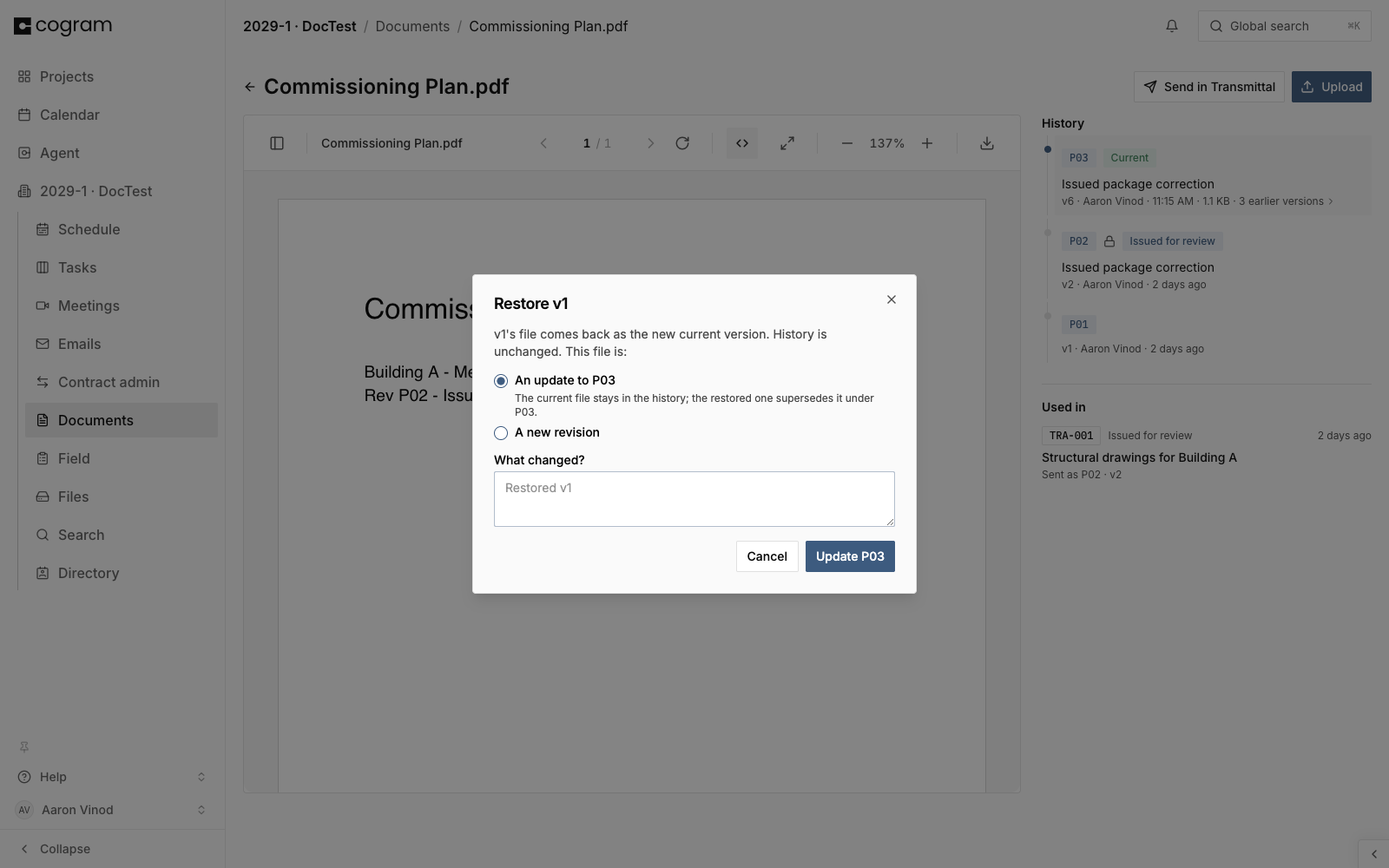
Restore brings a past version's file back as a new current version. The history is never rewritten. When you restore, Cogram asks the same question an upload does: is the returning file an update to the current revision, or the start of a new one? If the current revision was already issued, it stays frozen and the restored file starts a new revision. Set a code on it before the next issue.
Restoring a version: choose whether it updates the current revision or starts a new one.
## Statuses
Sending a transmittal stamps a status on the exact version it carried, for example **Issued for review** or **Issued for construction**, matching the transmittal's purpose. The status names the last issuance; the full issuance history, with every purpose and date, is on the document page under **Used in**.
## Next steps
* [Documents](/documents/documents.md): the register, folders, and uploads
* [Transmittals](/documents/document-transmittals.md): issuing documents formally
---
# Agent Instructions
This documentation is published with GitBook. GitBook is the documentation platform designed so that both humans and AI agents can read, navigate, and reason over technical content effectively. Learn more at gitbook.com.
## Querying This Documentation
If you need additional information that is not directly available in this page, you can query the documentation dynamically by asking a question.
Perform an HTTP GET request on the current page URL with the `ask` query parameter, and the optional `goal` query parameter:
```
GET https://docs.cogram.com/documents/revisions-and-versions.md?ask=&goal=
```
`ask` is the immediate question: it should be specific, self-contained, and written in natural language.
`goal` is optional and describes the broader end goal you are ultimately trying to accomplish on behalf of the user. GitBook uses it to tailor the answer towards what is most useful for that goal.
The response will contain a direct answer to the question and relevant excerpts and sources from the documentation.
Use this mechanism when the answer is not explicitly present in the current page, you need clarification or additional context, or you want to retrieve related documentation sections.