> For the complete documentation index, see [llms.txt](https://docs.cogram.com/llms.txt). Markdown versions of documentation pages are available by appending `.md` to page URLs; this page is available as [Markdown](https://docs.cogram.com/email/confidential-email.md).
# Confidential email
Mark sensitive project email, such as legal or HR matters, Confidential, so only the project's owners and leads and organization admins see it.
A **Confidential** email is filed like any other email, but only a small audience sees it: the project's owners and leads, and organization admins.
* Cogram can mark emails that might be confidential.
* You can also mark emails yourself.
> Confidential email is enabled per organization. Contact Cogram support to turn it on.
## Settings (org admins)
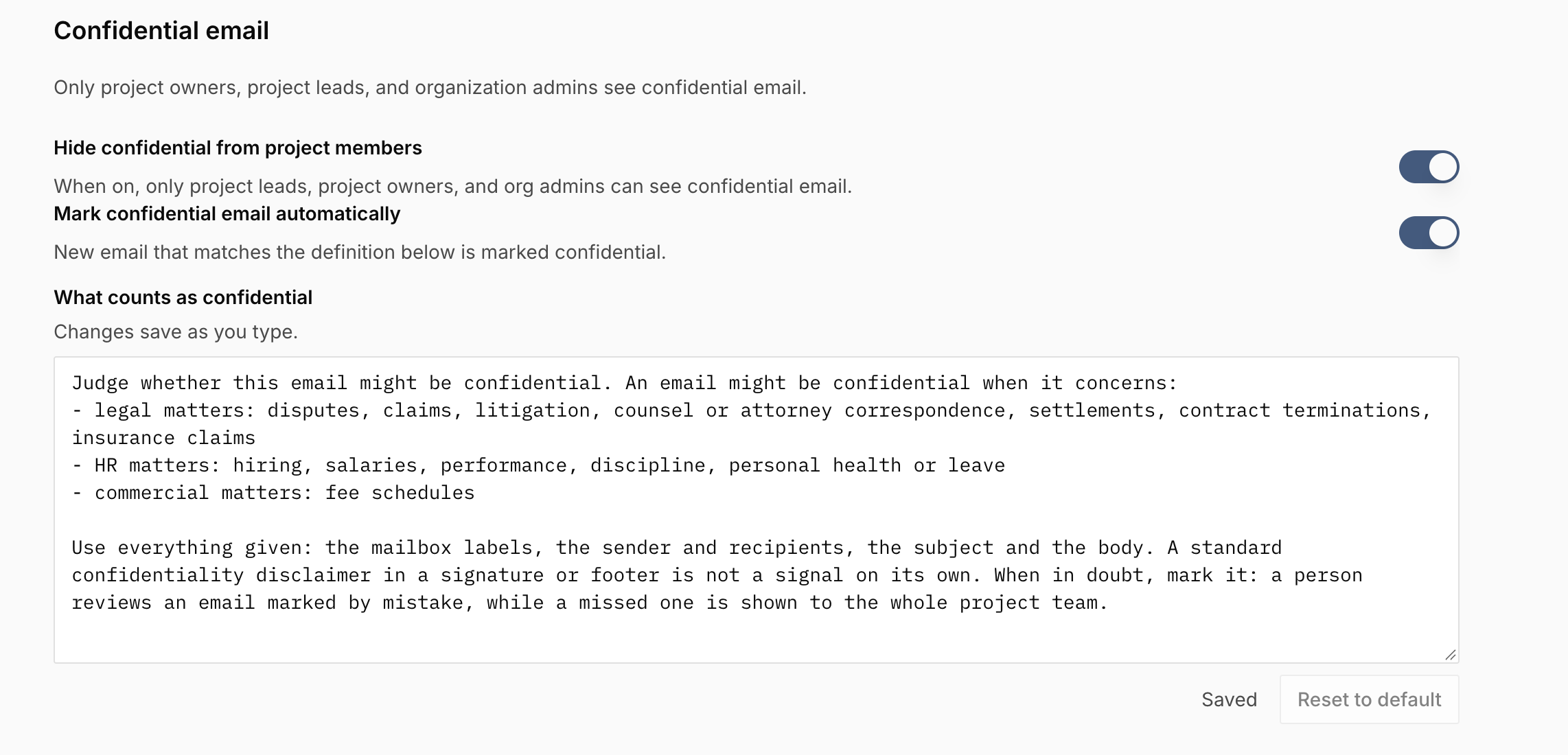
Both settings are in [**Organization settings > Emails**](https://app.cogram.com/dashboard/settings/admin/email), in the **Confidential email** section.
The Confidential email section in Organization settings
| Setting | What it does |
| ------------------------------------------ | -------------------------------------------------------------------------------------------------------------------------------------------------------------- |
| **Hide confidential from project members** | Turns the feature on or off. On by default. See [Turn hiding on or off](#turn-hiding-on-or-off). |
| **Mark confidential email automatically** | Lets Cogram's AI check each new email. Shown only while hiding is on. See [Detect confidential email automatically](#detect-confidential-email-automatically). |
### Turn hiding on or off
| When **Hide confidential from project members** is | Who sees confidential email | Who can mark email |
| -------------------------------------------------- | ------------------------------------------------------ | ------------------ |
| On | Project leads, project owners, and org admins only | The same people |
| Off | The whole project team, including email marked earlier | Nobody |
When you turn it off, Cogram asks you to confirm. Cogram keeps the marks. When you turn it back on, the marked email is hidden again.
## Who sees and marks confidential email
| Reader | Sees confidential email | Marks and clears it |
| ------------------------------------------ | ----------------------- | ------------------- |
| Project owners and leads | Yes | Yes |
| Organization admins who are on the project | Yes | Yes |
| Other project members and viewers | No | No |
* A lead through a group counts as a lead.
* To let someone see a project's confidential email, make them an owner or lead of the project.
* [Asset visibility](/projects/asset-visibility.md) still applies. In **Owner** or **Restricted** mode, a reader must also pass that rule.
### Where confidential email is hidden
Readers outside the audience do not see confidential email in:
* The email list and search
* The Agent
* Counts
* The email details in the Outlook add-in and the Gmail extension
Output that other people receive never includes confidential email. This is true even when a project owner or lead set up the output:
* Scheduled reports
* Automations
* Organization data exports
{% hint style="warning" %}
**Exception: the Agent in shared places.** In Teams and Slack group chats, and in the Agent's drafts on RFIs and submittals, the Agent uses what the person who asks can see. If a project owner or lead asks there, the answer can include confidential email. The rest of the group then sees it.
{% endhint %}
## Find confidential email
1. Open the [email inbox](https://app.cogram.com/dashboard/email-inbox) or the project's **Emails** tab.
2. Open the filters. Under **Confidential**, select one of these:
* **Confidential**
* **Visible to all**
The list shows only email you can see. If you are outside the audience, the filter finds no confidential email.
## Detect confidential email automatically
### Set up automatic marking (org admins)
1. Go to [**Organization settings > Emails**](https://app.cogram.com/dashboard/settings/admin/email).
2. In **Confidential email**, make sure **Hide confidential from project members** is on.
3. Turn on **Mark confidential email automatically**.
4. Optional: in **What counts as confidential**, describe what is confidential for your organization. Changes save as you type. You do not need to describe the email or the answer format. Cogram adds them.
To go back to Cogram's instructions, click **Reset to default** and confirm.
### How a new email gets marked
While **Hide confidential from project members** is on, Cogram decides like this for each new email:
```
New email
│
▼
Already marked Confidential ──────── Yes ──▶ Marked Confidential
in Gmail or Outlook?
│ No
▼
Mark confidential email ──────────── No ───▶ Visible to all
automatically is on?
│ Yes
▼
AI check: confidential, unsure, ──── Yes ──▶ Marked Confidential
or check failed?
│ No
▼
Visible to all
```
* "Already marked" means the conversation has Cogram's **Confidential** label in Gmail or **Confidential** category in Outlook, even if someone added it by hand.
* With automatic marking off, Cogram does not ask the AI. Only the labels Cogram writes mark an email.
* Cogram never clears a mark on its own.
### What counts as possibly confidential
The AI check is separate from choosing the email's project. With the default instructions, the AI looks for:
* **Legal matters**: disputes, claims, litigation, correspondence with counsel, settlements, contract terminations, insurance claims.
* **HR matters**: hiring, salaries, performance, discipline, personal health or leave.
* **Commercial matters**: fee schedules.
The AI reads:
* The sender and recipients
* The subject and body
* The labels or categories already on the email
* The earlier messages in the conversation
A standard confidentiality disclaimer in an email signature is not enough on its own. When the AI is unsure, it marks the email. If the check fails, it marks the email too. A project owner or lead can clear a wrong mark.
> AI decisions can be wrong in both directions. Review marked emails. Mark sensitive conversations yourself when you know they are confidential.
### What happens to a marked email
* **It is filed as usual.** Cogram files it automatically when it is confident about the project. Otherwise it shows a suggestion for you to confirm.
* **Its filed copies are marked Confidential** in every project of your organization that holds the email.
* **It gets a Confidential marker in your mailbox**: a **Confidential** label in Gmail, or a **Confidential** category in Outlook. Your other labels and categories do not change.
Only the email's audience sees the marked copies. See [Who sees and marks confidential email](#who-sees-and-marks-confidential-email).
## Confidential labels in Gmail
Only the labels Cogram writes mark an email. A label of your own, such as `Legal - Confidential`, marks nothing.
Project labels are set in [**Organization settings > Emails**](https://app.cogram.com/dashboard/settings/admin/email), under **Gmail**: **Apply Gmail labels** turns them on, and **Filing labels** sets the root label and its color.
The Gmail section in Organization settings
| Your organization | Label on a marked conversation |
| ------------------------------------ | -------------------------------------------------------------------------------------------------------------------------------------------------------- |
| Does not use project labels in Gmail | **Confidential** |
| Uses project labels in Gmail | The project label with `- Confidential` added, for example `Cogram filed/246789 - Boston Skyscraper - Confidential`. No separate **Confidential** label. |
* With project labels, a **Confidential** label of your own marks nothing.
* When you confirm a suggestion, Cogram marks its filed copy if the conversation carries one of these labels.
### Mark a conversation confidential in Gmail
Use this when you know a conversation is confidential, for example an email about a claim on a curtain wall package.
**Prerequisites**
* The Cogram extension for Chrome is installed and signed in, and your Gmail account is connected to Cogram.
* **Hide confidential from project members** is on for your organization.
* You are an organization admin, or an owner or lead of at least one active team project. Owning only your own My Workspace does not count. Other users do not see the button.
* The conversations are filed to a project. The button does not appear for a conversation that is not filed.
**Steps**
1. Open the conversation in Gmail, or select several conversations in the list.
2. At the top of the Cogram panel, click the visibility button. It shows an eye for **Visible to all**.
3. Click **Mark confidential**.
**Expected result**
* The button shows a crossed-out eye for **Confidential**.
* The conversations show the **Confidential** label in Gmail.
* Copies already filed to projects you manage are marked **Confidential**.
* New emails in these conversations are marked when they are filed.
### File a conversation as confidential in Gmail
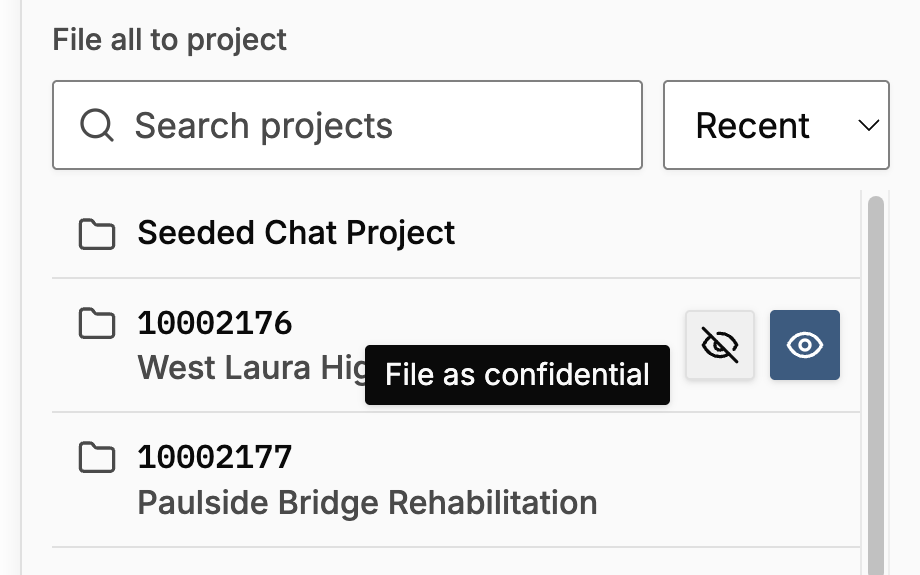
When you file from the Cogram panel, point to a project in the list. The row shows two icon buttons. Point to a button to see its name:
* **File as confidential** (crossed-out eye): files the conversations to the project and marks them **Confidential** in one step. The filed copies are never visible to the whole team, not even for a moment.
* **File** (eye): files the conversations without a mark.
Point to a project to see the filing buttons
**File as confidential** has the same prerequisites as **Mark confidential**. It does not appear when you file as a record (RFI, submittal, or change order).
### Unmark a conversation in Gmail
Anyone who can mark a conversation can also unmark it. Click the visibility button, then **Mark visible to all**. Cogram then:
* Removes the **Confidential** label from these conversations in your mailbox.
* Clears the mark from their filed copies in projects you manage.
Other recipients' mailboxes keep their labels. New emails they receive in the conversation are still marked until someone removes the label there.
## Mark a filed email in Cogram
**Prerequisites**
* **Hide confidential from project members** is on for your organization.
* You are an organization admin, or an owner or lead of the email's project.
**Steps**
1. Open the email in **Emails**.
2. Click the visibility button next to the email's actions, then **Mark confidential**.
To mark several emails at once, select them in the list and click **Visibility**.
**Expected result**
* The email shows a crossed-out eye in the email list. Only its audience sees it.
* If the email was filed from Gmail with project labels, its project label in Gmail changes to match within a few minutes.
To clear the mark, choose **Mark visible to all**.
## Mark an email confidential in Outlook
**Prerequisites**
* The Cogram add-in is installed in Outlook and signed in.
* **Hide confidential from project members** is on for your organization.
* You are an organization admin, or an owner or lead of at least one active team project. Other users do not see the button.
**Steps**
1. Open the email in Outlook.
2. In the Cogram add-in, click **Mark confidential**.
**Expected result**
* The email gets the **Confidential** category. The category marks this email only. Outlook does not copy it onto replies.
* The email's filed copies in projects you manage are marked **Confidential**.
* On an email that has the category, the add-in shows **Mark visible to all**.
**Mark visible to all** removes the category from your mailbox and clears the mark from the email's filed copies. Other recipients keep their own **Confidential** category.
## Troubleshooting
**Symptom:** A team member still sees an email you expected to be confidential. **Likely cause:** Someone added the category in Outlook after the email was filed. The filed copy has no mark. **Fix:** Open the email in Cogram and mark it **Confidential**, or click **Mark confidential** in the Outlook add-in.
**Symptom:** You don't see **Mark confidential** on an email in Cogram. **Likely cause:** You are not an owner or lead of the email's project or an organization admin. Or **Hide confidential from project members** is off for your organization. **Fix:** Ask a project owner or lead, or an organization admin, to mark the email.
**Symptom:** Filing a confidential email as an RFI, submittal, or change order fails. **Likely cause:** The whole team sees RFIs, submittals, and change orders, so Cogram does not create one from confidential email. The email itself stays filed. **Fix:** If the record is meant for the whole team, choose **Mark visible to all** on the email first, or ask a project owner or lead to do it.
**Symptom:** The **Mark confidential** button does not appear in Gmail or Outlook. **Likely cause:** Confidential email is not enabled for your organization. Or you are not an organization admin or an owner or lead of an active team project. **Fix:** Ask an organization admin to mark the conversation, or to turn on **Hide confidential from project members**. If the setting is missing, contact Cogram support.
**Symptom:** The panel says some conversations could not be changed, for example "2 conversations couldn't be changed. Try again to retry them. The rest are done." **Likely cause:** Gmail refused the change, for example because the conversation no longer exists. **Fix:** Click the visibility button again. Its tooltip reads **Retry:** and your choice, for example **Retry: Mark confidential**. Cogram retries only the conversations that failed. If it still fails, reconnect Gmail in [**Account Settings > Integrations**](https://app.cogram.com/dashboard/settings/account-settings/integrations).
**Symptom:** An email that is not confidential is marked Confidential. **Likely cause:** The AI marks an email when it is unsure. **Fix:** Choose **Mark visible to all** on the email in Cogram, or ask a project owner or lead to do it. Then remove the **Confidential** label or category in your mailbox. If this happens often, ask an organization admin to make the instructions in **What counts as confidential** more specific.
## Limits
A mark hides the email from then on. It does not undo what already happened:
* An export someone already downloaded
* An Agent answer already given
* An RFI already created from the email
## Next steps
* [Emails](/email/emails.md)
* [Outlook add-in: email filing](/email/outlook-add-in-email-filing.md)
* [Asset visibility](/projects/asset-visibility.md)
* [Project roles](/projects/project-roles.md)
---
# Agent Instructions
This documentation is published with GitBook. GitBook is the documentation platform designed so that both humans and AI agents can read, navigate, and reason over technical content effectively. Learn more at gitbook.com.
## Querying This Documentation
If you need additional information that is not directly available in this page, you can query the documentation by asking a question.
Perform an HTTP GET request on the following URL with the `ask` and `goal` query parameters:
```
GET https://docs.cogram.com/email/confidential-email.md?ask=&goal=
```
`ask` is the immediate question: it should be specific, self-contained, and written in natural language.
`goal` is what the user is ultimately trying to achieve, the reason they need the answer. Sharing it helps GitBook give you a better, more relevant answer. A goal is most helpful when it describes the outcome the user wants rather than restating the question. For example, with `ask=how do I create an API token`, a goal like `automate deployments from our CI pipeline` lets GitBook tailor the answer to that use case.
The response will contain a direct answer to the question and relevant excerpts and sources from the documentation.
Use this mechanism when the answer is not explicitly present in the current page, you need clarification or additional context, or you want to retrieve related documentation sections.