> For the complete documentation index, see [llms.txt](https://docs.cogram.com/llms.txt). Markdown versions of documentation pages are available by appending `.md` to page URLs; this page is available as [Markdown](https://docs.cogram.com/email/installing-the-outlook-add-in.md).

# Installing the Outlook add-in

How a Microsoft 365 Global Administrator deploys the Cogram Email Management add-in to Outlook, grants organization-wide consent, applies updates, and removes the add-in.

Cogram Email Management is an Outlook add-in. It files incoming and outgoing project email, with attachments, into the right Cogram project, and it gives your team a panel inside Outlook to review and correct those decisions.

This page is for the IT administrator who deploys the add-in. For what your team sees day to day, read [Outlook add-in: email filing](/email/outlook-add-in-email-filing.md).

## Prerequisites

* Microsoft 365 (Exchange Online). The add-in does not work on on-premises Exchange.
* A **Global Administrator** account in your Microsoft 365 tenant.
* A Cogram organization admin account. This is usually the same person.

## What you will do

Two one-time steps, in this order:

1. Deploy the add-in to your tenant from Microsoft Marketplace. Microsoft can take up to 72 hours to roll it out to users, though it is often much faster.
2. In Cogram, connect Outlook and consent on behalf of your organization, so your colleagues can connect their own mailboxes without raising an approval request each time.

## 1. Deploy the add-in from Microsoft Marketplace

> **Who:** a Microsoft 365 **Global Administrator**.

1. Open the [**Cogram Email Management** listing on Microsoft Marketplace](https://appsource.microsoft.com/en-us/product/saas/wa200008856?tab=overview) and click **Get it now**.

<figure><img src="https://1170756420-files.gitbook.io/~/files/v0/b/gitbook-x-prod.appspot.com/o/spaces%2FxpPm3rHOzFMoBqV20UQl%2Fuploads%2Fgit-blob-60c2e188b76587cce0e697337e2cc50d8694d923%2Fmarketplace-listing.png?alt=media" alt="Cogram Email Management listing on Microsoft Marketplace with the Get it now button" width="900"><figcaption><p>The Cogram Email Management listing, with Get it now</p></figcaption></figure>

2. Microsoft redirects you to **Integrated apps** in the Microsoft 365 admin center and starts the deployment wizard.
3. Choose who gets the add-in: the entire organization, specific groups, or specific users. Click **Next**.
4. Click **Accept permissions**. Sign in with the Global Administrator account if prompted, review the permissions, and accept them.
5. When **Permissions accepted** shows a green checkmark, click **Next**.
6. Click **Finish deployment**, then **Done**.

**What good looks like:** Cogram Email Management is listed under [**Settings → Integrated apps**](https://admin.microsoft.com/#/Settings/IntegratedApps) with a status of **Deployment completed**, and the Cogram button appears in the Outlook ribbon or toolbar for the users you selected. Allow up to 72 hours for Microsoft to propagate the add-in to every mailbox.

## 2. Connect Outlook in Cogram and consent for your organization

> **Who:** a **Cogram organization admin**.

1. Go to [**Account Settings → Integrations**](https://app.cogram.com/dashboard/settings/account-settings/integrations) in Cogram.
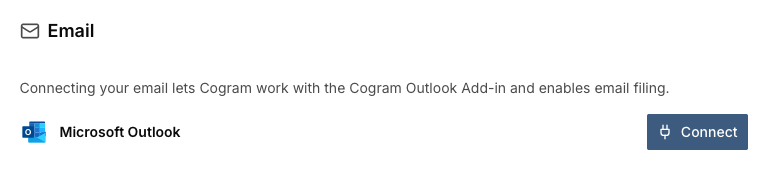
2. Under **Email**, click **Connect** next to **Microsoft Outlook**. A Microsoft sign-in window opens.

<figure><img src="https://1170756420-files.gitbook.io/~/files/v0/b/gitbook-x-prod.appspot.com/o/spaces%2FxpPm3rHOzFMoBqV20UQl%2Fuploads%2Fgit-blob-cbb83f7b771793d41600a48a01274d215a9881bf%2Faccount-integrations-email-connect.png?alt=media" alt="Email section of Cogram Account Settings Integrations, with a Connect button next to Microsoft Outlook" width="768"><figcaption><p>Account Settings → Integrations → Email → Connect</p></figcaption></figure>

3. Sign in with your Microsoft 365 admin account and review the permissions.
4. Check **Consent on behalf of your organization**, then click **Accept**.

Do not skip that checkbox. Without organization-wide consent, every colleague who connects their mailbox raises a separate admin approval request for you.

This completes the IT setup. Your Cogram contact runs onboarding and a walk-through of email filing with your team separately.

## Managing who has the add-in

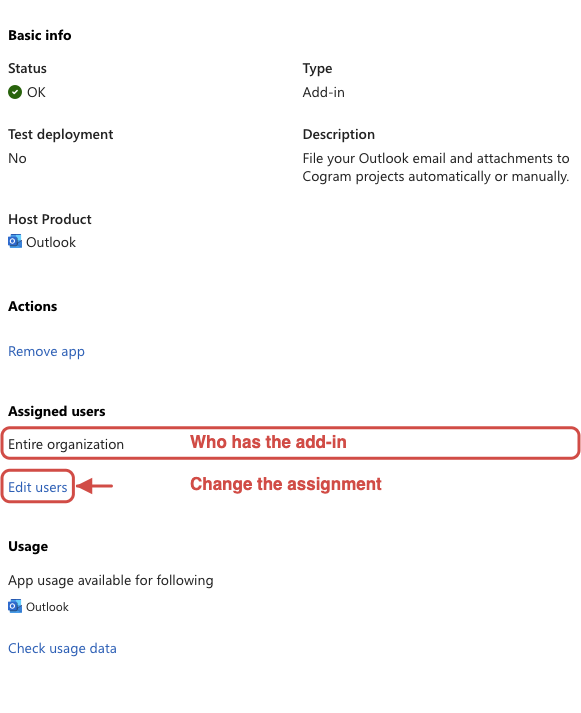
Go to [**Settings → Integrated apps**](https://admin.microsoft.com/#/Settings/IntegratedApps) in the Microsoft 365 admin center and select **Cogram Email Management**. **Assigned users** shows who has it today. Click **Edit users** to switch between the whole organization, specific groups, and specific users. This is the same flow that controls automatic rollout to new starters.

<figure><img src="https://1170756420-files.gitbook.io/~/files/v0/b/gitbook-x-prod.appspot.com/o/spaces%2FxpPm3rHOzFMoBqV20UQl%2Fuploads%2Fgit-blob-b9c164765b52e07751ec53966aec30f0584d13cf%2Fm365-app-assigned-users.png?alt=media" alt="Cogram Email Management detail pane with Assigned users showing Entire organization and the Edit users link highlighted" width="581"><figcaption><p>Assigned users and Edit users in the app detail pane</p></figcaption></figure>

## Applying updates

Cogram Email Management comes from Microsoft Marketplace, so ordinary updates need nothing from you. Microsoft applies the new version the next time each user restarts Outlook.

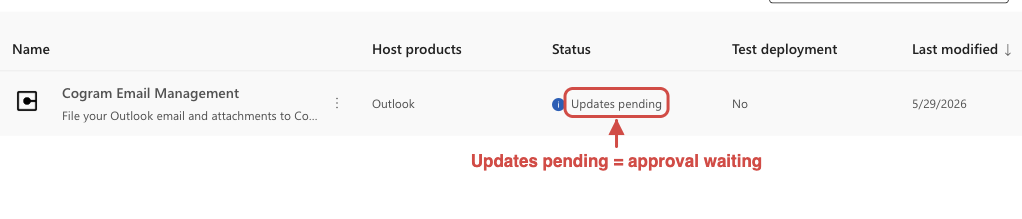
You only act when a new version asks for **new permissions**. Then the add-in's status in [**Settings → Integrated apps**](https://admin.microsoft.com/#/Settings/IntegratedApps) reads **Updates pending**, and your users stay on the previous version until an administrator consents.

<figure><img src="https://1170756420-files.gitbook.io/~/files/v0/b/gitbook-x-prod.appspot.com/o/spaces%2FxpPm3rHOzFMoBqV20UQl%2Fuploads%2Fgit-blob-79ecc195c1863b92f3ae2fb4b8aa6c2a7059ff6a%2Fm365-integrated-apps-updates-pending.png?alt=media" alt="Integrated apps list showing Cogram Email Management with the status Updates pending highlighted" width="1022"><figcaption><p>Settings → Integrated apps: Updates pending means a permission approval is waiting</p></figcaption></figure>

If you see **Updates pending**, contact <mark style="color:blue;"><support@cogram.com></mark> and we will tell you which permission the release adds and walk you through granting it. Users keep working on the previous version in the meantime.

## Removing the add-in

> **Who:** a Microsoft 365 **Global Administrator**.

1. Go to [**Settings → Integrated apps**](https://admin.microsoft.com/#/Settings/IntegratedApps) in the Microsoft 365 admin center.
2. Find **Cogram Email Management** and select it.
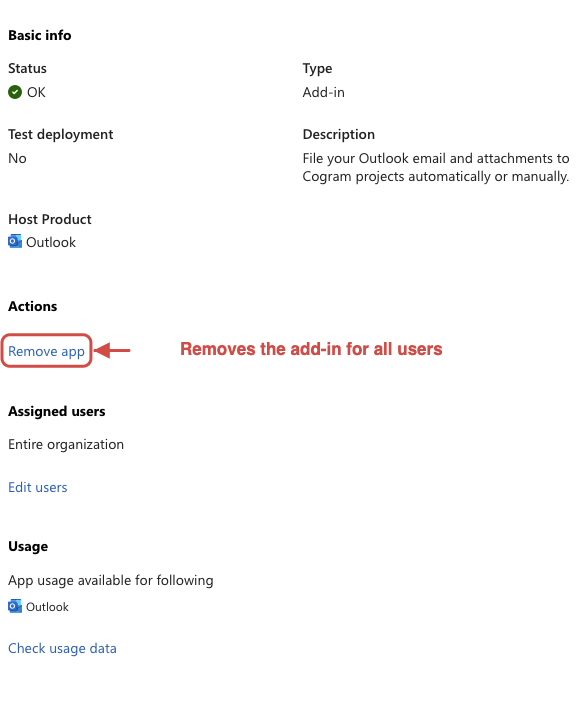
3. Under **Actions**, click **Remove app** and confirm for all users.

<figure><img src="https://1170756420-files.gitbook.io/~/files/v0/b/gitbook-x-prod.appspot.com/o/spaces%2FxpPm3rHOzFMoBqV20UQl%2Fuploads%2Fgit-blob-5f491895e7cd26ef67c45963a5486d44d3935598%2Fm365-app-remove.png?alt=media" alt="Cogram Email Management detail pane with the Remove app action highlighted under Actions" width="581"><figcaption><p>Actions → Remove app, in the app detail pane</p></figcaption></figure>

Two things to expect afterwards:

* **Propagation takes around 24 hours** before the add-in disappears from every user's Outlook.
* **The Marketplace listing stays up.** Users can add the add-in back themselves, so block acquisitions under **Integrated apps → Settings** if you want the removal to stick.

Removing the add-in stops Outlook filing. Emails already filed stay in your Cogram projects.

## Troubleshooting

**The Cogram button does not appear in Outlook.** Microsoft has not finished rolling out the deployment, or the user is outside the assignment you chose. Check the assignment under [**Settings → Integrated apps**](https://admin.microsoft.com/#/Settings/IntegratedApps) and allow up to 72 hours after deployment.

**Users are asked for admin approval when they connect their mailbox.** Organization-wide consent was not granted in step 2. Repeat the Cogram connection flow as an admin and check **Consent on behalf of your organization**.

**The add-in stopped updating, or a feature Cogram announced is missing.** The add-in is in **Updates pending**. Follow [Applying updates](#applying-updates).

**Category labels do not appear on filed emails.** Confirm the deployment's permissions were accepted in full. Cogram needs Microsoft Graph permission to write Outlook categories.

**A screen does not match what you see.** Microsoft changes the admin center and the Marketplace regularly. Email <mark style="color:blue;"><support@cogram.com></mark> with a screenshot and we will confirm the current steps.

## Next steps

* [Outlook add-in: email filing](/email/outlook-add-in-email-filing.md): what your team does with the add-in, and the org-wide auto-filing settings
* [Authorizing calendar integration](/meetings/authorizing-calendar-integration.md): the equivalent admin consent for Outlook calendars


---

# Agent Instructions
This documentation is published with GitBook. GitBook is the documentation platform designed so that both humans and AI agents can read, navigate, and reason over technical content effectively. Learn more at gitbook.com.

## Querying This Documentation
If you need additional information that is not directly available in this page, you can query the documentation dynamically by asking a question.

Perform an HTTP GET request on the current page URL with the `ask` query parameter, and the optional `goal` query parameter:

```
GET https://docs.cogram.com/email/installing-the-outlook-add-in.md?ask=<question>&goal=<endgoal>
```

`ask` is the immediate question: it should be specific, self-contained, and written in natural language.
`goal` is optional and describes the broader end goal you are ultimately trying to accomplish on behalf of the user. GitBook uses it to tailor the answer towards what is most useful for that goal.

The response will contain a direct answer to the question and relevant excerpts and sources from the documentation.

Use this mechanism when the answer is not explicitly present in the current page, you need clarification or additional context, or you want to retrieve related documentation sections.