> For the complete documentation index, see [llms.txt](https://docs.cogram.com/llms.txt). Markdown versions of documentation pages are available by appending `.md` to page URLs; this page is available as [Markdown](https://docs.cogram.com/field/drawing-disciplines.md).
# Drawing disciplines
Choose the disciplines (Architectural, Structural, Civil, and so on) Cogram uses to organize your drawings and to classify new uploads automatically.
Drawing disciplines organize your drawings by trade or scope, like Architectural, Structural, or Civil. When someone uploads a drawing, Cogram reads its title block and assigns the best-matching discipline automatically, and your team can filter the Drawings list by discipline.
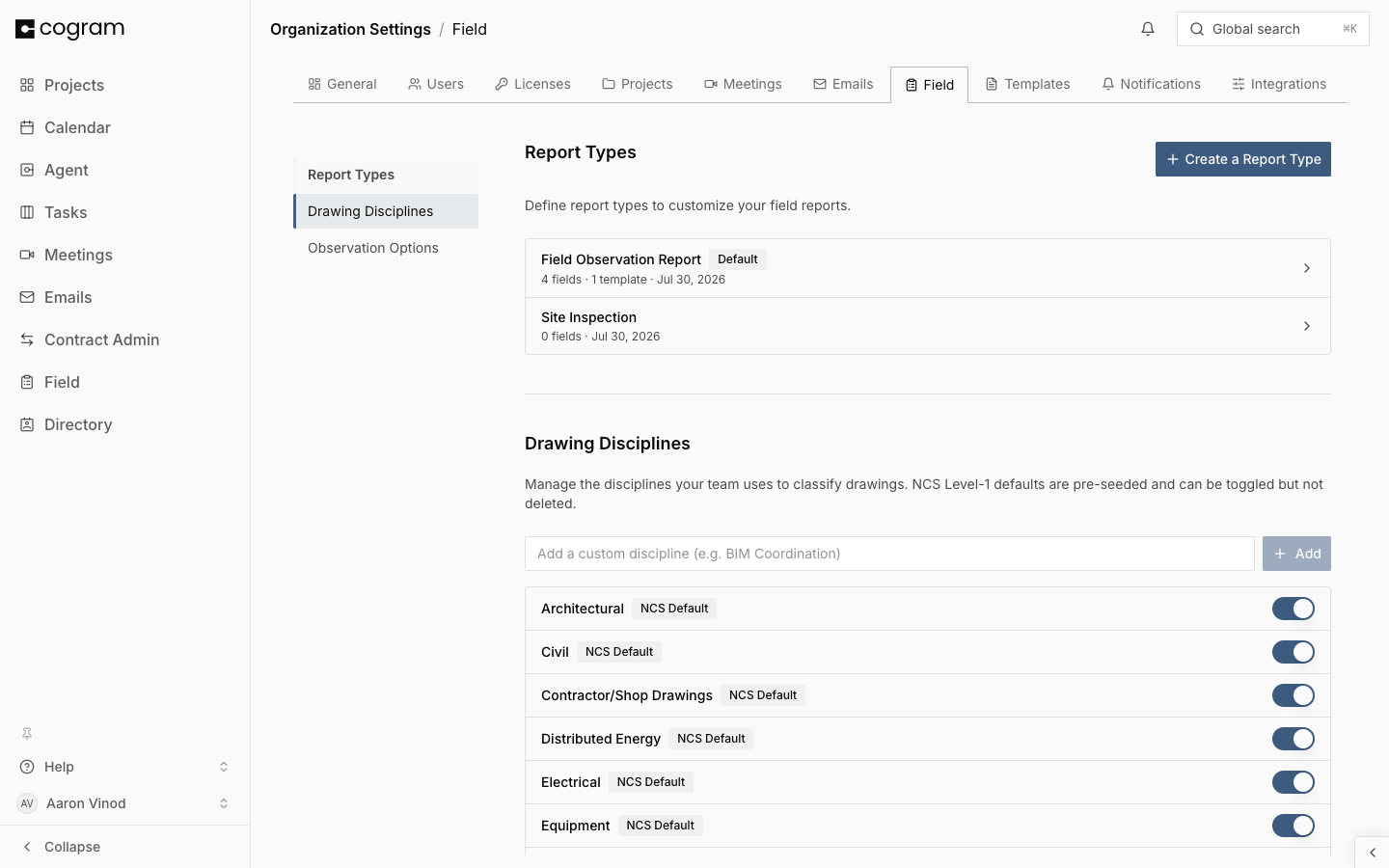
Cogram comes with the 21 standard NCS Level-1 disciplines (from the U.S. National CAD Standard) already set up. These can be switched off but not deleted or renamed. You can add your own disciplines for anything your firm uses beyond the standard.
{% hint style="info" %}
You need to be an Org Admin or Org Owner to manage the discipline list.
{% endhint %}
## Adding a custom discipline
To add one:
1. Go to [Organization Settings > Field > Drawing Disciplines](https://app.cogram.com/dashboard/settings/admin/field-reports#drawing-disciplines).
2. Type the name in the input (e.g., "BIM Coordination") and click **Add**.
The new discipline is available right away, both in the discipline picker and to the automatic classification. Each discipline name can only be used once.
Drawing Disciplines under Organization Settings > Field
## Deactivating or deleting a discipline
To retire a discipline you do not use, click the toggle on its row. It disappears from the picker and from automatic classification, but drawings that already have it keep showing it. Switch the toggle back on to bring it back.
To remove a custom discipline completely, click the trash icon on its row.
{% hint style="warning" %}
Deleting a discipline clears it from any drawings tagged with it.
{% endhint %}
## Changing a drawing's discipline
Cogram assigns a discipline automatically when a drawing is uploaded. To change it:
1. Open [Field > Drawings](https://app.cogram.com/dashboard/reports/drawings).
2. Click the drawing's **Discipline** cell in the list.
3. Pick the right discipline. The change saves immediately.
To update many drawings at once, use bulk edit. See [Drawings](/field/drawings.md).
## Related
* [Drawings](/field/drawings.md): uploading and organizing drawings on the web, and using them on site.
* [Report types](/field/report-types.md): how drawing pin images appear in exported reports.
---
# Agent Instructions
This documentation is published with GitBook. GitBook is the documentation platform designed so that both humans and AI agents can read, navigate, and reason over technical content effectively. Learn more at gitbook.com.
## Querying This Documentation
If you need additional information that is not directly available in this page, you can query the documentation dynamically by asking a question.
Perform an HTTP GET request on the current page URL with the `ask` query parameter, and the optional `goal` query parameter:
```
GET https://docs.cogram.com/field/drawing-disciplines.md?ask=&goal=
```
`ask` is the immediate question: it should be specific, self-contained, and written in natural language.
`goal` is optional and describes the broader end goal you are ultimately trying to accomplish on behalf of the user. GitBook uses it to tailor the answer towards what is most useful for that goal.
The response will contain a direct answer to the question and relevant excerpts and sources from the documentation.
Use this mechanism when the answer is not explicitly present in the current page, you need clarification or additional context, or you want to retrieve related documentation sections.