> For the complete documentation index, see [llms.txt](https://docs.cogram.com/llms.txt). Markdown versions of documentation pages are available by appending `.md` to page URLs; this page is available as [Markdown](https://docs.cogram.com/field/observation-types-and-statuses.md).
# Observation types and statuses
Choose the Type and Status options your team picks from when capturing observations on site.
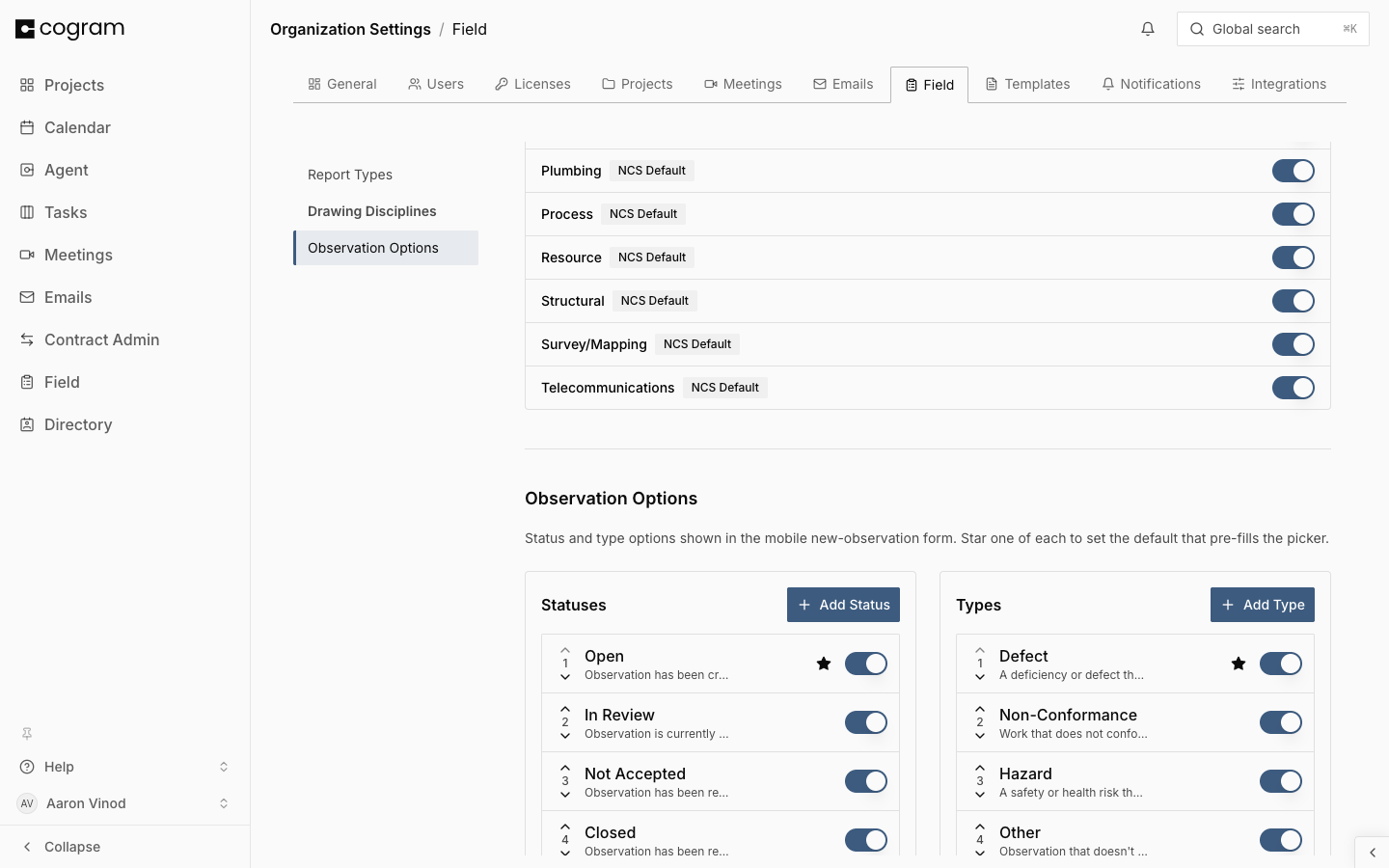
When your team captures an observation on site, they tag it with a Type (what it is, like a Defect or a Hazard) and a Status (where it stands, like Open or Closed). You choose the options they can pick from, so the whole organization uses the same vocabulary.
Both lists live together under [Organization Settings > Field > Observation Options](https://app.cogram.com/dashboard/settings/admin/field-reports#observation-options).
{% hint style="info" %}
You need to be an Org Admin or Org Owner to manage these options.
{% endhint %}
## Adding a type or status
To add one:
1. Go to [Organization Settings > Field > Observation Options](https://app.cogram.com/dashboard/settings/admin/field-reports#observation-options).
2. Click **Add Status** in the Statuses list or **Add Type** in the Types list.
3. Enter a name (e.g., "In Review" or "Hazard") and, if you like, a short description. Only admins see the description.
4. Click **Create**.
New options are added to the end of the list and show up in the mobile picker right away. To change one later, click the pencil icon on its row and then **Save**.
Observation Options under Organization Settings > Field
## Setting the defaults
The default Type and Status are pre-filled whenever someone captures a new observation, saving a tap on site. Hover over an option and click the star to make it the default. Only one Type and one Status can be the default at a time; starring another option moves it.
## Reordering options
Use the up and down arrows on each row to reorder. Your team sees the same order in the mobile picker.
## Deactivating or deleting an option
To retire an option without touching past observations, click the toggle on its row. It disappears from the picker, and observations that already use it keep it. Switch the toggle back on to bring it back.
Delete (the trash icon) only works while no observations use the option. If some do, deactivate it instead.
## Related
* [Capture observations](/field/observations.md): how your team uses these options when capturing on site.
* [Report types](/field/report-types.md): how observation types and statuses appear in exported reports.
* [Drawing disciplines](/field/drawing-disciplines.md): the other list you manage on this page, for classifying drawings.
---
# Agent Instructions
This documentation is published with GitBook. GitBook is the documentation platform designed so that both humans and AI agents can read, navigate, and reason over technical content effectively. Learn more at gitbook.com.
## Querying This Documentation
If you need additional information that is not directly available in this page, you can query the documentation dynamically by asking a question.
Perform an HTTP GET request on the current page URL with the `ask` query parameter, and the optional `goal` query parameter:
```
GET https://docs.cogram.com/field/observation-types-and-statuses.md?ask=&goal=
```
`ask` is the immediate question: it should be specific, self-contained, and written in natural language.
`goal` is optional and describes the broader end goal you are ultimately trying to accomplish on behalf of the user. GitBook uses it to tailor the answer towards what is most useful for that goal.
The response will contain a direct answer to the question and relevant excerpts and sources from the documentation.
Use this mechanism when the answer is not explicitly present in the current page, you need clarification or additional context, or you want to retrieve related documentation sections.