> For the complete documentation index, see [llms.txt](https://docs.cogram.com/llms.txt). Markdown versions of documentation pages are available by appending `.md` to page URLs; this page is available as [Markdown](https://docs.cogram.com/get-started/mobile-app.md).
# Cogram on your phone
Install the Cogram mobile app, sign in, and find your way around the five tabs you use on site.
The Cogram mobile app is built for site visits: record in-person meetings, capture observations with photos, create field reports, and carry your drawings with you, even without signal. This page gets you signed in and oriented.
## Installing the app
Search for "Cogram" in the App Store (iPhone and iPad) or Google Play Store (Android) and install it.
## Signing in
Sign in with the same account you use on the web:
* With your work email and password, tap **Login** after entering them. With **Remember me** on (the default), you stay signed in. Turn it off to be signed out the next time the app starts after it was fully closed. Anything not yet uploaded stays on your phone and uploads after you sign in again.
* If your firm uses Single Sign-On, enter your enterprise email on the SSO screen and tap **Sign in**. You are taken to your firm's usual login. **Other sign-in options** switches between the two screens.
{% hint style="info" %}
If your firm uses Single Sign-On, always sign in through it. Signing in with a password on a Single Sign-On organization can leave the app unable to load your license.
{% endhint %}
## Finding your way around
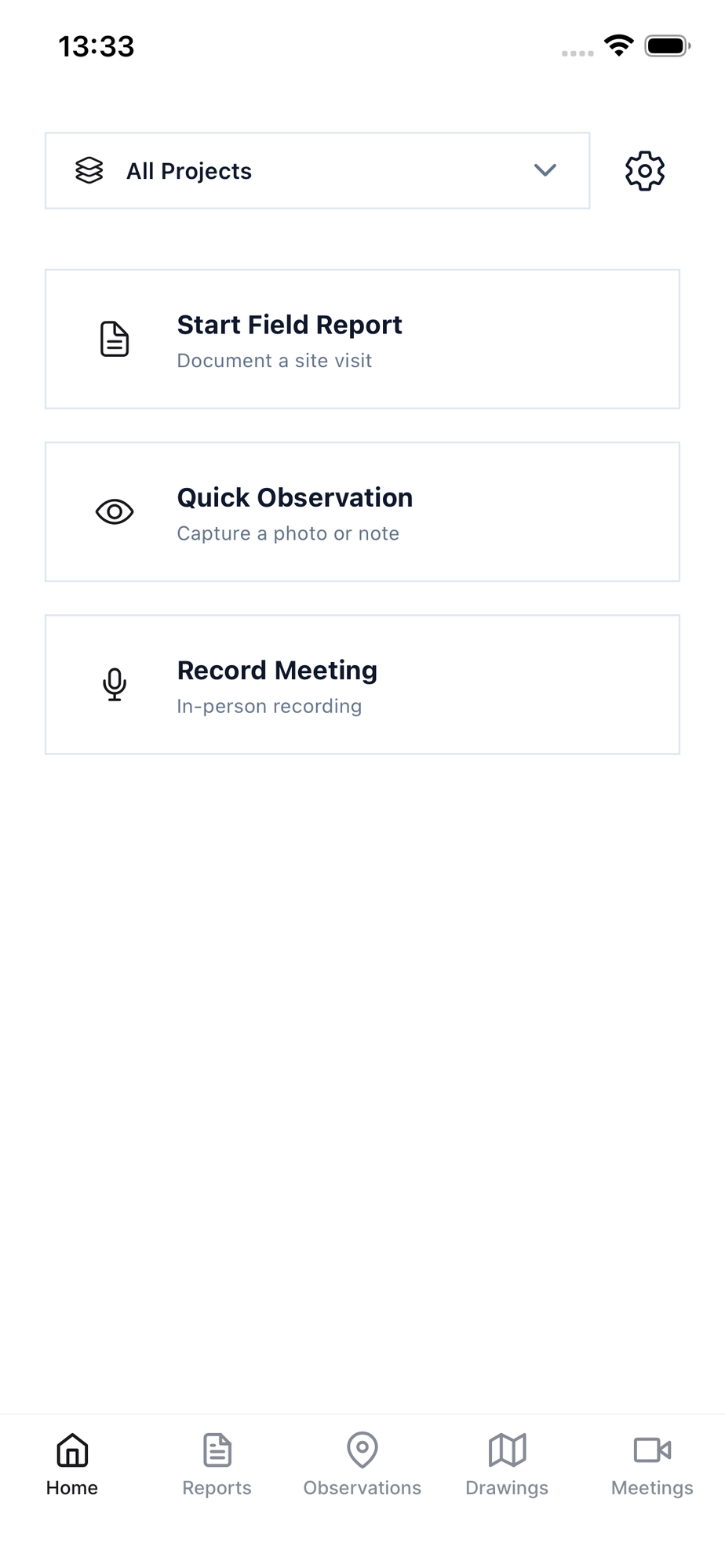
The app has five tabs along the bottom:
* **Home**: the three big actions, **Start Field Report**, **Quick Observation**, and **Record Meeting**, plus your project picker.
* **Reports**: your field reports, including drafts you can resume.
* **Observations**: everything captured on site, with search and filters.
* **Drawings**: your project drawings, ready to download for offline use.
* **Meetings**: your recorded in-person meetings.
Pick a project on the Home tab and every other tab scopes to it. Pick **All Projects** to see everything. You can also create a new project right from the picker when you are starting work on a new site.
The Home tab and the five tabs along the bottom
## If a tab says it isn't available
A tab showing "\[Module] isn't available" means your account does not have a seat for that module. Tap **Ask my admin** to request one from your Cogram admin. If your whole team lacks the module, talk to your Cogram contact.
## Settings
Tap your profile to open Settings:
* **Save photos to camera roll**: also keep a copy of captured photos in your phone's photo library.
* **Check for updates**: fetch the latest app version.
* **Delete local data**: clear everything stored on the phone. Only use this when nothing shows **Awaiting Upload**, or you will lose unsynced work.
* **Log out**: if anything is still uploading, the app warns you first. Unsynced items stay on the device and finish uploading after you sign back in.
## Related
* [Create a field report on site](https://docs.cogram.com/field/field-reports.md): the main field workflow, start to finish.
* [Capture observations](https://docs.cogram.com/field/observations.md): notes, photos, and drawing pins.
* [Working offline](https://docs.cogram.com/field/working-offline.md): what happens when you have no signal.
---
# Agent Instructions
This documentation is published with GitBook. GitBook is the documentation platform designed so that both humans and AI agents can read, navigate, and reason over technical content effectively. Learn more at gitbook.com.
## Querying This Documentation
If you need additional information that is not directly available in this page, you can query the documentation by asking a question.
Perform an HTTP GET request on the following URL with the `ask` and `goal` query parameters:
```
GET https://docs.cogram.com/get-started/mobile-app.md?ask=&goal=
```
`ask` is the immediate question: it should be specific, self-contained, and written in natural language.
`goal` is what the user is ultimately trying to achieve, the reason they need the answer. Sharing it helps GitBook give you a better, more relevant answer. A goal is most helpful when it describes the outcome the user wants rather than restating the question. For example, with `ask=how do I create an API token`, a goal like `automate deployments from our CI pipeline` lets GitBook tailor the answer to that use case.
The response will contain a direct answer to the question and relevant excerpts and sources from the documentation.
Use this mechanism when the answer is not explicitly present in the current page, you need clarification or additional context, or you want to retrieve related documentation sections.