> For the complete documentation index, see [llms.txt](https://docs.cogram.com/llms.txt). Markdown versions of documentation pages are available by appending `.md` to page URLs; this page is available as [Markdown](https://docs.cogram.com/guides/microsoft-teams.md).

# Cogram for Microsoft Teams

Bring Cogram into Microsoft Teams. Once installed, mention **@Cogram** in any chat to ask questions about your projects in plain language (meetings, action items, emails, and documents) and get answers based on your project data.

> **Just want to chat with Cogram?** The setup steps further down are a one-time job for your IT admin. If Cogram already appears in your Teams, jump straight to [**Talking to @Cogram**](#talking-to-cogram). That's all you need.

## What the Teams app does

Cogram is an AI platform for the architecture, engineering, and construction (AEC) industry. It organizes your projects' meetings, emails, documents, and field reports, and automates project admin.

The Teams app puts that same Q\&A inside Microsoft Teams. Mention **@Cogram** in any chat and it answers in a reply thread, using your own Cogram project data, so you can stay in Teams instead of switching to the web app.

> Cogram answers using the **signed-in user's own** Cogram project data. Each person only sees the projects they already have access to in Cogram.

## Talking to @Cogram

1. Go to [**Microsoft Teams**](https://teams.cloud.microsoft/).
2. Open the **Cogram** chat, or any chat where the app is installed.
3. Type **@** and pick **Cogram** from the list, then type your question and send. Cogram replies in a thread on your message.

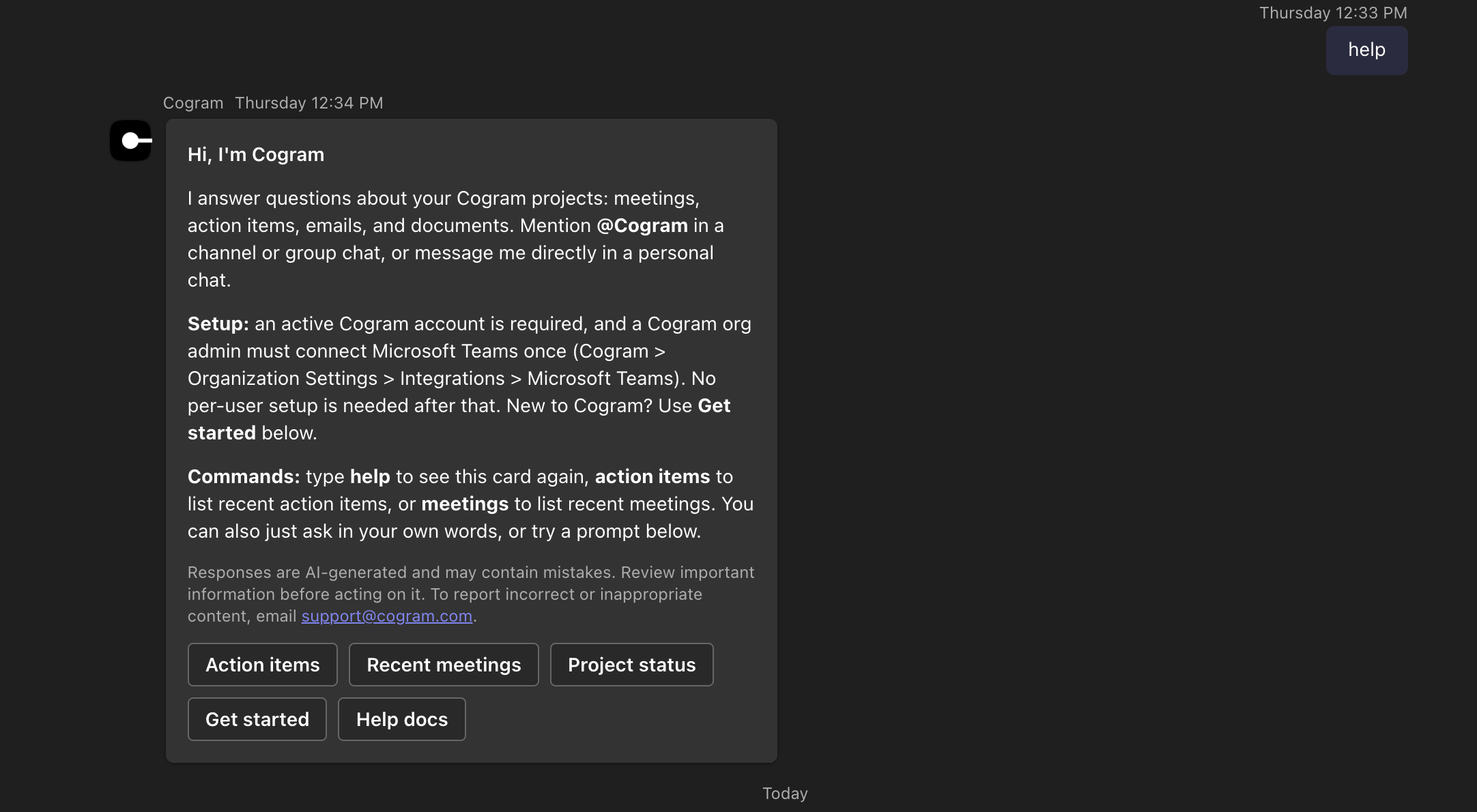
The first time you open Cogram (or any time you type **help**) it shows a welcome card with what it can do, example prompts, and the AI-generated-content notice:

<figure><img src="/files/Wu5atJk9C2TRQ91cqXIY" alt="Cogram welcome card in Teams reading Hi, I&#x27;m Cogram, with command descriptions and example prompt buttons" width="700"><figcaption><p>The Cogram welcome card: type help to show it again</p></figcaption></figure>

Example questions:

* "What are my available projects?"
* "Provide an overview of all my projects as a table: name, owner, when it was last updated, and how many action items there are."
* "When did we agree on the price with John Smith?"

You can also message Cogram directly in a 1:1 chat, or mention it in a channel where it is installed.

## Installation

Getting Cogram into Teams is a two-part, one-time job: an admin makes the app available to your organization, then each person adds it in their own Teams.

### Setting up Cogram for your organization

> **For admins.** These are one-time steps done by an admin. Regular users can skip them and go to [Talking to @Cogram](#talking-to-cogram).

Two one-time admin steps before anyone can use Cogram in Teams: connect Microsoft Teams in Cogram, then make the Cogram app available in the Teams admin center.

#### 1. Connect Microsoft Teams in Cogram

> **Who:** a **Cogram organization admin**.

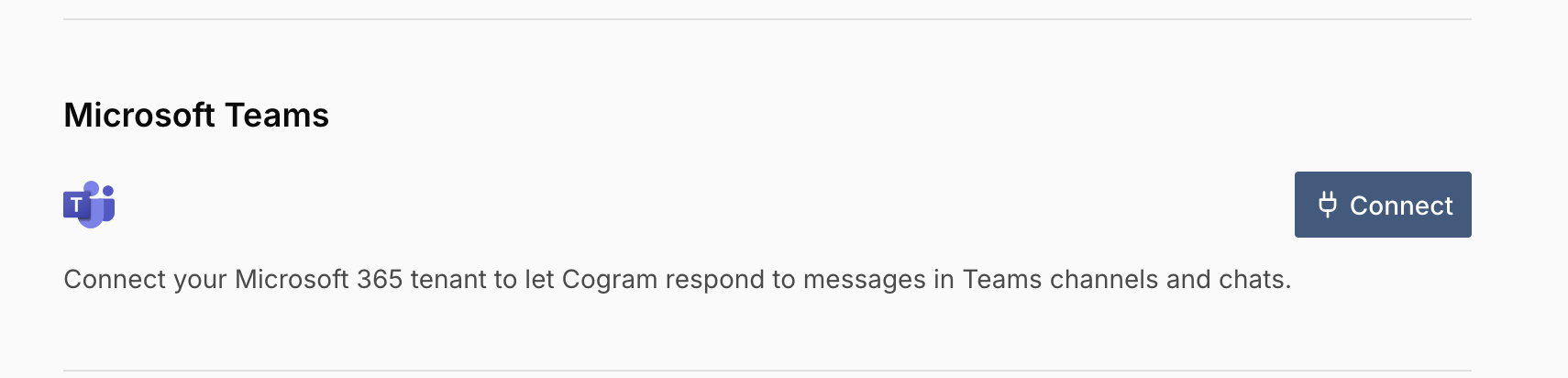
In Cogram, go to [**Organization Settings → Integrations → Microsoft Teams**](https://app.cogram.com/dashboard/settings/admin/integrations#teams) and click **Connect**. Sign in with a Microsoft 365 admin account and grant the requested permissions. This links your Microsoft 365 tenant (your organization's Microsoft account) to your Cogram organization so Cogram can respond to messages in Teams. You only do this once per organization: no per-user setup is needed afterward.

<figure><img src="/files/jmQZxDRwTMbgya391vRk" alt="Microsoft Teams integration card in Cogram Organization Settings with a Connect button" width="900"><figcaption><p>Organization Settings → Integrations → Microsoft Teams → Connect</p></figcaption></figure>

#### 2. Find the Cogram app in the Teams admin center

> **Who:** a **Microsoft Teams administrator**.

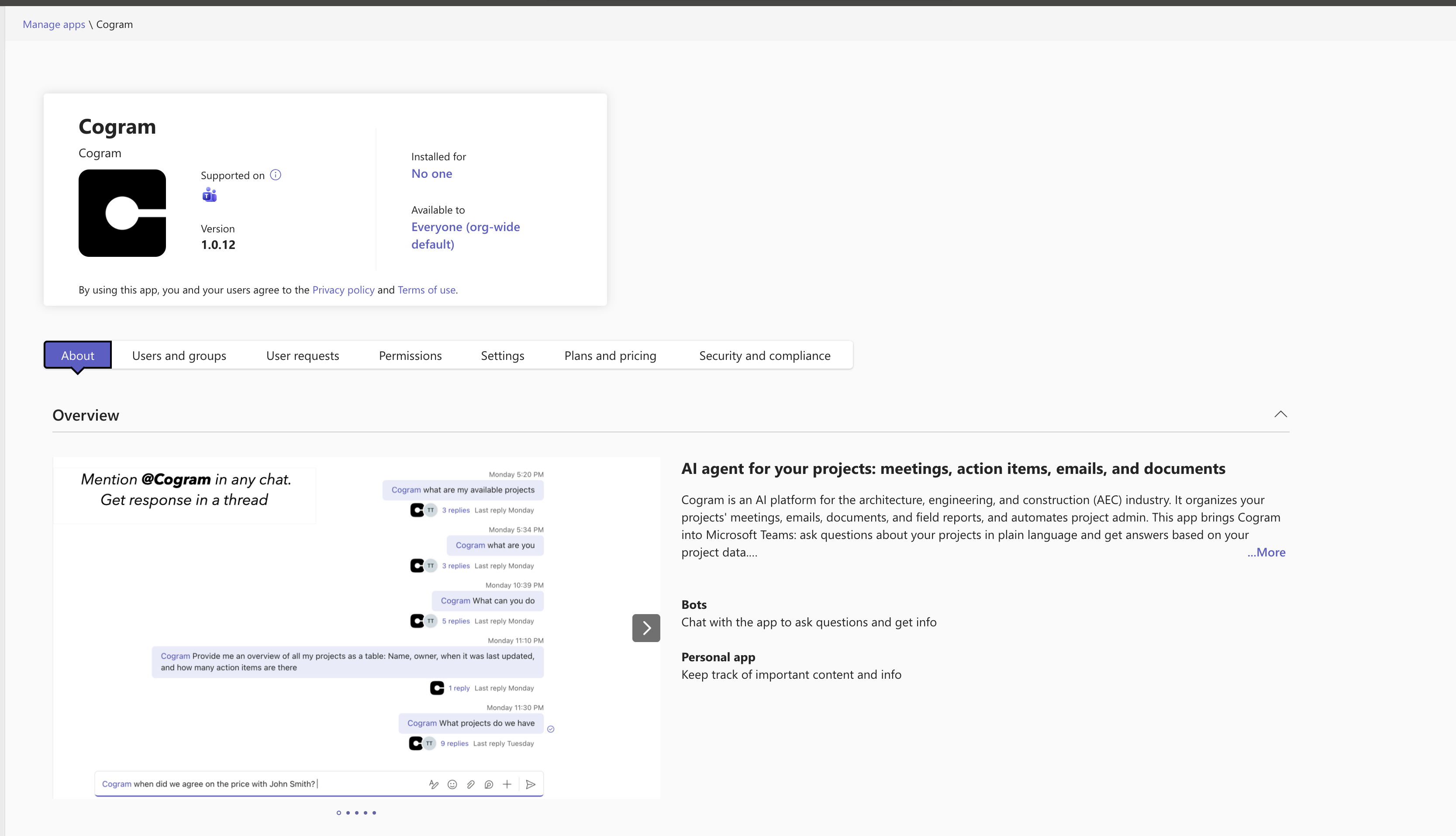
Go to the [**Cogram app** in the Teams admin center](https://admin.teams.microsoft.com/policies/manage-apps/02ae177c-b63f-4700-8f4f-06d327bc7147/users-and-groups), or search for **Cogram** in [**Teams admin center → Manage apps**](https://admin.teams.microsoft.com/policies/manage-apps) and open it. The app page shows the version, who it's installed for, and who it's available to.

<figure><img src="/files/9vEbgu3qPit11SvU0hG8" alt="Cogram app page in the Teams admin center showing the About tab and availability" width="900"><figcaption><p>The Cogram app page in the Teams admin center</p></figcaption></figure>
#### 3. Install the app

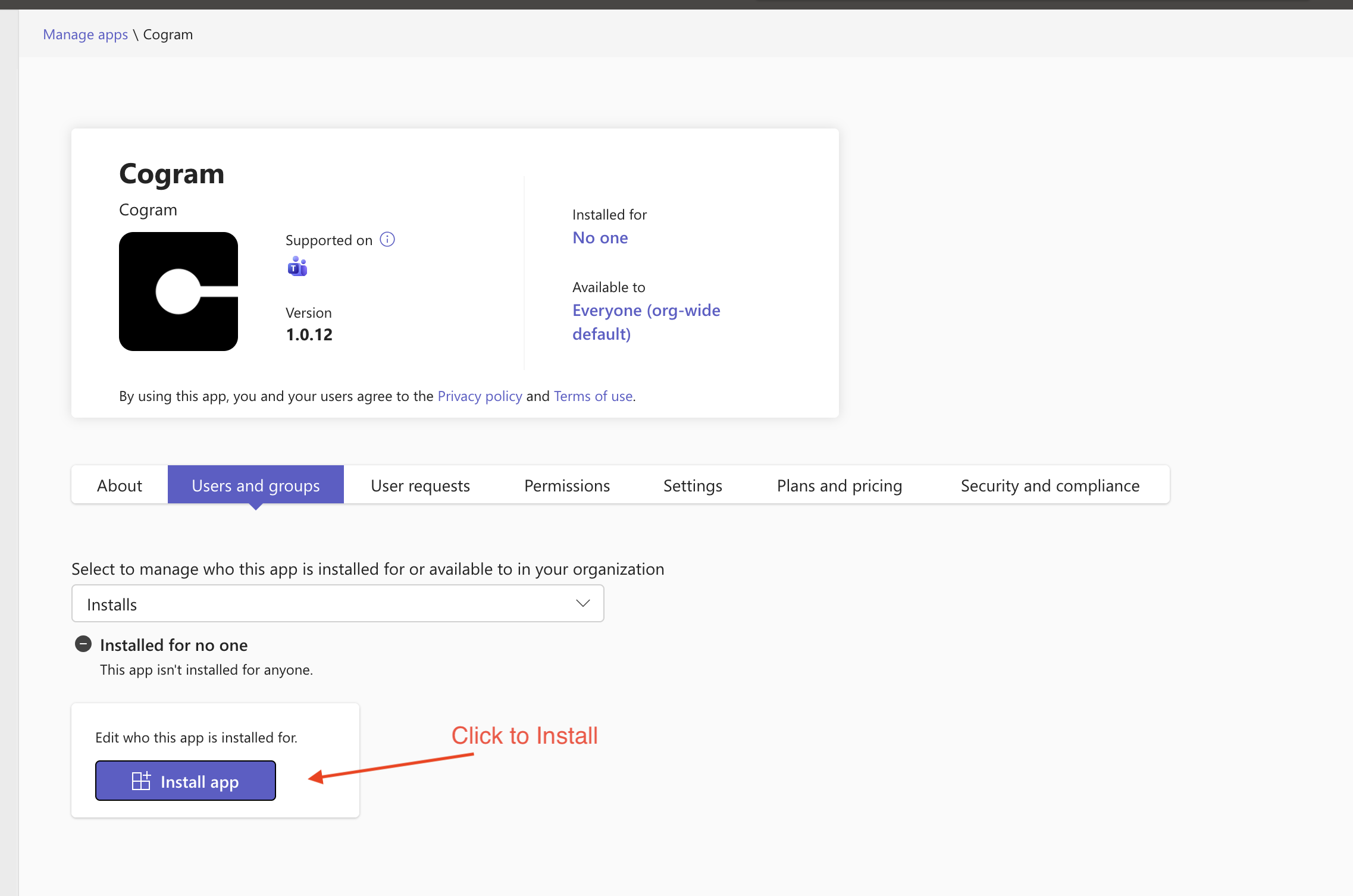
Open the [**Users and groups**](https://admin.teams.microsoft.com/policies/manage-apps/02ae177c-b63f-4700-8f4f-06d327bc7147/users-and-groups) tab and click **Install app**.

<figure><img src="/files/vKtgmSMOxSPcUOSeHnpT" alt="Cogram app Users and groups tab with the Install app button highlighted" width="900"><figcaption><p>On the Users and groups tab, click Install app</p></figcaption></figure>

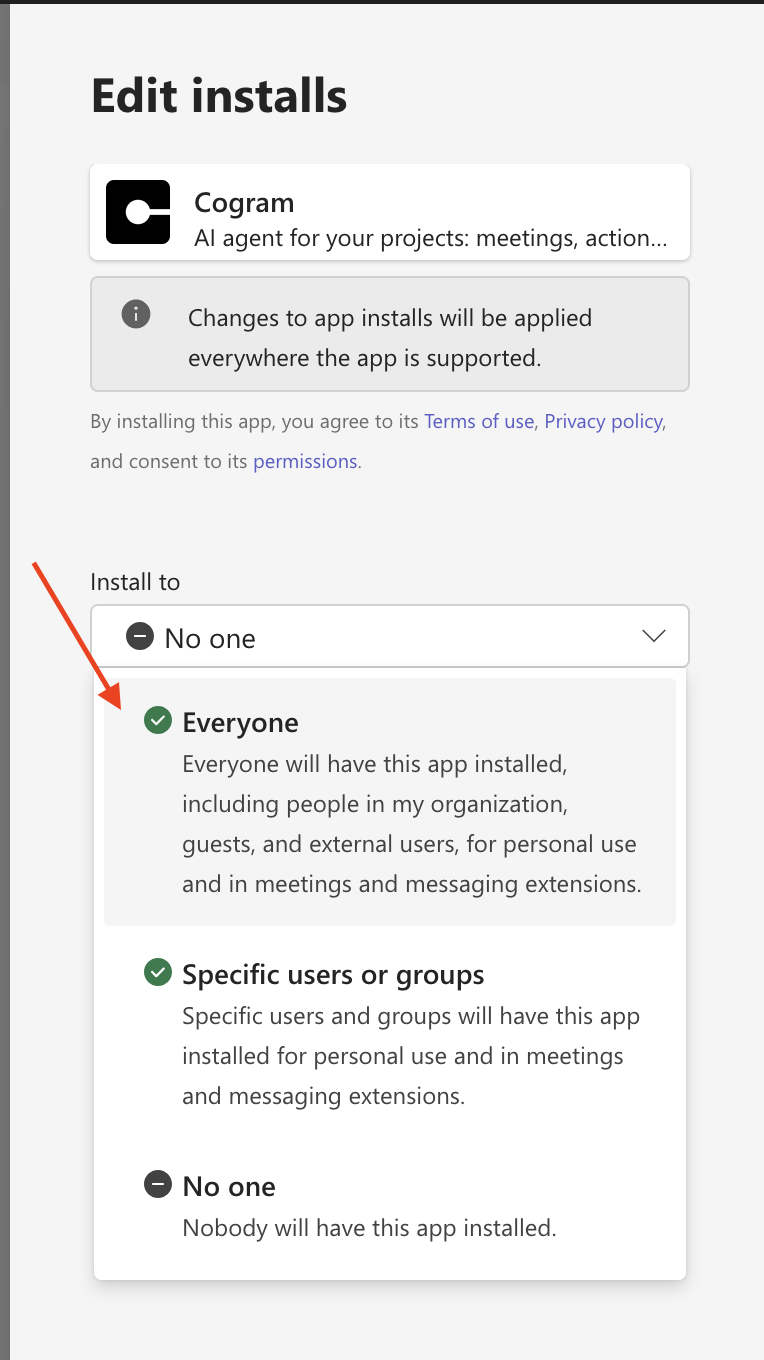
Under **Install to**, choose who gets Cogram:

* **Everyone**: everyone in your Microsoft organization, including guests and external users.
* **Specific users or groups**: search for and select individual users or groups.

<figure><img src="/files/COdKDYoVSDKmow0UJHVL" alt="Edit installs panel with the Install to dropdown open, showing Everyone, Specific users or groups, and No one" width="420"><figcaption><p>Under Install to, choose Everyone or specific users or groups</p></figcaption></figure>

Click **Apply**.

### Add Cogram in Teams

Once your administrator has made Cogram available (see [Setting up Cogram for your organization](#setting-up-cogram-for-your-organization) above), each person adds it in Teams:

1. Go to [**Microsoft Teams**](https://teams.cloud.microsoft/).
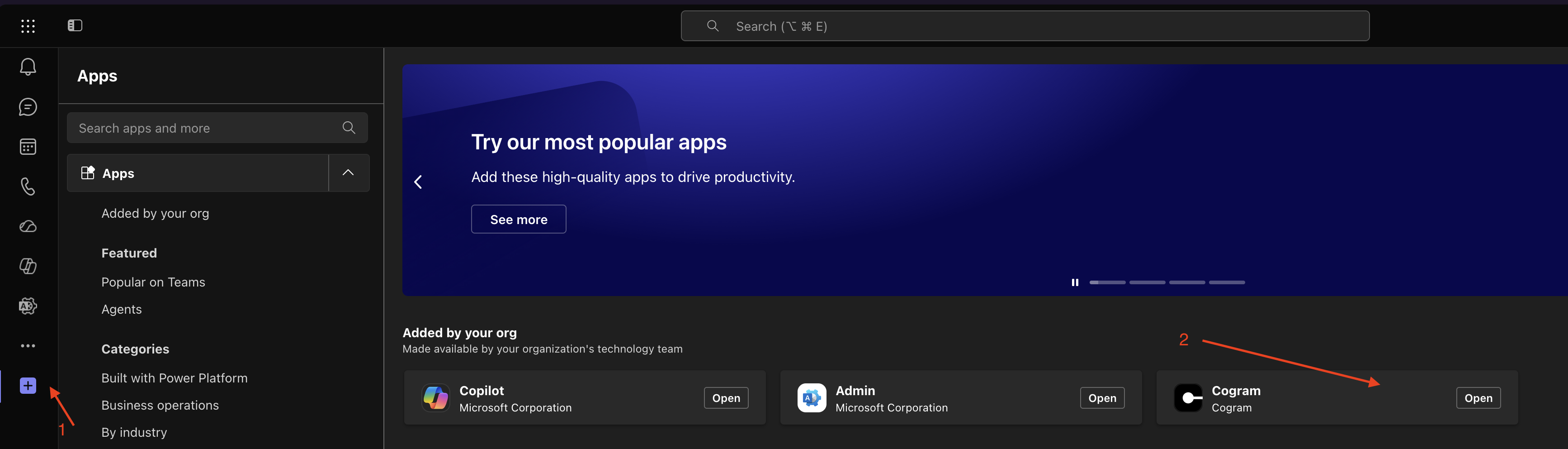
2. Open **Apps** (the **+** button in the left sidebar), find **Cogram** under **Added by your org**, and click **Add** (or **Open** if it's already there for you).

<figure><img src="/files/dinmOR6EPoP2pEepJfWF" alt="Teams Apps page with the Apps (+) button in the sidebar and the Cogram app under Added by your org" width="900"><figcaption><p>Open Apps, then add or open Cogram from Added by your org</p></figcaption></figure>

## Troubleshooting

**Cogram doesn't appear in Teams:** Your administrator hasn't made the app available to you yet, or installed it only for specific users. Ask your Teams administrator to install Cogram for your account (see [Setting up Cogram for your organization](#setting-up-cogram-for-your-organization)).

**Cogram doesn't respond at all:** Your Cogram organization may not be connected to Microsoft Teams yet. A Cogram org admin needs to connect it at [Organization Settings → Integrations → Microsoft Teams](https://app.cogram.com/dashboard/settings/admin/integrations#teams).

**Cogram replies that it can't find your account:** The Teams app only answers people who have a Cogram account in an organization that uses Cogram. Ask your Cogram organization admin to invite you by your email.

**No response when you mention @Cogram:** Make sure you selected **@Cogram** from the mention suggestions, and that the app has been added in Teams.

## Next steps

* [Agent](/guides/agent.md): the same project Q\&A inside the Cogram web app
* [Projects](/guides/projects.md): how your project data is organized


---

# Agent Instructions
This documentation is published with GitBook. GitBook is the documentation platform designed so that both humans and AI agents can read, navigate, and reason over technical content effectively. Learn more at gitbook.com.

## Querying This Documentation
If you need additional information that is not directly available in this page, you can query the documentation dynamically by asking a question.

Perform an HTTP GET request on the current page URL with the `ask` query parameter, and the optional `goal` query parameter:

```
GET https://docs.cogram.com/guides/microsoft-teams.md?ask=<question>&goal=<endgoal>
```

`ask` is the immediate question: it should be specific, self-contained, and written in natural language.
`goal` is optional and describes the broader end goal you are ultimately trying to accomplish on behalf of the user. GitBook uses it to tailor the answer towards what is most useful for that goal.

The response will contain a direct answer to the question and relevant excerpts and sources from the documentation.

Use this mechanism when the answer is not explicitly present in the current page, you need clarification or additional context, or you want to retrieve related documentation sections.