> For the complete documentation index, see [llms.txt](https://docs.cogram.com/llms.txt). Markdown versions of documentation pages are available by appending `.md` to page URLs; this page is available as [Markdown](https://docs.cogram.com/integrations/connecting-ai-apps.md).

# Connecting AI apps

Connect ChatGPT, Claude, or another AI app to Cogram and ask about your projects — meeting minutes, emails, RFIs, submittals, drawings, and field reports.

Connect your AI app to Cogram once, and from then on you can ask it about your projects directly — "what did we decide about the curtain wall in last week's OAC meeting?", "list open RFIs on the Riverside project", "summarize this month's field reports".

The connection is safe by design:

* **It is read-only.** The AI can search, read, and summarize. It cannot create, change, or delete anything in Cogram.
* **It acts as you.** The AI sees exactly what you can see in Cogram, and nothing more.

This page covers ChatGPT and Claude step by step, but any AI app that supports MCP connectors works the same way — see [Other AI apps](#other-ai-apps).

## Before you start

You need your own Cogram account, in an organization where an administrator has turned on MCP access. If the connection is refused, ask your administrator — the setup is described in [MCP Server](/integrations/mcp-server.md).

## Connect ChatGPT

In a ChatGPT workspace, Cogram is installed as a plugin. A workspace admin must publish the **Cogram MCP** plugin to the workspace first — send them to [MCP Server](/integrations/mcp-server.md). Then each user installs it once:

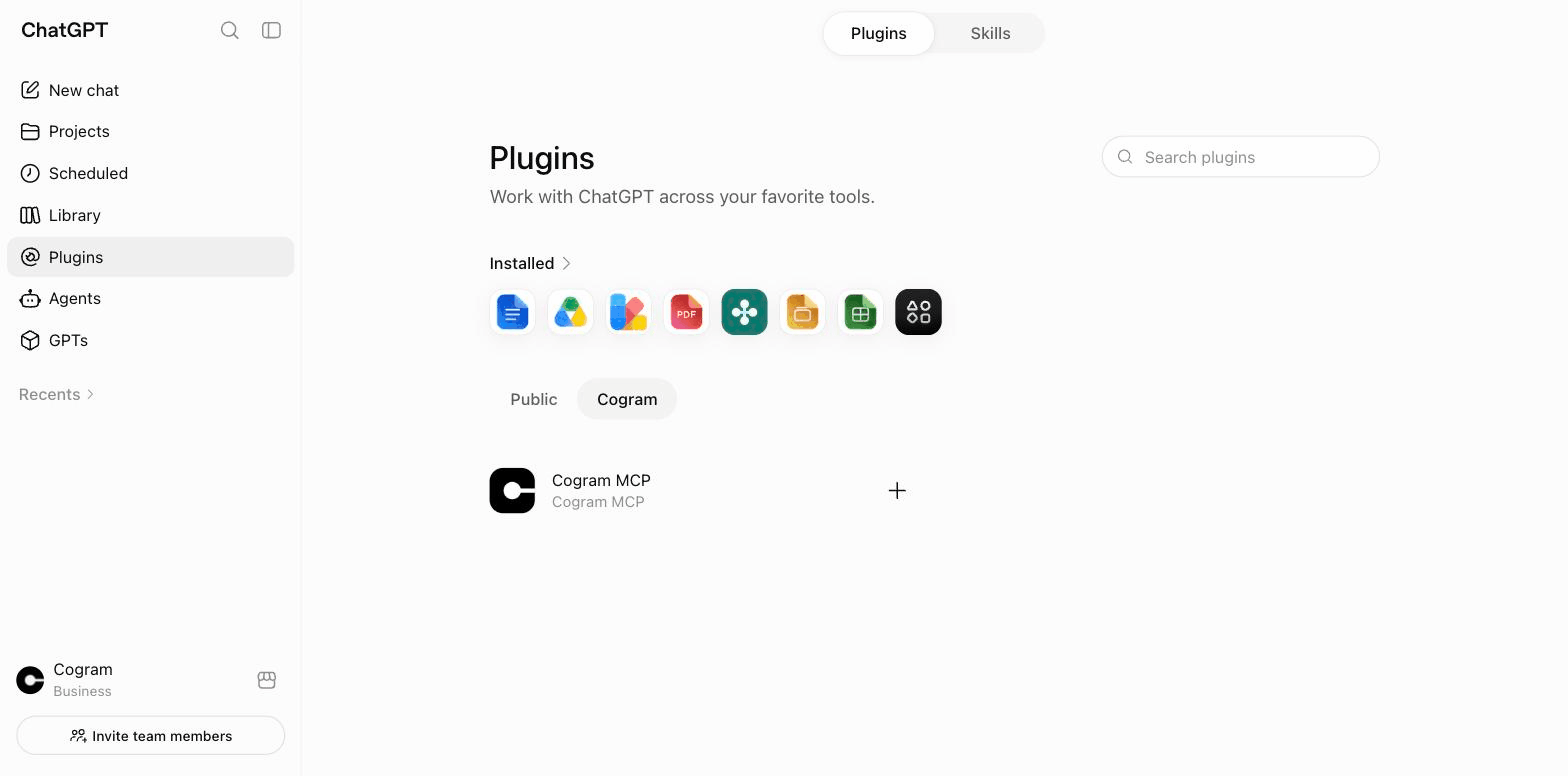
1. In the ChatGPT sidebar, select **Plugins**.
2. Select your workspace's tab, next to **Public** — it carries your company's name.

<figure><img src="https://1170756420-files.gitbook.io/~/files/v0/b/gitbook-x-prod.appspot.com/o/spaces%2FxpPm3rHOzFMoBqV20UQl%2Fuploads%2Fgit-blob-524391632fae5b811cf209615de5c991470717fe%2Fchatgpt-plugins-cogram.png?alt=media" alt="ChatGPT Plugins page with the workspace tab selected, showing the Cogram MCP plugin" width="700"><figcaption><p>Plugins → your workspace's tab. Cogram MCP is listed there once your admin has published it</p></figcaption></figure>

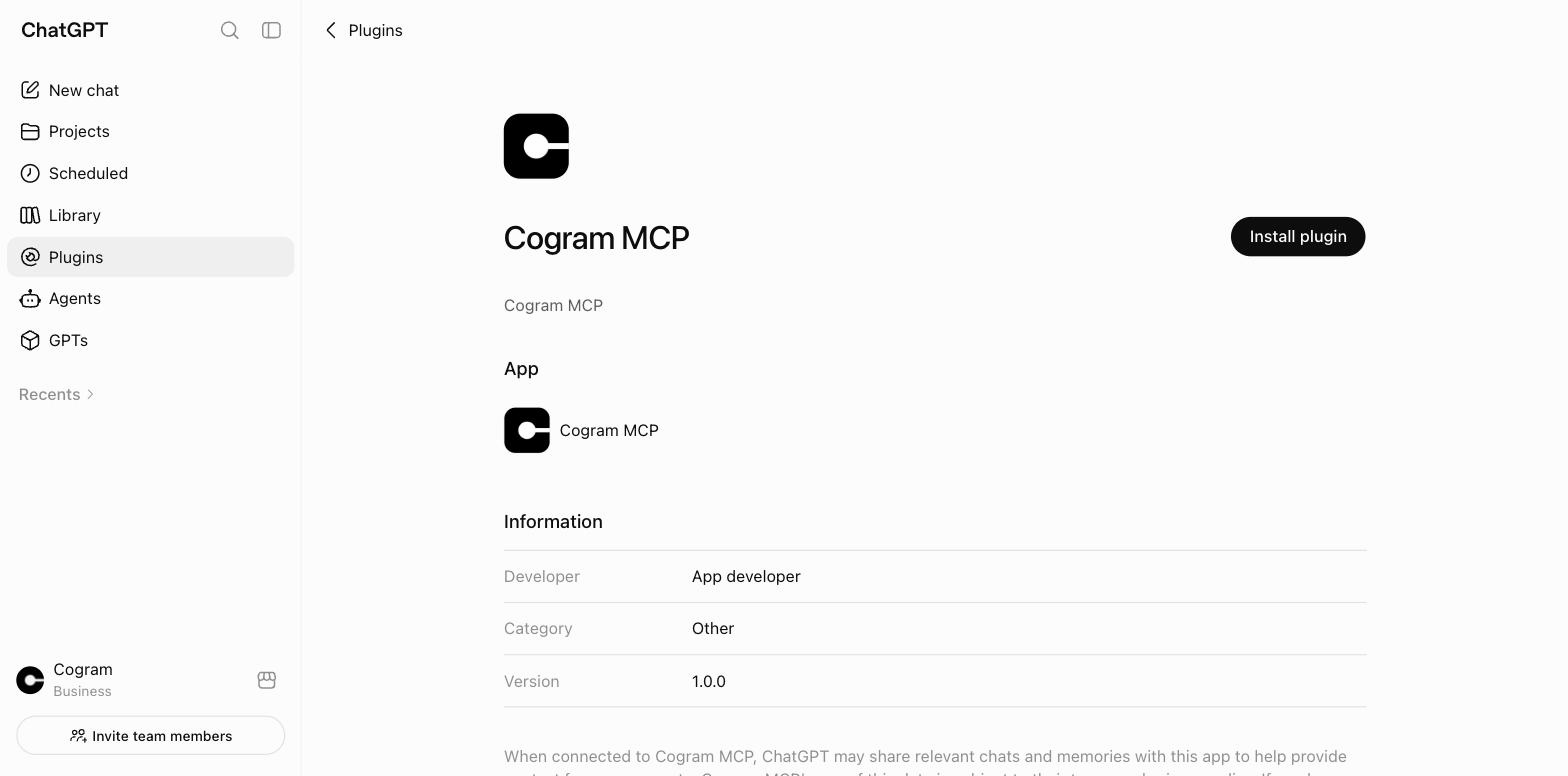
3. Select **Cogram MCP**, then select **Install plugin**.

<figure><img src="https://1170756420-files.gitbook.io/~/files/v0/b/gitbook-x-prod.appspot.com/o/spaces%2FxpPm3rHOzFMoBqV20UQl%2Fuploads%2Fgit-blob-f4a734ad52f09d6d9a05e0372e5d7fd966bc3cdb%2Fchatgpt-cogram-mcp-install.png?alt=media" alt="Cogram MCP plugin page in ChatGPT with an Install plugin button" width="700"><figcaption><p>Select <strong>Install plugin</strong></p></figcaption></figure>

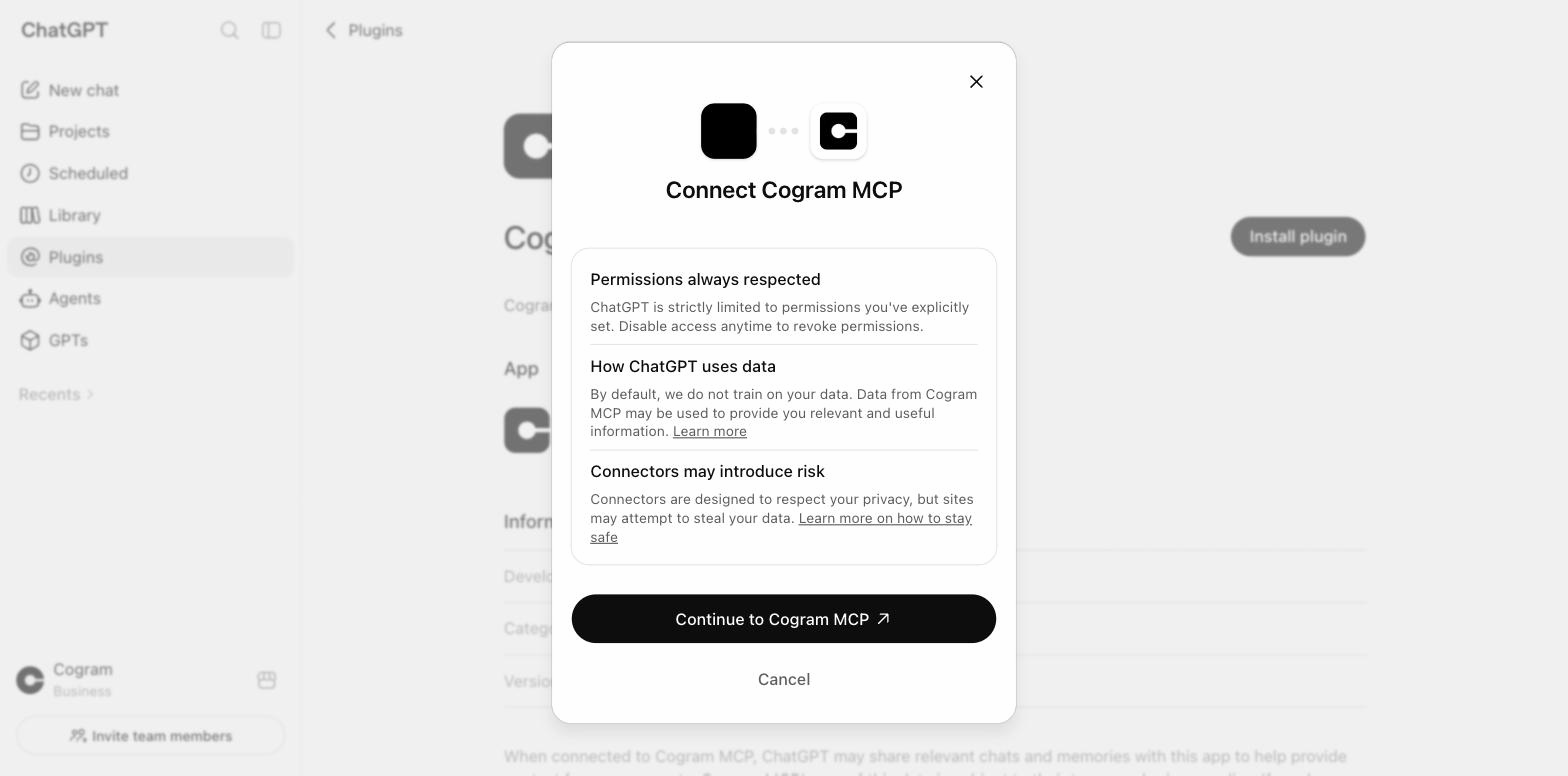
4. In the **Connect Cogram MCP** dialog, select **Continue to Cogram MCP**.

<figure><img src="https://1170756420-files.gitbook.io/~/files/v0/b/gitbook-x-prod.appspot.com/o/spaces%2FxpPm3rHOzFMoBqV20UQl%2Fuploads%2Fgit-blob-4201d421041392197099e27b7eb8229e47d0f50e%2Fchatgpt-connect-dialog.png?alt=media" alt="ChatGPT Connect Cogram MCP dialog with a Continue to Cogram MCP button" width="700"><figcaption><p>Select <strong>Continue to Cogram MCP</strong></p></figcaption></figure>

5. A Cogram tab opens. Sign in as you normally do, including through your identity provider if your organization uses SSO, and on the approval screen — **Allow ChatGPT to access Cogram?** — select **Allow**. If you have signed in and approved before, this step completes on its own.

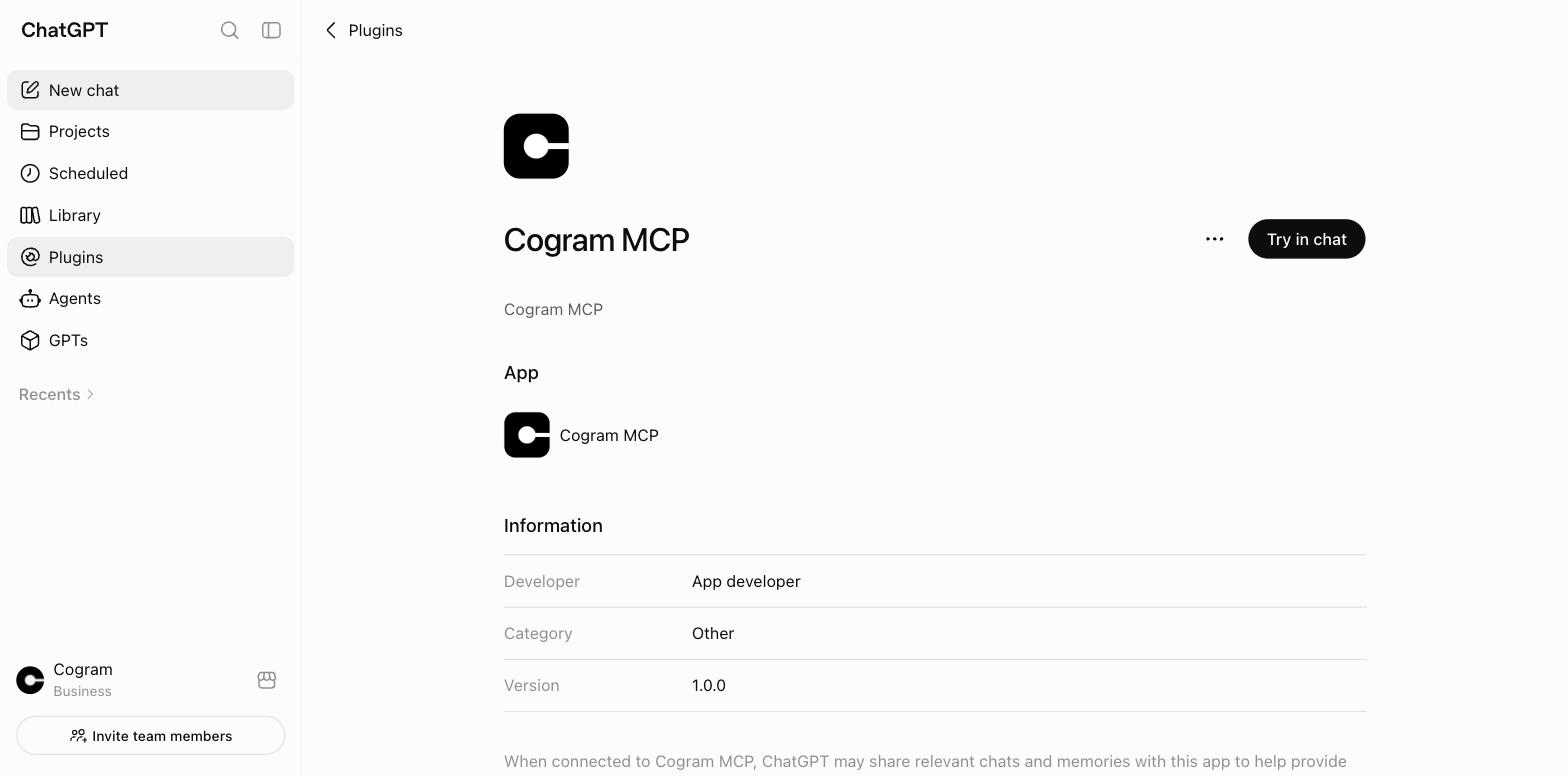
**Expected result:** ChatGPT shows **Cogram MCP is installed**, and the plugin page now offers **Try in chat**.

<figure><img src="https://1170756420-files.gitbook.io/~/files/v0/b/gitbook-x-prod.appspot.com/o/spaces%2FxpPm3rHOzFMoBqV20UQl%2Fuploads%2Fgit-blob-466bb7e7f0b2ed41eda431a3460d4bdc4e36eef9%2Fchatgpt-cogram-installed.png?alt=media" alt="Cogram MCP plugin page in ChatGPT after installation, with a Try in chat button" width="700"><figcaption><p>Installed: the plugin page now offers <strong>Try in chat</strong></p></figcaption></figure>

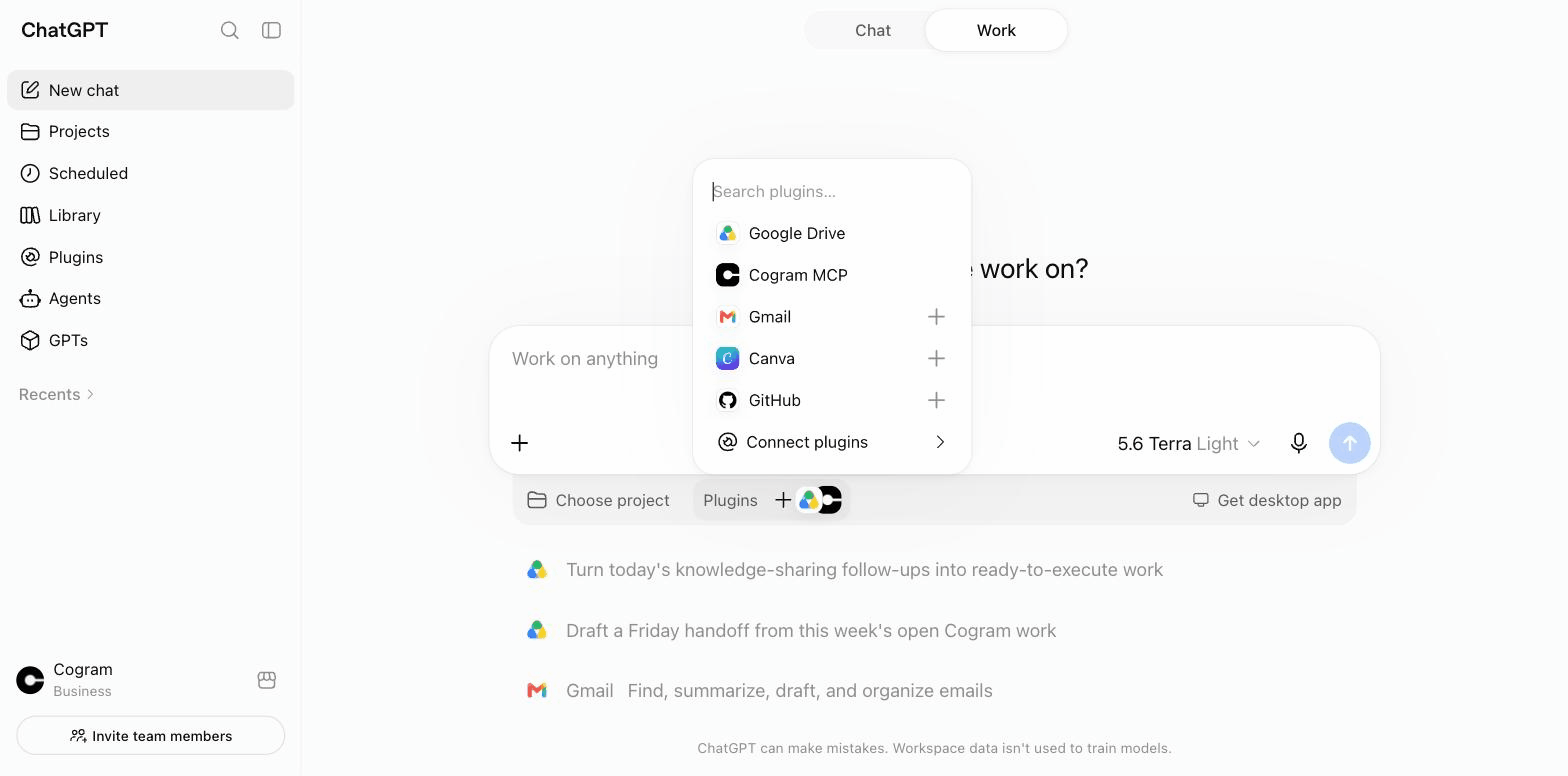
To use it, select **Try in chat**, or in any chat select **Plugins** under the message box and pick **Cogram MCP**.

<figure><img src="https://1170756420-files.gitbook.io/~/files/v0/b/gitbook-x-prod.appspot.com/o/spaces%2FxpPm3rHOzFMoBqV20UQl%2Fuploads%2Fgit-blob-d852e8d7a9b5ceaac59e9d589c65bae5315ba543%2Fchatgpt-plugins-picker.png?alt=media" alt="ChatGPT chat composer with the Plugins picker open, listing Cogram MCP" width="700"><figcaption><p>In a chat: <strong>Plugins</strong> under the message box → <strong>Cogram MCP</strong></p></figcaption></figure>

## Connect Claude (claude.ai)

In a Claude workspace, Cogram is a custom connector. An owner must publish the **Cogram MCP** connector to the organization first — send them to [MCP Server](/integrations/mcp-server.md). Then each user connects it once:

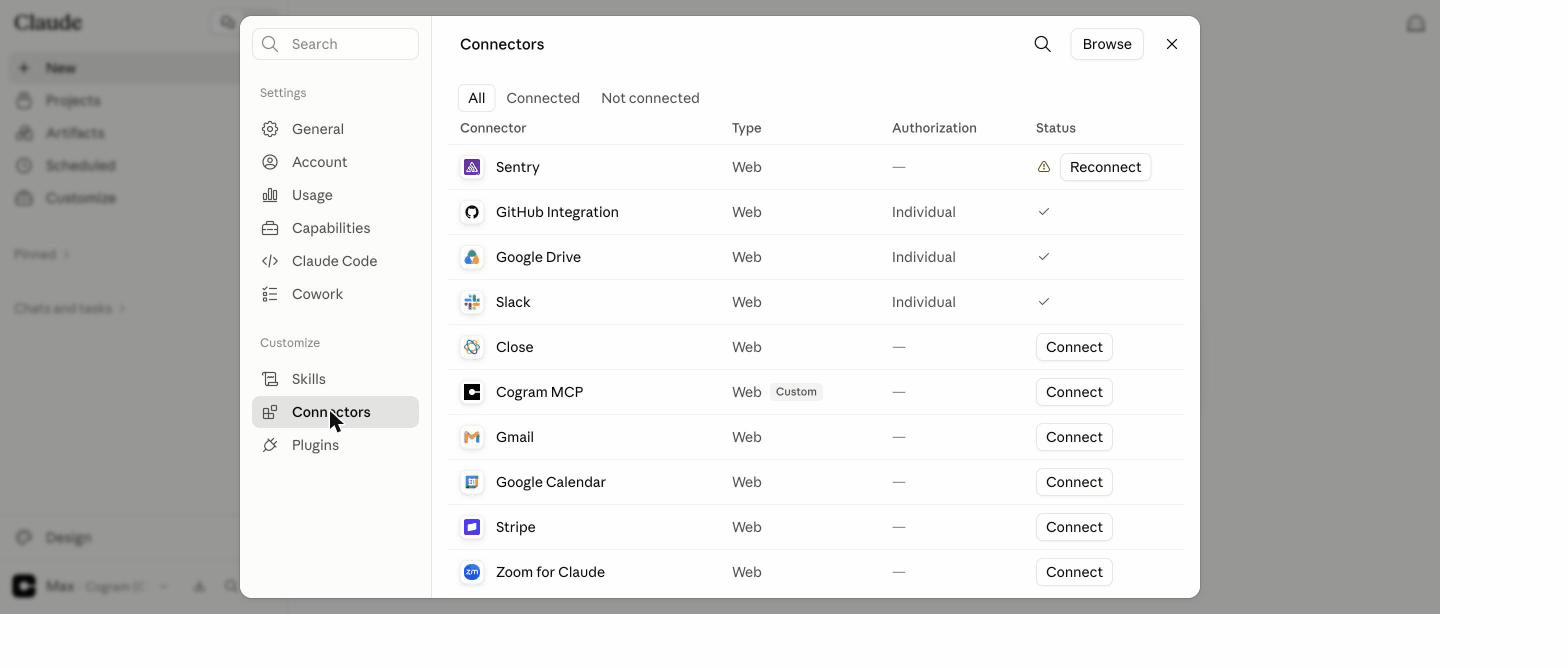
1. In the claude.ai sidebar, select **Customize**, then **Connectors**.
2. Find **Cogram MCP** in the list and select **Connect**.

<figure><img src="https://1170756420-files.gitbook.io/~/files/v0/b/gitbook-x-prod.appspot.com/o/spaces%2FxpPm3rHOzFMoBqV20UQl%2Fuploads%2Fgit-blob-17cd13c4054e923c78e7f051de955c0e23dfd324%2Fclaude-connectors-list.png?alt=media" alt="Claude Customize → Connectors list showing the Cogram MCP connector with a Connect button" width="700"><figcaption><p>Customize → Connectors: select <strong>Connect</strong> on Cogram MCP</p></figcaption></figure>

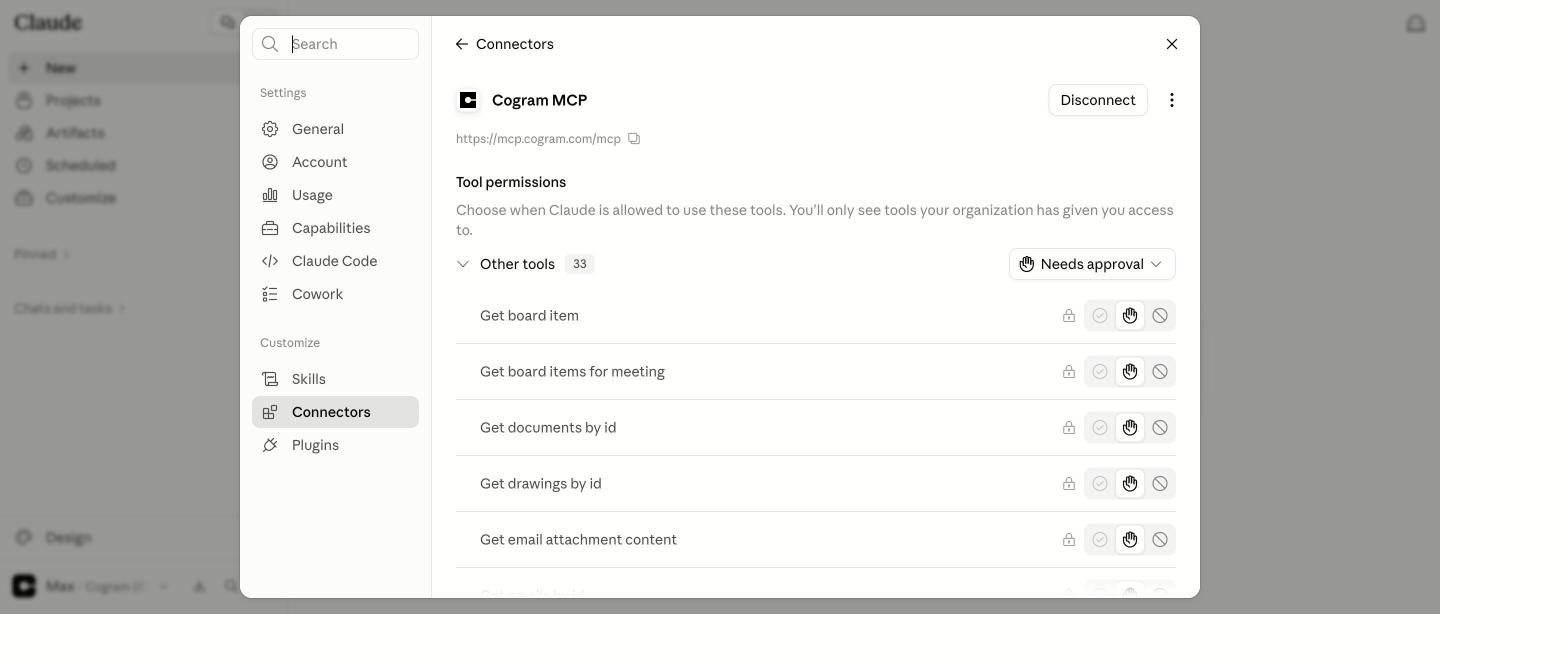
3. A Cogram tab opens. Sign in as you normally do, including through your identity provider if your organization uses SSO, and on the approval screen — **Allow Claude to access Cogram?** — select **Allow**.

**Expected result:** you land back on the connector in claude.ai, which now shows Cogram's tools and a **Disconnect** button. On this page you can also set per-tool permissions — by default Claude asks for your approval before each tool call.

<figure><img src="https://1170756420-files.gitbook.io/~/files/v0/b/gitbook-x-prod.appspot.com/o/spaces%2FxpPm3rHOzFMoBqV20UQl%2Fuploads%2Fgit-blob-f9b542e6457c7697d51bdcf8c4677b939b20650b%2Fclaude-connected.png?alt=media" alt="Cogram MCP connector page in claude.ai after connecting, showing tool permissions and a Disconnect button" width="700"><figcaption><p>Connected: the connector page lists Cogram's tools</p></figcaption></figure>

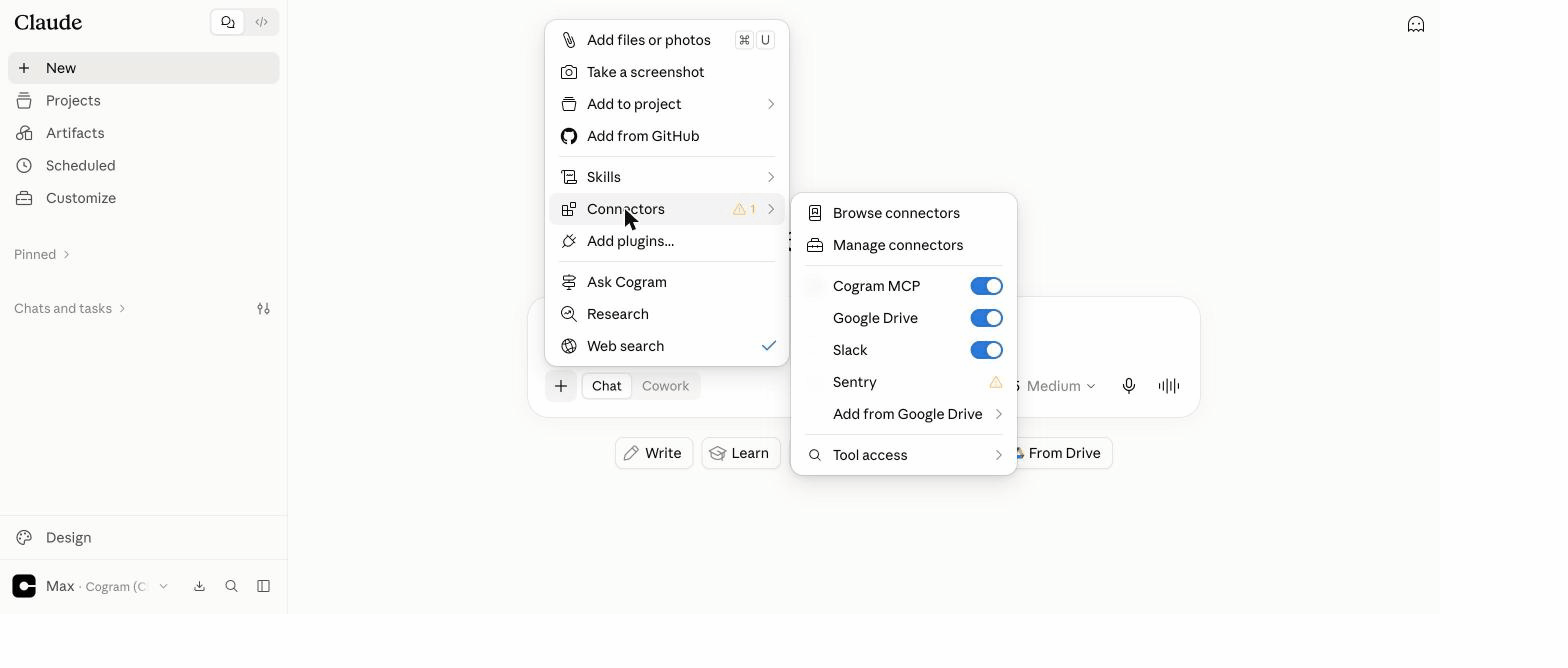
To use it in a conversation, open the plus menu in the chat box, select **Connectors**, and check that **Cogram MCP** is turned on — it is on by default after connecting.

<figure><img src="https://1170756420-files.gitbook.io/~/files/v0/b/gitbook-x-prod.appspot.com/o/spaces%2FxpPm3rHOzFMoBqV20UQl%2Fuploads%2Fgit-blob-cc9c73394e2fd808f176d6fb57cfd3d003864892%2Fclaude-chat-connectors.png?alt=media" alt="Claude chat composer plus menu with the Connectors submenu open, showing the Cogram MCP toggle turned on" width="700"><figcaption><p>In a chat: plus menu → <strong>Connectors</strong> → <strong>Cogram MCP</strong></p></figcaption></figure>

**If you use a personal Claude account** (Free, Pro, or Max), add Cogram yourself:

1. Go to **Customize → Connectors** and select **Add custom connector**.
2. Name it **Cogram** and enter the server URL `https://mcp.cogram.com/mcp`. Leave the advanced OAuth fields empty.
3. Select **Add**, then **Connect**, and complete the same sign-in and approval as above.

Claude caveats: custom connectors work on the web, in the desktop app, and in Cowork. The Free plan allows one custom connector.

## Other AI apps

Cogram's MCP server is a standard MCP server, so any AI app that can add a custom MCP connector can connect — for example Grok, Microsoft Copilot Studio, or an agent your own team builds. The menu names differ per app, but the shape is always the same:

1. In the app, add a custom connector (sometimes called an MCP server, app, or tool) with the server URL `https://mcp.cogram.com/mcp`.
2. Sign in to Cogram in the browser window that opens, and select **Allow**.

For agents your team builds itself, see [MCP Server](/integrations/mcp-server.md).

## Check that it works

Ask the AI application: "list my active Cogram projects". It should call Cogram tools such as `search_projects` and answer with your projects.

## What the AI can see

The AI reads Cogram through a fixed set of read-only tools: projects, meetings, emails, documents, RFIs, submittals, drawings, field reports, observations, transmittals, boards, workflows, and the directory. Which tools are offered depends on your organization's [licensing](/organization-administration/licensing.md); what each tool returns is limited by your own project membership and [asset visibility](/projects/asset-visibility.md). The full tool list is in [MCP Server](/integrations/mcp-server.md#what-data-an-agent-can-reach).

Anything the AI writes from Cogram data is an AI draft. Check names, dates, decisions, action items, technical values, and any contractual wording before you rely on it.

## Troubleshooting

**Symptom**: The AI reports "MCP access is not enabled for your organization", or the approval screen offers no **Allow** button. **Likely cause**: MCP access is off for your organization. **Fix**: Ask an administrator to turn it on — see [MCP Server](/integrations/mcp-server.md).

**Symptom**: **Cogram MCP** does not appear under **Plugins** on your workspace's tab in ChatGPT. **Likely cause**: A workspace admin has not published the Cogram MCP plugin to your workspace yet — users cannot add it themselves. **Fix**: Ask a workspace admin to publish it — see [MCP Server](/integrations/mcp-server.md).

**Symptom**: The AI sees fewer projects or meetings than you expect. **Likely cause**: The AI has exactly your own access. You are not on those projects, or asset visibility hides those records from you. **Fix**: Ask to be added to the projects. Nothing about the connection itself can widen what the AI sees.

**Symptom**: A working connection suddenly asks you to sign in again. **Likely cause**: The stored sign-in expired or was revoked. **Fix**: Run the connection again — sign in and approve.

**Symptom**: You want to disconnect the AI from Cogram. **Fix**: Remove the Cogram connector or app in the AI application. That ends its access immediately.

## Next steps

* [Agent](/agent/agent.md) — Cogram's own built-in agent, which needs no setup.
* [MCP Server](/integrations/mcp-server.md) — administrator setup, the full tool list, and rate limits.

Questions? Email <support@cogram.com> or use the in-app Help menu.


---

# Agent Instructions
This documentation is published with GitBook. GitBook is the documentation platform designed so that both humans and AI agents can read, navigate, and reason over technical content effectively. Learn more at gitbook.com.

## Querying This Documentation
If you need additional information that is not directly available in this page, you can query the documentation dynamically by asking a question.

Perform an HTTP GET request on the current page URL with the `ask` query parameter, and the optional `goal` query parameter:

```
GET https://docs.cogram.com/integrations/connecting-ai-apps.md?ask=<question>&goal=<endgoal>
```

`ask` is the immediate question: it should be specific, self-contained, and written in natural language.
`goal` is optional and describes the broader end goal you are ultimately trying to accomplish on behalf of the user. GitBook uses it to tailor the answer towards what is most useful for that goal.

The response will contain a direct answer to the question and relevant excerpts and sources from the documentation.

Use this mechanism when the answer is not explicitly present in the current page, you need clarification or additional context, or you want to retrieve related documentation sections.