> For the complete documentation index, see [llms.txt](https://docs.cogram.com/llms.txt). Markdown versions of documentation pages are available by appending `.md` to page URLs; this page is available as [Markdown](https://docs.cogram.com/meetings/audio-upload.md).
# Audio upload
Upload a meeting recording to generate a transcript, summary, and action items, even if Cogram was not in the meeting.
If Cogram did not attend a meeting live, you can upload a recording afterward to generate a full transcript and meeting notes.
## Uploading a recording
1. Go to [Meetings > Audio Upload](https://app.cogram.com/dashboard/meetings/audio-upload).
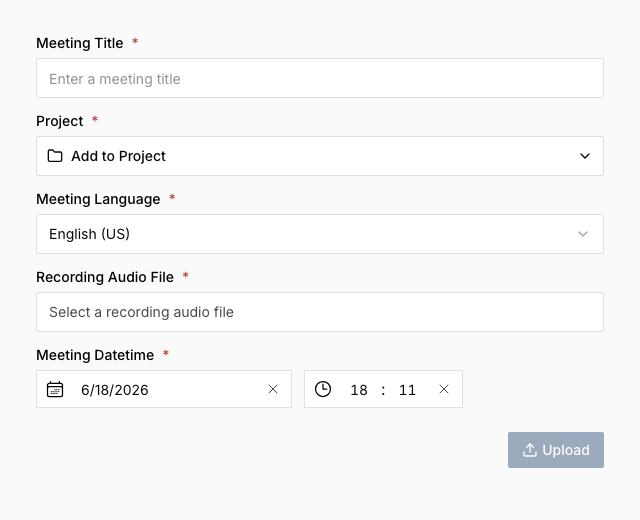
2. Fill in the required fields:
* **Meeting Title**: a descriptive name for the meeting.
* **Meeting Language**: the language spoken in the recording. Defaults to your account transcription language preference.
* **Recording Audio File**: click to browse and select an audio file. Any standard audio format is accepted.
* **Meeting Datetime**: the date and time the meeting took place. Defaults to now.
3. Click **Upload**.
The Audio Upload form
A progress bar shows the upload status. Once complete, a success message appears with a link to the newly created meeting. The meeting is then processed in the background: transcription and note generation typically take a few minutes depending on the recording length.
## After uploading
The uploaded recording appears in your [Meetings list](https://app.cogram.com/dashboard/meetings/all) with the source label "Audio Upload". Open it to view the transcript, summary, and action items, just like any other meeting.
You can upload another recording as soon as the first finishes. Once processing completes, open the meeting to review its summary and action items.
---
# Agent Instructions
This documentation is published with GitBook. GitBook is the documentation platform designed so that both humans and AI agents can read, navigate, and reason over technical content effectively. Learn more at gitbook.com.
## Querying This Documentation
If you need additional information that is not directly available in this page, you can query the documentation by asking a question.
Perform an HTTP GET request on the following URL with the `ask` and `goal` query parameters:
```
GET https://docs.cogram.com/meetings/audio-upload.md?ask=&goal=
```
`ask` is the immediate question: it should be specific, self-contained, and written in natural language.
`goal` is what the user is ultimately trying to achieve, the reason they need the answer. Sharing it helps GitBook give you a better, more relevant answer. A goal is most helpful when it describes the outcome the user wants rather than restating the question. For example, with `ask=how do I create an API token`, a goal like `automate deployments from our CI pipeline` lets GitBook tailor the answer to that use case.
The response will contain a direct answer to the question and relevant excerpts and sources from the documentation.
Use this mechanism when the answer is not explicitly present in the current page, you need clarification or additional context, or you want to retrieve related documentation sections.