> For the complete documentation index, see [llms.txt](https://docs.cogram.com/llms.txt). Markdown versions of documentation pages are available by appending `.md` to page URLs; this page is available as [Markdown](https://docs.cogram.com/meetings/templates.md).
# Word templates
Upload Word (.docx) templates so your team can export meeting minutes and field reports in your organization's own layout.
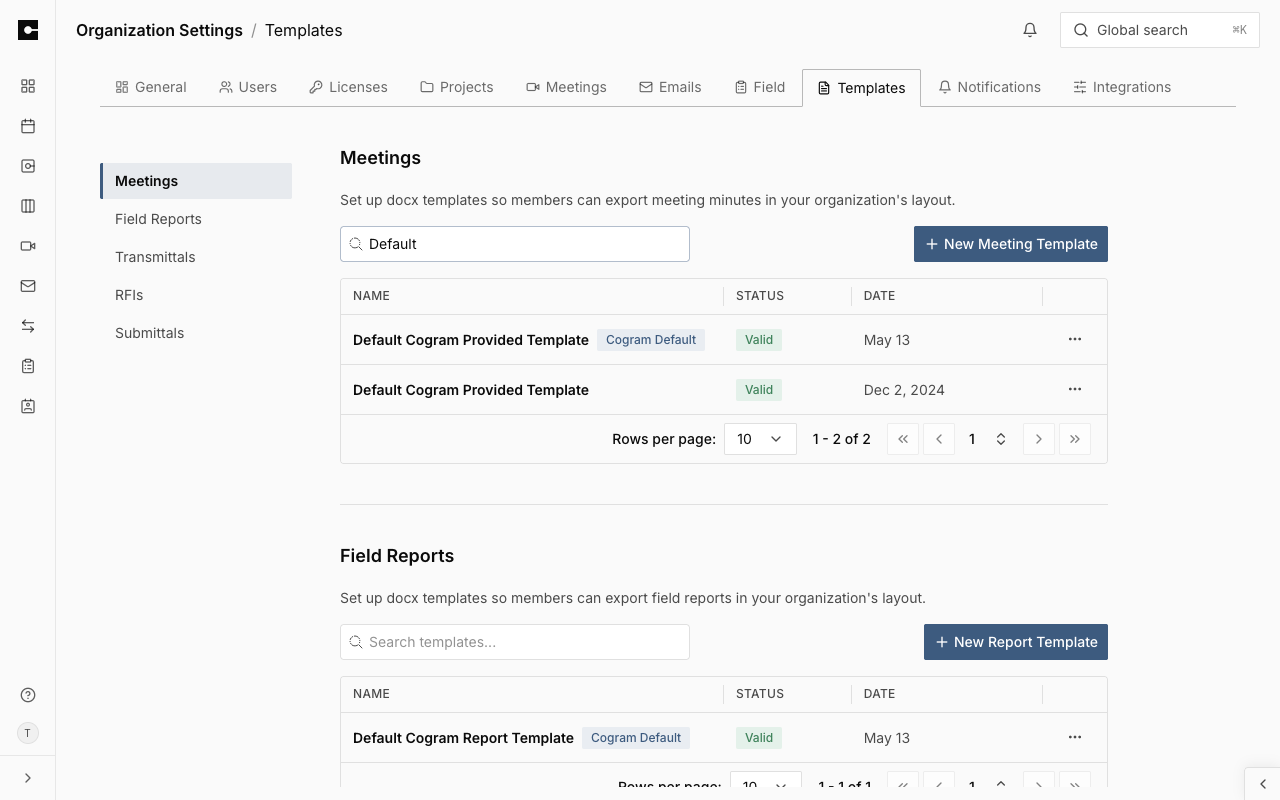
Templates let your team download meeting minutes as a Word document in your organization's layout: your letterhead, your styles, and exactly the sections you want. Org Admins manage them under [Organization Settings > Templates](https://app.cogram.com/dashboard/settings/admin/templates).
The Templates page also holds templates for Field Reports (covered in [Field Report templates](#field-report-templates) below) and, depending on your organization's licensed modules, Transmittals, RFIs, and Submittals.
Meeting templates in Organization Settings > Templates
## How templates work
A template is a regular `.docx` file containing **placeholders**: markers like `{{summary}}` that Cogram replaces with generated content when a member downloads the minutes. Everything else in the file (headers, logos, styles, static text) is kept as-is.
* The exported document only contains the content whose placeholders appear in the template. To leave a section out (for example the summary), don't include its placeholder.
* Placeholders are case-sensitive and must match exactly, including both curly braces.
* Your [Custom insights](/meetings/custom-insights.md) are available as placeholders too, so a template can export any output you've defined. Organization-level insights carry an `(Org)` suffix in their name, and the placeholder must include it, for example `{{Consolidated Minutes (Org)}}`.
* Two newer building blocks are `{{key points}}`, a condensed one-line-per-point version of the meeting notes (used by the Concise Minutes template below), and `{{meeting number}}`, the meeting's sequential number within its project.
To see every placeholder available to your organization (meeting details, generated sections, and your Custom Insights), click **New Meeting Template** under [Organization Settings > Templates](https://app.cogram.com/dashboard/settings/admin/templates), then **View all elements**. Click any element to copy it. You can also click **Download Sample Template** on the same page to start from a working example.
## Cogram-provided templates
Cogram ships ready-made meeting templates you can use as a starting point. Find them in the **Provided by Cogram** section at the top of [Organization Settings > Templates](https://app.cogram.com/dashboard/settings/admin/templates):
* **Default Cogram Concise Minutes**: short bullet-style notes: attendance, executive summary, key points, and proposed actions. This is Cogram's default (see [Set an organization default](#set-an-organization-default)).
* **Cogram Detailed Minutes**: formal project minutes: attendance and distribution, numbered minutes with status, action items, and a corrections notice.
* **Cogram Tabular Minutes**: minutes as a numbered items table (Item Number, Description, Action By), alongside attendance.
For the Detailed and Tabular templates, select **Add to my templates** to place an editable copy in your organization's templates. Cogram then asks whether to set the copy as your organization default. Use **Download** on any row to save the `.docx` as-is.
## Preview a template
To see what a template produces before you use it, click its row in the template list, or in the **Provided by Cogram** section. Cogram shows a page-accurate preview of the Word document. Placeholders appear as their `{{markers}}`; they fill in with a meeting's content when someone exports that meeting.
## Add a meeting template (Org Admins)
1. Prepare a `.docx` document with your layout, and insert placeholders where Cogram content should go.
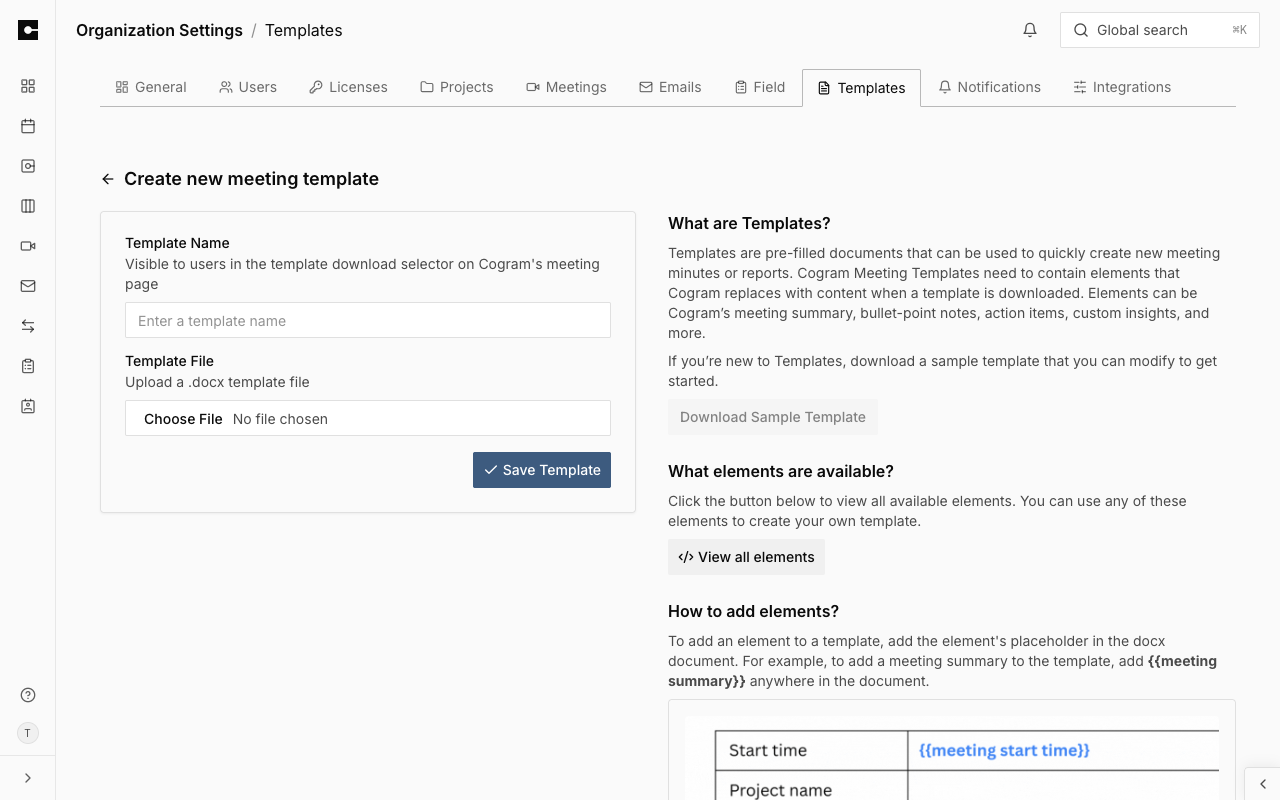
2. Go to [Organization Settings > Templates](https://app.cogram.com/dashboard/settings/admin/templates) and click **New Meeting Template**.
3. Enter a template name (this is what members see when picking a template) and select your `.docx` file.
4. Click **Save Template**.
The Create new meeting template page
Cogram validates the file on upload: it must be a valid `.docx`, contain at least one placeholder, and use only recognized placeholders. If validation fails, the error message tells you what to fix.
To swap the file behind an existing template, use its **Replace** action in the template list. The new file is validated the same way, and the template keeps its name and default status.
To rename a template, use its **Rename** action. The Cogram-provided template cannot be renamed. A template that is currently the organization default cannot be renamed in place: clear its default first, rename it, then set it as the default again.
## Set an organization default
In the template list, use a template's **Set as Organization Default** action to make it the preselected choice for everyone in your organization. Only validated templates can be set as the default. Clearing the default reverts to Cogram's provided default, **Default Cogram Concise Minutes**.
The previous default, **Default Cogram Provided Template**, is deprecated and scheduled for deprecation on October 1, 2026. If your organization still relies on it, add and set your own default before then.
## Download minutes with a template
On a completed meeting page, any member clicks **Download** at the top right and selects a template. Cogram fills the placeholders with that meeting's content and downloads the Word document. See [Downloading, sharing, and templates](/meetings/downloading-sharing-and-templates.md) for the full download and sharing options.
## Field Report templates
Field Report templates work the same way: a Word document with placeholders, used when exporting a field report. The form fields available as placeholders come from the report's [Report Type](/field/report-types.md).
### Add a Field Report template (Org Admins)
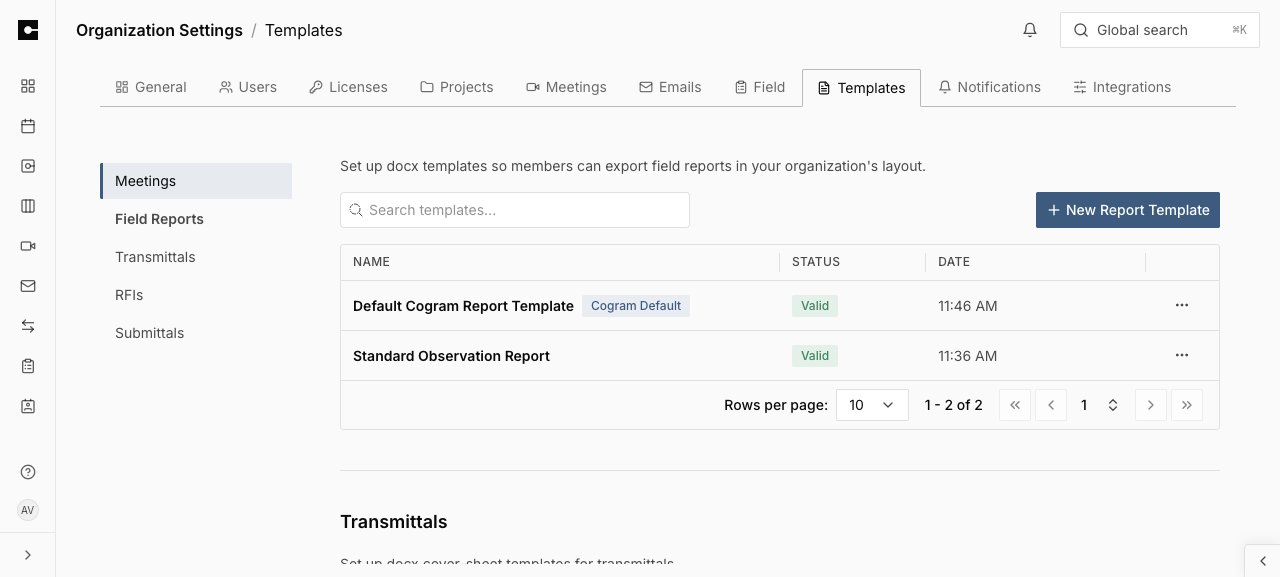
1. Go to the [Field Reports section](https://app.cogram.com/dashboard/settings/admin/templates#field-reports) of the Templates page.
2. Click **New Report Template**.
3. Enter a **Template Name** and select your `.docx` file.
4. Click **Save Template**.
The create page lists every placeholder available to you. Click **View all elements**, then click any element to copy it.
Field Report templates in Organization Settings > Templates
Cogram checks that the file is a valid Word document when you upload it. To also check the placeholders, use the **Validate** action on the template's row: it points out any placeholder that does not match a builtin or one of your [Custom fields](/field/custom-fields.md).
By default, every Field Report template is offered when downloading any report. To narrow the choice for a specific Report Type, link templates to it in the Report Type's **Linked Templates** section. See [Report types](/field/report-types.md).
### Field Report placeholders
You can use three kinds of placeholder in a Field Report template.
**Builtins.** Cogram fills these in automatically:
| Placeholder | What it fills in |
| -------------------------- | ------------------------------------------------------------------------------------------------------------------------------------ |
| `{{ title }}` | The report's title |
| `{{ author }}` | The email address of whoever created the report |
| `{{ project name }}` | The project's name |
| `{{ project id }}` | Your own project number, as set on the project |
| `{{ status }}` | The report status, for example "DRAFT" or "FINAL" |
| `{{ date }}` | The date the report was created, for example 07/30/2026 |
| `{{ time }}` | The date and time the report was created, for example 2026-07-30 14:05:00 |
| `{{ dotw (english) }}` | The day of the week, for example "Monday" |
| `{{ address }}` | The site address, from the report's location |
| `{{ weather }}` | The weather at the report's location |
| `{{ executive summary }}` | A summary of the observations, written by Cogram |
| `{{ metadata }}` | A table of all the report's custom field values |
| `{{ total observations }}` | The number of observations on the report |
| `{{ total photos }}` | The number of photos across all observations |
| `{{ observations }}` | The full observations section, laid out per the Report Type's [Format the Export](/field/report-types.md#format-the-export) settings |
**Custom field placeholders.** Every custom field on the report's Report Type is available under its Template Placeholder name: a field named `client_firm` fills `{{ client_firm }}`. See [custom fields](/field/custom-fields.md).
**Table placeholders.** For a Table field, put the placeholder in one row of a Word table. On export, that row repeats for every entry your team added, keeping your styling. For example, for a `persons_present` field with columns Name, Role, and Company:
| Name | Role | Company |
| ----------------------- | ---- | ------- |
| `{{ persons_present }}` | | |
If someone enters three people on the report form, the exported table shows three rows.
{% hint style="info" %}
If a placeholder comes through unfilled in the export, Word may have split it into pieces while you typed. Select the placeholder in Word, retype it in one go, save, and upload the file again.
{% endhint %}
## Transmittal templates
If your organization licenses Transmittals, the **Transmittals** section of [Organization Settings > Templates](https://app.cogram.com/dashboard/settings/admin/templates#transmittals) holds one cover-sheet template for your organization.
One template covers both download formats. When a member downloads a transmittal as **PDF** or as **DOCX**, both come from the template you upload here, so the PDF you file and the Word document you edit are the same cover sheet.
Until you upload one, transmittals use Cogram's built-in cover sheet, which carries the logo from your [organization identity](/organization-administration/navigation-bar-branding.md).
### Add a transmittal template (Org Admins)
1. Click **Download sample** in the Transmittals section to start from Cogram's own cover sheet.
2. Edit the `.docx` in Word: apply your letterhead and styles, and keep or move the placeholders you want.
3. Click **Upload template**, enter a name, and select your file.
Cogram validates the file on upload. A template that fails validation is not used: transmittals fall back to the built-in cover sheet until you replace it.
### Expected result
Open any sent transmittal, click **Download**, and choose **PDF**. The cover sheet is your layout, with this transmittal's number, recipients, and documents filled in. Choosing **DOCX** gives you the same sheet as an editable Word file.
### Transmittal placeholders
| Placeholder | What it fills in |
| -------------------------- | ------------------------------------------------------------------ |
| `{{ transmittal number }}` | The transmittal's number, for example TRA-078 |
| `{{ date }}` | The date the transmittal was sent |
| `{{ subject }}` | The transmittal's subject |
| `{{ purpose }}` | Why it was issued, for example "Issued for construction" |
| `{{ status }}` | The current status, for example "Sent" |
| `{{ due date }}` | The response due date, when one is set |
| `{{ project name }}` | The project's name |
| `{{ project number }}` | Your own project number, as set on the project |
| `{{ sender name }}` | The full name of whoever sent the transmittal |
| `{{ sender company }}` | The sending organization's name |
| `{{ sender email }}` | The sender's email address |
| `{{ to recipients }}` | A table of the To recipients: name, company, email |
| `{{ cc recipients }}` | A table of the copied recipients: name, company, email, discipline |
| `{{ documents }}` | A table of the documents issued: quantity, dated, title, notes |
| `{{ remarks }}` | The remarks entered on the transmittal |
### Troubleshooting
**Symptom.** Cogram rejects the file when you upload or replace a template.
**Likely cause.** The file is not a valid `.docx`, or it uses a placeholder that is not in the table above.
**Fix.** The error appears in the upload dialog as soon as you select the file, and it names what to correct. Fix the file in Word and select it again — a rejected template is never saved, so there is no row to revisit later.
**Symptom.** A field on the cover sheet is blank.
**Likely cause.** The placeholder is spelled differently from the table above, or Word split it into pieces while you typed.
**Fix.** Select the placeholder in Word, retype it in one go, save, and upload the file again.
## Fonts
Upload your organization's font files so the PDFs Cogram produces from your templates render in them. Without them, a template set in a licensed brand font comes out in a standard substitute.
**Where the fonts apply**
* The transmittal cover sheet PDF rendered from your uploaded transmittal template: the PDF download, the copy emailed to recipients, and the copy bundled into downloads and exports.
* Meeting template previews.
**Where they do not apply**
* Word downloads. Word uses the fonts installed on the reader's computer.
* Cover sheets Cogram draws itself: the transmittal cover sheet until you upload a template, and the RFI and submittal cover sheets.
### Add fonts (Org Admins)
1. Open the **Fonts** section of [Organization Settings > Templates](https://app.cogram.com/dashboard/settings/admin/templates#fonts).
2. Click **Upload fonts**.
3. Select the `.ttf` or `.otf` files. Include every style your templates use, for example regular, bold, and italic. You can select several files at once.
Cogram reads the family and style from each file and lists them, for example "Gotham Bold".
**Limits**
* Desktop font files only (`.ttf`, `.otf`). Web fonts (`.woff`, `.woff2`) are rejected.
* One file per family and style. To replace a font, delete it and upload the new file.
* Up to 10 MB per file, and up to 20 files per organization.
* Check that your font license permits use on a server that renders documents for your organization.
### Remove a font
Click the delete icon on the font's row and confirm. PDFs that used the font fall back to a standard font on their next download.
### Expected result
Download a transmittal as **PDF**. Text the template sets in the uploaded font renders in that font. A PDF rendered before the upload is regenerated on the next download.
### Troubleshooting
**Symptom.** The PDF still shows a standard font after the upload.
**Likely cause.** The family name in the file differs from the font name in the template, for example the template uses "Gotham" and the file is "Gotham Narrow". Or a style is missing: the template uses bold, but only the regular file was uploaded. Or your organization has no transmittal template uploaded, so the built-in cover sheet is used.
**Fix.** Compare the family and style listed in the Fonts section with the font names in Word's font box, and upload the missing files.
**Symptom.** Cogram rejects a file on upload.
**Likely cause.** The file is a web font or not a font at all, it is larger than 10 MB, that family and style is already uploaded, or your organization already holds 20 files.
**Fix.** The message names the reason. Upload the desktop `.ttf` or `.otf` file, or delete a font you no longer need first.
---
# Agent Instructions
This documentation is published with GitBook. GitBook is the documentation platform designed so that both humans and AI agents can read, navigate, and reason over technical content effectively. Learn more at gitbook.com.
## Querying This Documentation
If you need additional information that is not directly available in this page, you can query the documentation dynamically by asking a question.
Perform an HTTP GET request on the current page URL with the `ask` query parameter, and the optional `goal` query parameter:
```
GET https://docs.cogram.com/meetings/templates.md?ask=&goal=
```
`ask` is the immediate question: it should be specific, self-contained, and written in natural language.
`goal` is optional and describes the broader end goal you are ultimately trying to accomplish on behalf of the user. GitBook uses it to tailor the answer towards what is most useful for that goal.
The response will contain a direct answer to the question and relevant excerpts and sources from the documentation.
Use this mechanism when the answer is not explicitly present in the current page, you need clarification or additional context, or you want to retrieve related documentation sections.