Data exports
Request a multi-part zip export of your organization's data (projects, meetings, emails, documents, drawings, reports, observations, and transmittals) for backup, audit, or migration.
As an admin, you can export a snapshot of your organization's data (projects, meetings, emails, documents, drawings, reports, observations, and transmittals) as multi-part zip files. Exports run asynchronously in the background; once complete, every part is available to download from the same screen.
Common reasons to run a Data Export:
Periodic offline backups outside Cogram.
Audit trails for a specific project or time window.
Bulk handover at the end of a project or engagement.
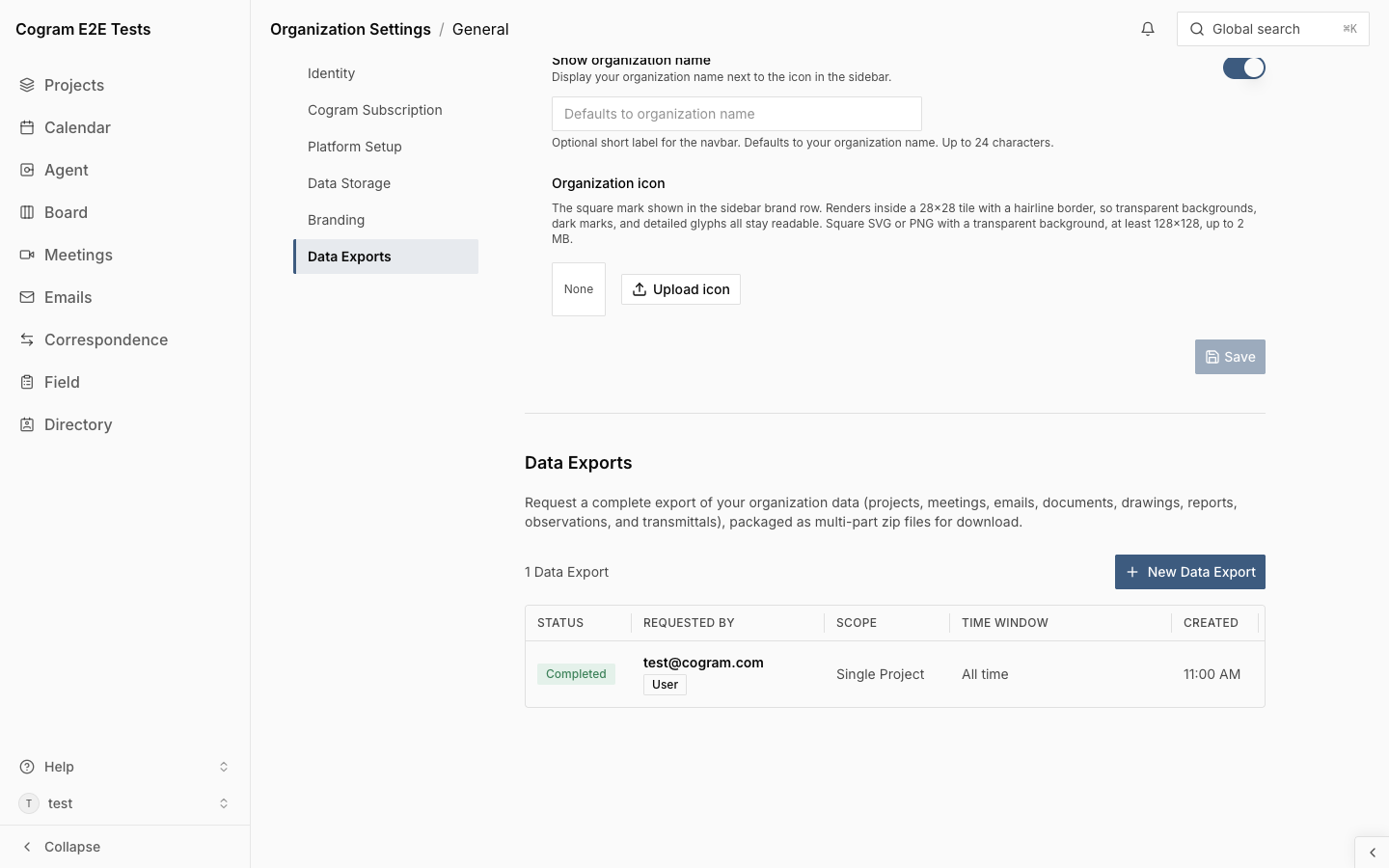
Data Exports live in the Data Exports section of Organization Settings → General. Only organization administrators and owners can see the section and create exports.
Choosing a meeting template before exporting
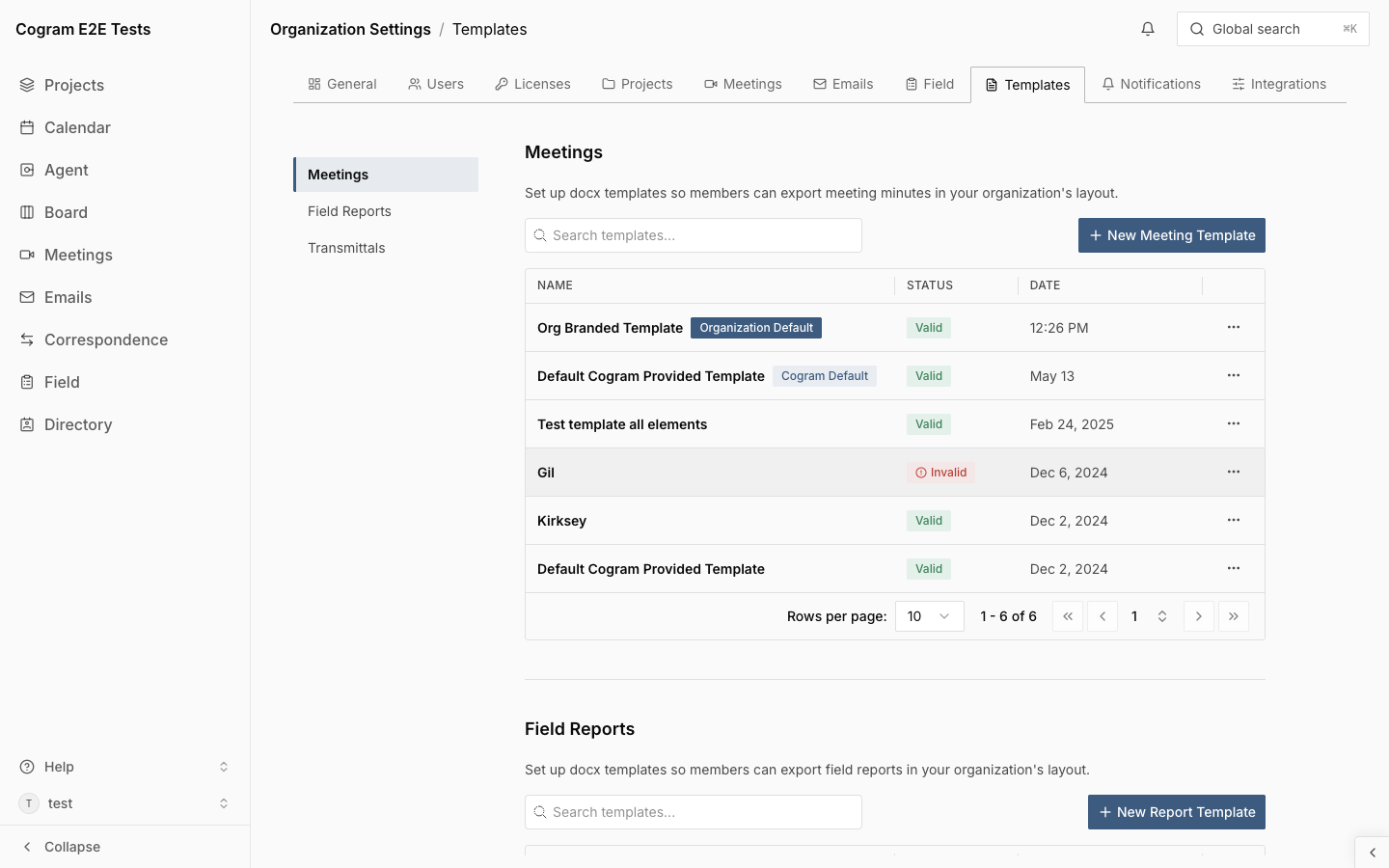
Exports ship meeting minutes as .docx files. Cogram ships with a built-in template (Cogram Default), but you can upload your own organization-branded template and mark it as the Organization Default. Every meeting .docx in subsequent exports will then use your layout.
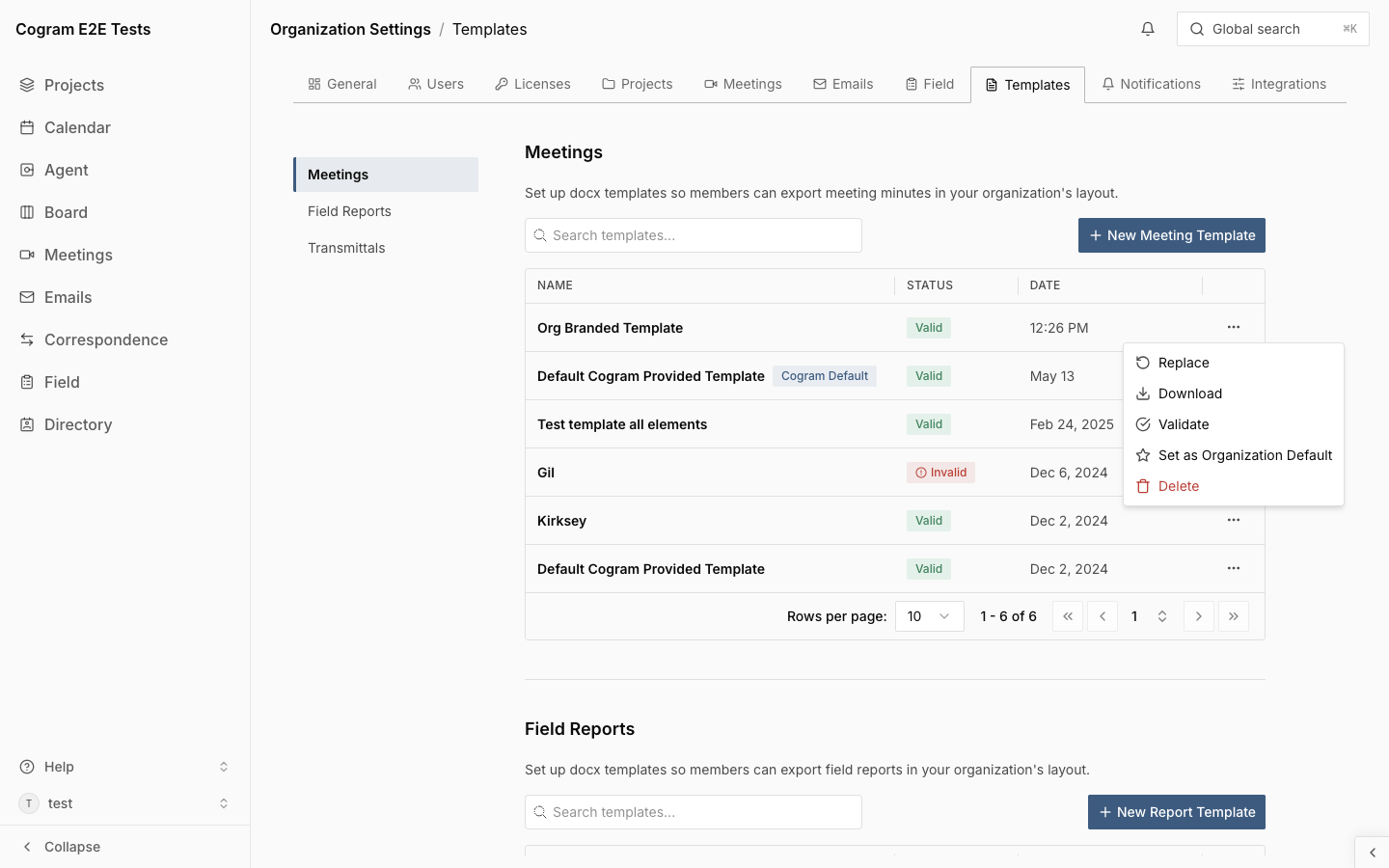
Go to Organization Settings → Templates, upload your .docx, open the row menu (⋯), and choose Set as Organization Default:

Once applied, the row gets an Organization Default badge. The built-in template still shows its Cogram Default badge; it remains available as a fallback if your custom template is ever removed.

Set the Organization Default before kicking off an export: exports use the template that's marked default at the moment the worker renders each meeting's
.docx.
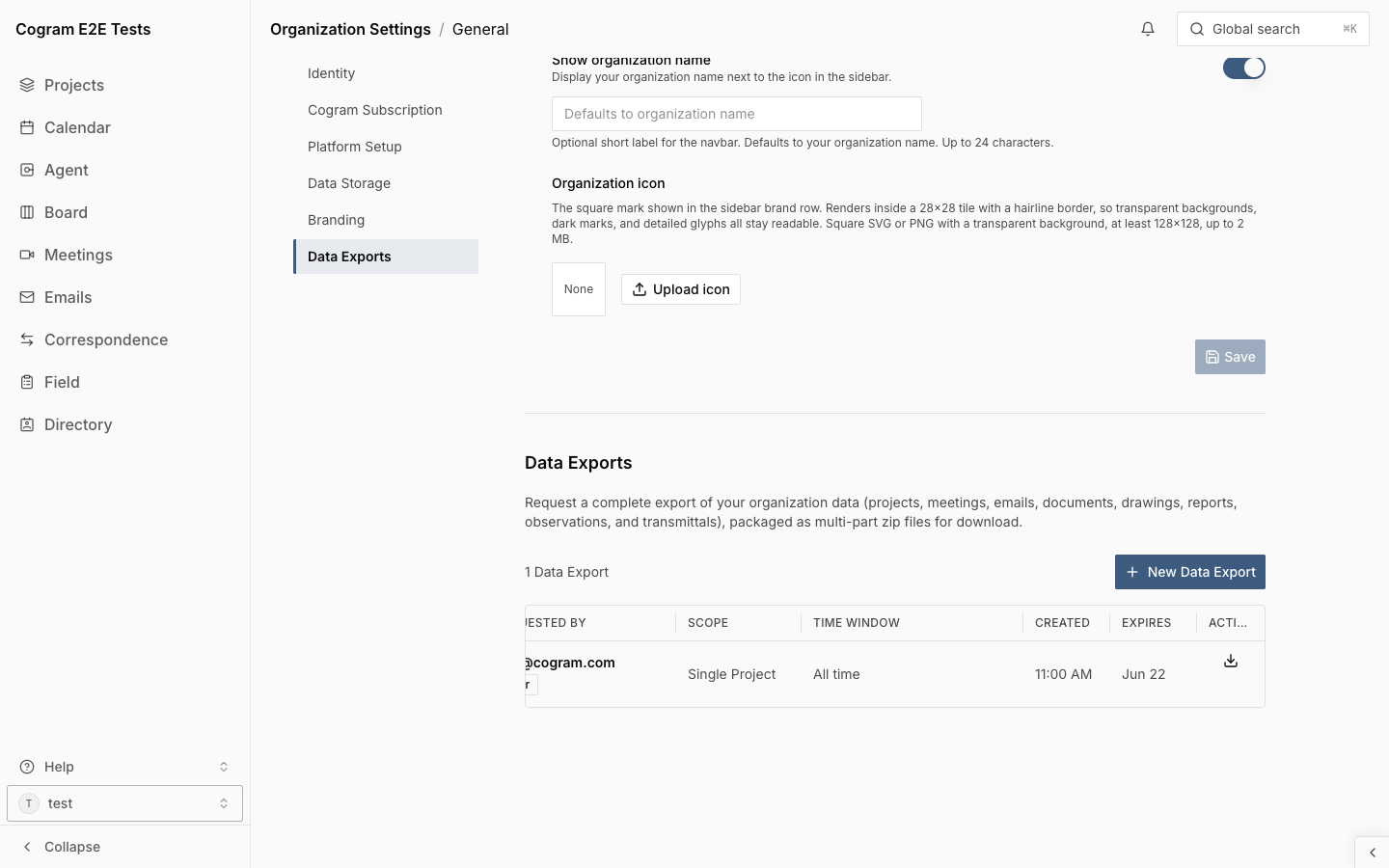
The Data Exports section
This section lists every export your organization has created, with its status, scope, time window, who requested it, and when the download links expire.

Each row shows:
Status:
Pending,Running,Cancelling,Cancelled,Completed,Failed, orExpired.Requested by: the user who clicked New Data Export, or an
API Keychip when the export was created via the Cogram API.Scope:
Org-wide,Single Project, orN Projects; hover for the project names, or open the row for the full list. Multi-project exports are created through the Cogram API; the dialog here covers org-wide and single-project.Time window: the date range, or
All timefor project-scoped exports.Created: when the export was requested.
Expires: when the download links will be removed (7 days after completion).
Creating an export
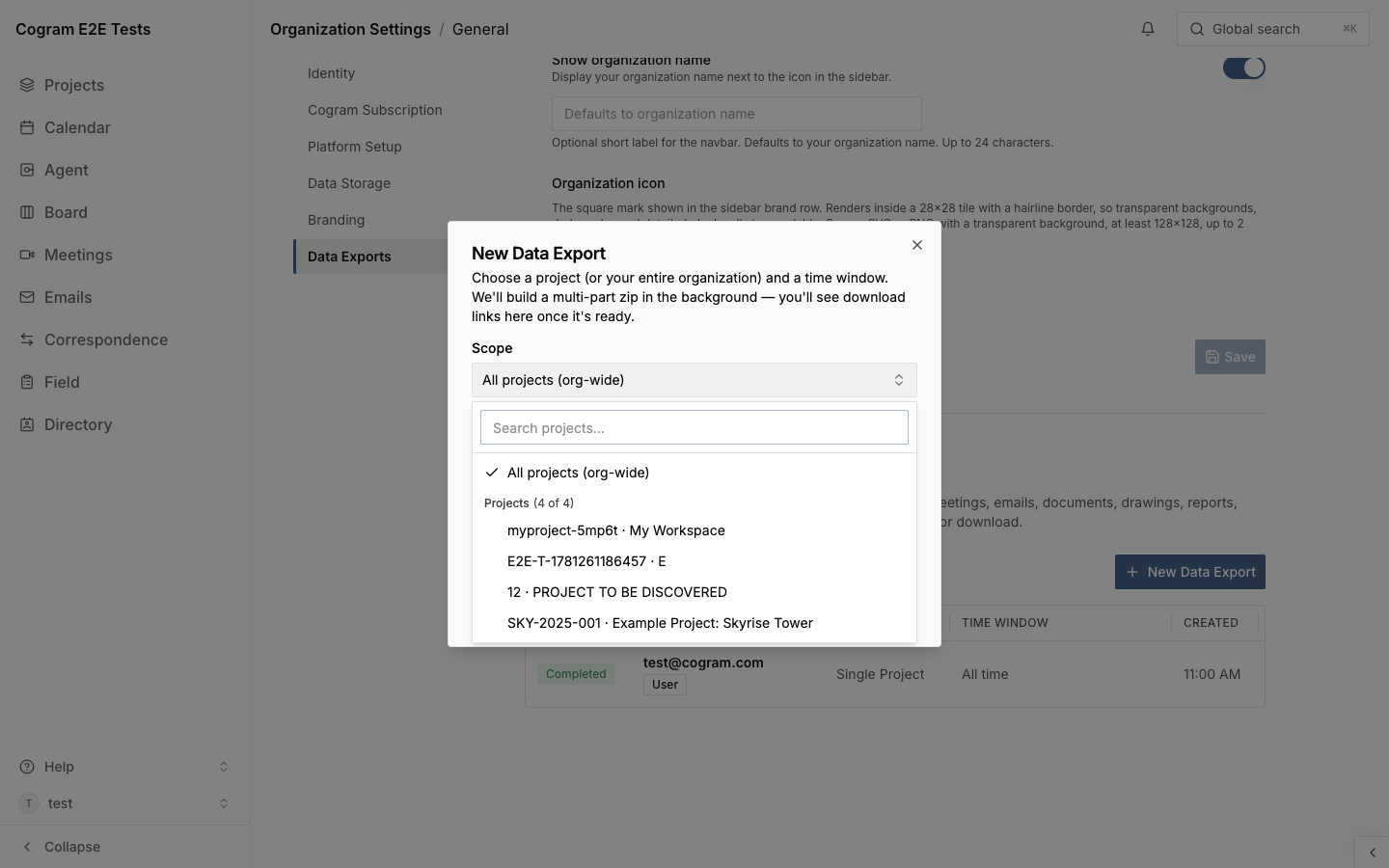
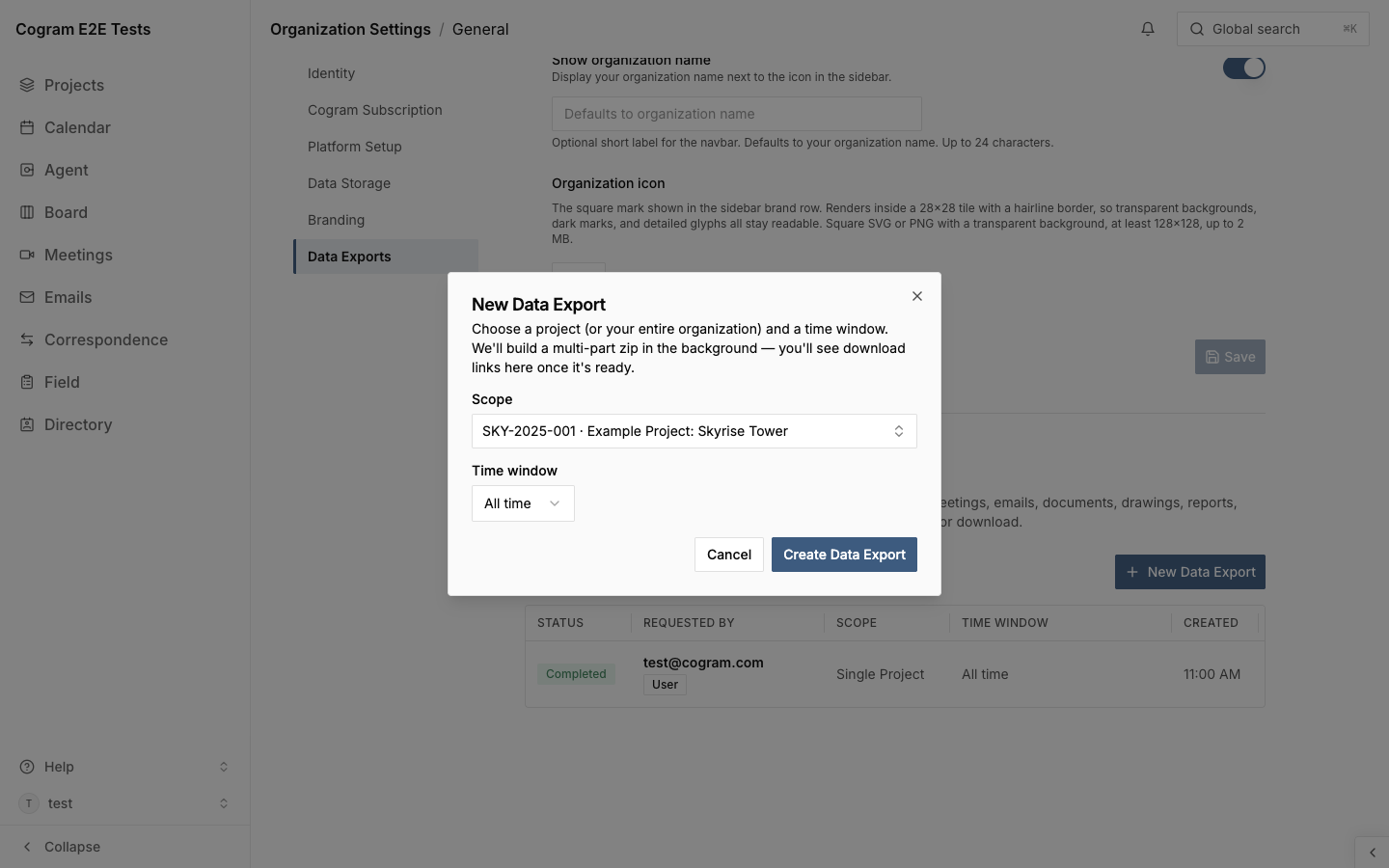
Click + New Data Export in the top-right. The dialog asks for two things: a scope and a time window.
Scope: org-wide or a single project
The Scope selector lets you target either your entire organization or one project.

Time window
The available time-window options depend on the scope you picked.
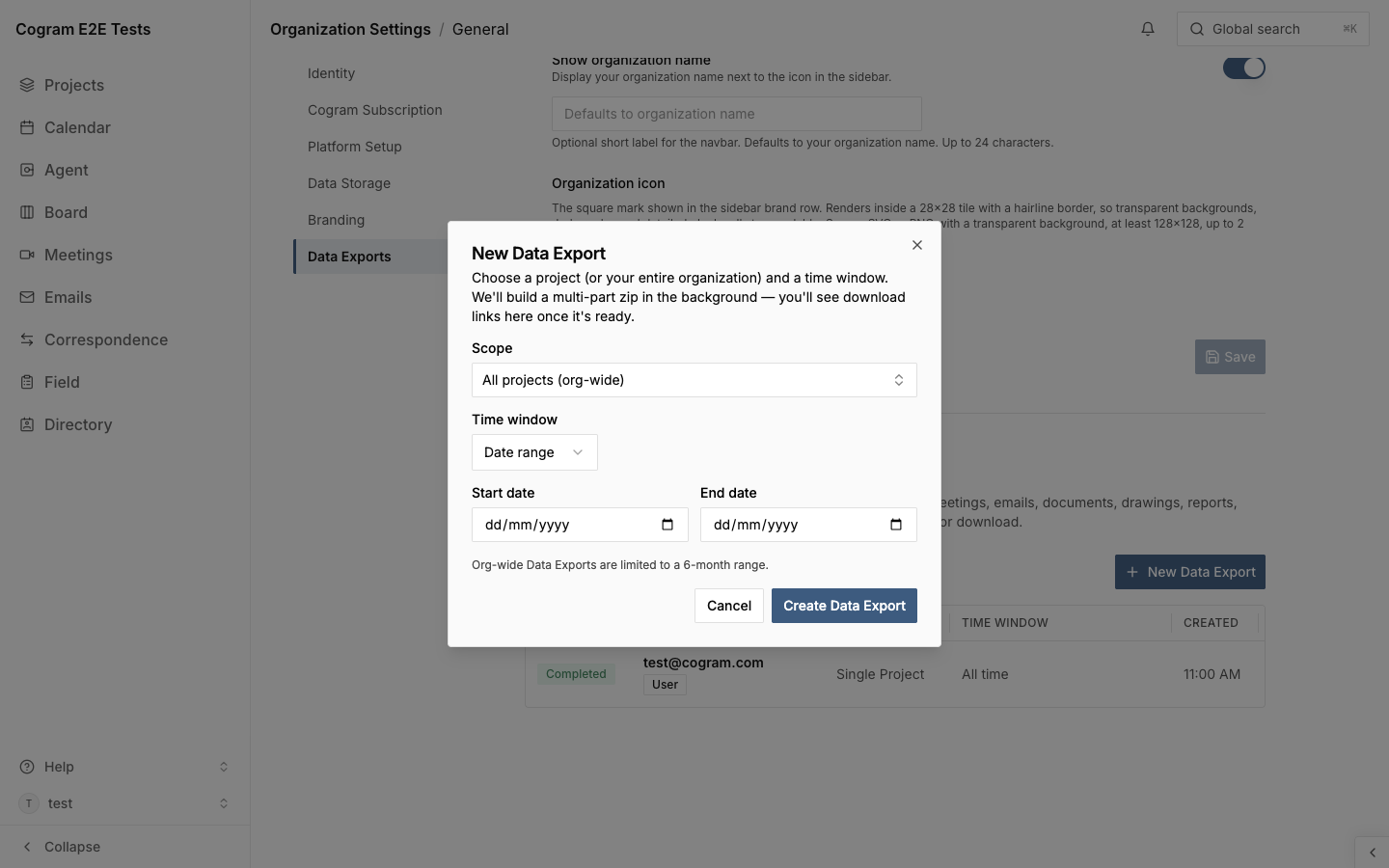
Org-wide → date range only (max 6 months)
For org-wide exports, the time window is a date range, and capped at 6 months. This keeps the package size predictable and the build time bounded.

The dialog reminds you about the cap inline:

Project-scoped → All time or a date range
For project-scoped exports, the cap is lifted and an All time option is available alongside Date range, useful for handovers or full archives of a single project.

Rendered documents
Every export ships JSON metadata, meeting.md, meeting.docx, and the raw files. Select Include rendered documents to also get a .docx for each field report, and for every observation its report does not already show.
Leave it off when you want the data, the original files, and the meeting minutes only. Rendering reports makes the build slower and the zip larger, and each field report needs the default template of its report type. A report with no template still gets its .json. Observations use Cogram's built-in observations template rather than one of yours, and an observation is skipped only when its field report's .docx already lays its observations out.
Click Create Data Export to start the build. The dialog closes and the new export appears at the top of the list in Pending status. It will transition through Running and into Completed (or Failed) as the worker progresses.
Only one export can be active per organization at a time. If a
Pending,Running, orCancellingexport already exists, the + New Data Export button will be rejected until it finishes. This keeps the worker queue fair across orgs.
Downloading a completed export
Once an export reaches Completed, a download icon appears in its row's Actions column.

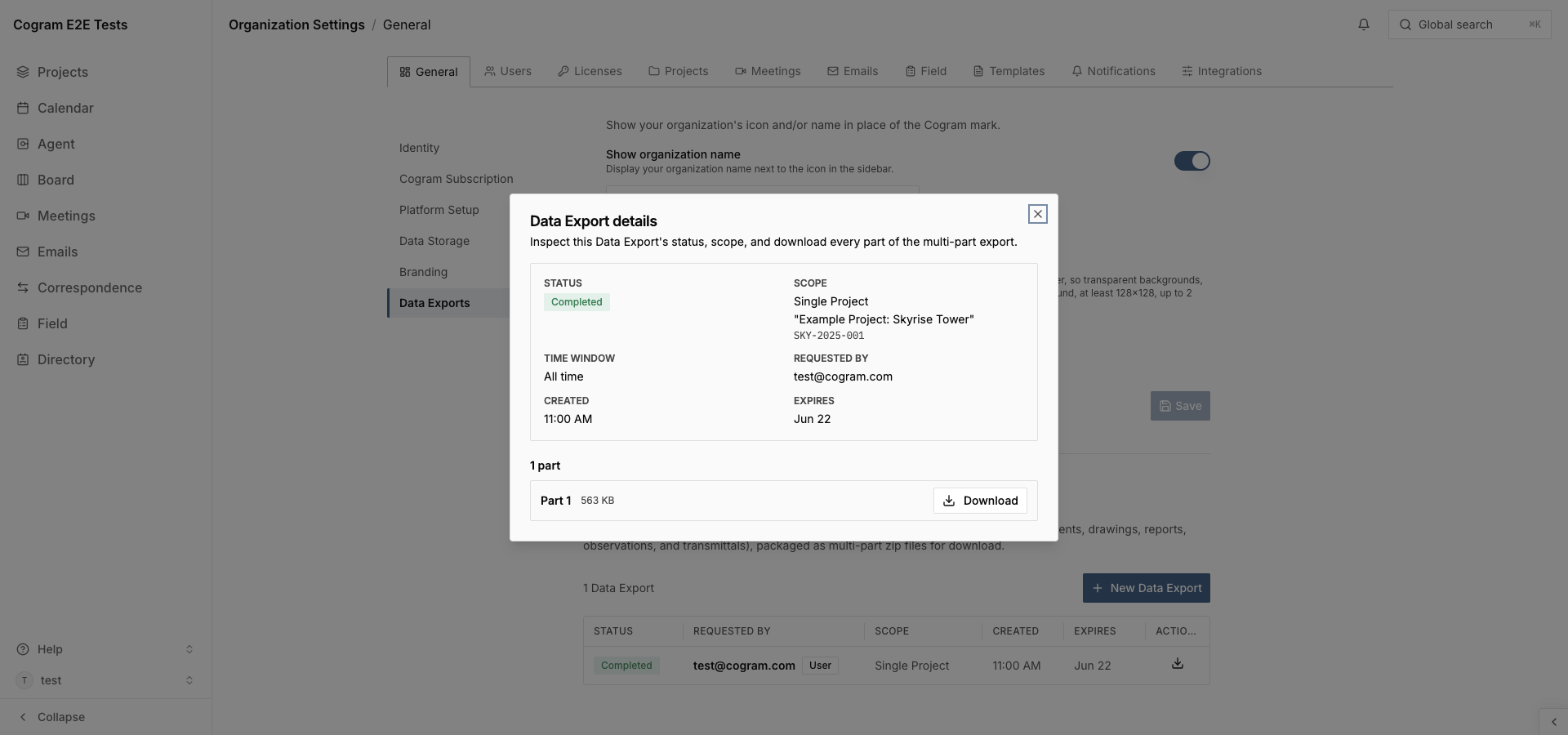
Clicking the icon (or the row itself) opens the Data Export details dialog with a per-part download list:

The detail dialog shows:
The export's status, scope, time window, who requested it, when it was created, and when its links expire.
The list of zip parts, each with its size and a Download button.
Large exports are split into multiple parts so each zip stays a manageable size. Download every part and unzip them into the same folder to reconstruct the full package. For what's inside (the folder structure, file types, and how to tell Cogram's example/demo data apart from your own), see Data Export Package Layout.
Each Download link is a short-lived signed URL valid for one hour. If a link expires before you click it, just reopen the detail dialog; fresh links are minted every time you load it.
Lifecycle and retention
Build time scales with the volume of meetings, emails, and documents in scope. Most exports finish within minutes.
Download links expire one hour after generation: reopen the detail dialog to mint fresh links.
Parts are retained for 7 days after completion, then transition to
Expired. The row stays in the list for audit purposes, but the zips are deleted from storage and the Download buttons disappear.Cancellation:
Pendingexports cancel immediately;Runningexports finish the part they're on and then stop, so cancellation can take a few seconds to settle.
API access
Everything on this page is also available via the Cogram API. Use the API if you want to schedule recurring exports, drop the resulting zips into your own backup pipeline, or run an export from your own internal tools.
Last updated
Was this helpful?