> For the complete documentation index, see [llms.txt](https://docs.cogram.com/llms.txt). Markdown versions of documentation pages are available by appending `.md` to page URLs; this page is available as [Markdown](https://docs.cogram.com/projects/directory.md).
# Directory
Manage the people and companies you work with (clients, consultants, subcontractors) in one place. Use them as recipients on transmittals, RFIs, submittals, and external shares.
The Directory is your organization's shared address book of external **Contacts** (people) and **Companies**. Add someone once, then reuse them as a recipient anywhere in Cogram, without re-typing their name and email.
The Directory lives at [Directory](https://app.cogram.com/dashboard/directory). It has two tabs: **Contacts** and **Companies**.
## Contacts
Open [Directory > Contacts](https://app.cogram.com/dashboard/directory/contacts) to see everyone you've added.
### Adding a contact
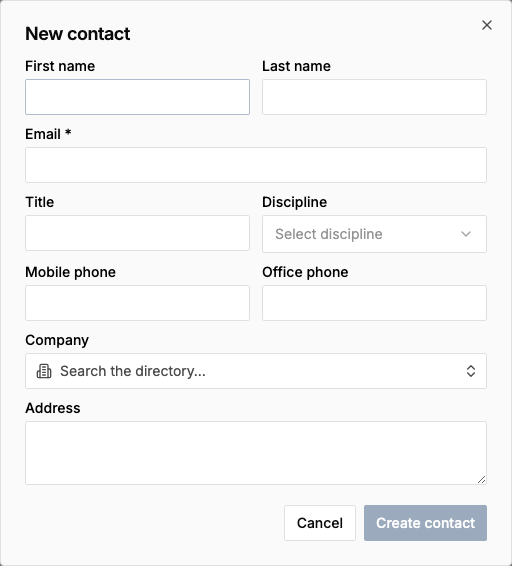
1. Go to [Directory > Contacts](https://app.cogram.com/dashboard/directory/contacts) and click **New contact**.
2. Enter at minimum a **primary email address**. Add first name, last name, title, phone, and address as available.
3. Optionally pick a **Company**: this links the contact to a Company record so you can see all that company's people in one view.
4. Click **Save**.
The New contact dialog
Each email address can appear at most once in your organization's Directory.
### Searching and filtering
Use the search box at the top of the Contacts list to find a contact by name, email, or company.
Toggle **Show archived** to include archived contacts in the results.
### Editing a contact
Click any contact row to open the contact detail page. From there you can:
* Update name, email, title, phone, address.
* Reassign or clear the Company.
* Change the **Source** — where the contact came from, for example an import run. Choose one of the sources your organization already uses. Contacts that Cogram syncs from your organization's members show "Automatic" and you cannot change them.
* See linked projects and recent shares.
To correct the source of many contacts at once, select them in the Contacts list and click **Set source**. Cogram skips any selected contact that it syncs from a member.
### Archiving
Archive a contact you no longer collaborate with by clicking the archive icon on the contact row, or from the contact detail page.
Archived contacts:
* Disappear from the default Contacts list and the recipient picker.
* Are still visible when **Show archived** is toggled on.
Archived contacts stay viewable with **Show archived** on. Restoring an archived contact from the UI isn't available in this release.
## Companies
Open [Directory > Companies](https://app.cogram.com/dashboard/directory/companies) to see the firms you work with: clients, GCs, subs, consultants, and so on.
### Adding a company
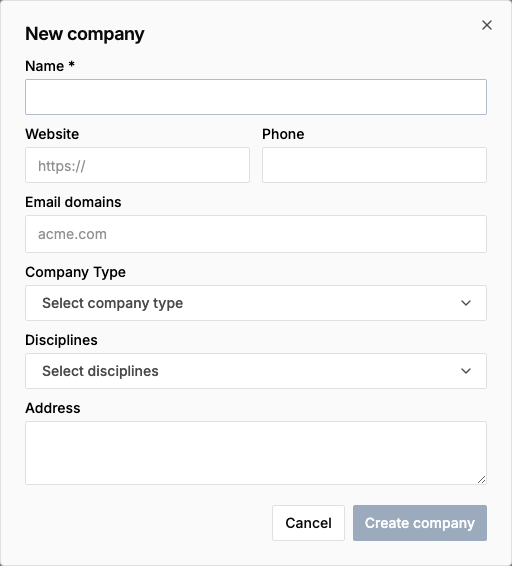
1. Go to [Directory > Companies](https://app.cogram.com/dashboard/directory/companies) and click **New company**.
2. Enter the **Name**.
3. Optionally fill in:
* **Aliases**: alternative names you'll use to find this company.
* **Email domains**: the domains the company's employees use (e.g., `acme.com`).
* **Types**: multi-select from Client, GC, Subcontractor, Consultant, Owner, and so on.
* **Trades** and **Disciplines**: multi-select.
* Website, phone, address.
4. Click **Save**.
The New company dialog
### Linking contacts to companies
Open any contact and set its **Company** field. The contact will then appear under the company's detail page.
### Archiving
Archive a company from the company list (archive icon) or from the company detail page. Linked contacts remain in the Directory; their Company field stays set but the company won't appear in new searches.
## Recipient picker
Anywhere in Cogram that needs an external recipient (sharing a meeting, composing a transmittal, RFI, or submittal) uses the same picker.
* Start typing a name or email. The picker searches your Directory.
* Pick from suggestions. Selected recipients appear as chips. Click the **x** on a chip to remove.
* If you type a new email that doesn't match any contact, the picker offers **Add as new contact**: pick that to create the contact inline. The new contact lands in your Directory immediately.
## Where contacts are used
* **Transmittals**: `Recipient` field uses the picker. The recipient name and company are read from the contact, not re-typed per transmittal.
* **RFIs and submittals**: same picker on the recipient field.
## Adding missing people to a project directory with Agent
Someone you pick as a recipient on an RFI, submittal, or transmittal is added to that project's directory automatically. Items created before Cogram did this, and contacts brought in by an import, can leave a person on the item but missing from the directory. [Agent](https://app.cogram.com/dashboard/agent) can find and add them.
**Prerequisites**
* Any member can ask for the list.
* Adding the people requires an organization admin or owner.
**Steps**
1. Open [Agent](https://app.cogram.com/dashboard/agent) and ask, for example, "Who is on the Riverside Library RFIs and submittals but missing from its project directory?" For the whole organization, ask "Which project directories are missing people?"
2. Review the list. Agent shows each person's email and the project they belong on.
3. Tell Agent which people to add, or ask it to add all of them. Agent reports what it added.
**Expected result**
Each added person appears in the project's directory. If their company was not yet on the project, it is added too.
**What Agent does not add**
* Members of your own organization. Colleagues reach a project through project access, not the directory.
* Archived contacts.
* Automated senders, such as no-reply addresses.
* People on archived projects or personal workspaces.
Agent only adds a missing link. It never removes or reassigns anyone, so asking again is safe.
## Troubleshooting
**Symptom**: "This email is already in your Directory." **Likely cause**: Each email is unique per organization. Someone already added that contact. **Fix**: Search for the email in [Contacts](https://app.cogram.com/dashboard/directory/contacts) and edit the existing record instead of creating a new one.
**Symptom**: A contact I just archived still appears in the recipient picker. **Likely cause**: A cached copy of the picker was open when you archived. **Fix**: Close and reopen the picker, or refresh the page.
**Symptom**: I can't find a contact I added last week. **Likely cause**: Either the Show archived filter is off, or the contact was added under a different organization. **Fix**: Toggle **Show archived** on. If still missing, check that you're signed in to the correct organization (open the avatar menu at the bottom of the left sidebar).
---
# Agent Instructions
This documentation is published with GitBook. GitBook is the documentation platform designed so that both humans and AI agents can read, navigate, and reason over technical content effectively. Learn more at gitbook.com.
## Querying This Documentation
If you need additional information that is not directly available in this page, you can query the documentation dynamically by asking a question.
Perform an HTTP GET request on the current page URL with the `ask` query parameter, and the optional `goal` query parameter:
```
GET https://docs.cogram.com/projects/directory.md?ask=&goal=
```
`ask` is the immediate question: it should be specific, self-contained, and written in natural language.
`goal` is optional and describes the broader end goal you are ultimately trying to accomplish on behalf of the user. GitBook uses it to tailor the answer towards what is most useful for that goal.
The response will contain a direct answer to the question and relevant excerpts and sources from the documentation.
Use this mechanism when the answer is not explicitly present in the current page, you need clarification or additional context, or you want to retrieve related documentation sections.